Introduction
This guide will walk you through the steps to replace a faulty battery for the Dell Inspiron 14-5447. Make sure that the device is not plugged in before trying to replace the battery. If the laptop wont turn on, it's safe to say that removing the battery shouldn't result in any damage.
What you need
-
-
-
Remove the two black 5.70mm Phillips#0 screws on the case's back.
-
Insert a plastic opening tool into the small slit, centered between the removed screws, and pry open the back cover
-
-
-
-
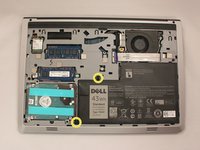
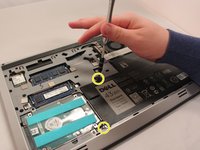
Remove the two 5.70mm Phillips #0 screws that secure the battery in place on its left side .
-
-
-
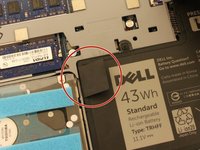
Use the black, plastic flap on the left side to pull the battery out.
-
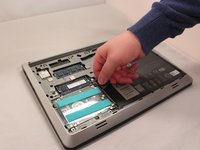
Slowly lift the flap up and the battery should slide out.
-

 Ask FixBot




To reassemble your device, follow these instructions in reverse order.
Cancel: I did not complete this guide.
4 other people completed this guide.

Team

Eastern Washington University, Team S1-G3, Crane Spring 2017 Member of Eastern Washington University, Team S1-G3, Crane Spring 2017
EWU-CRANE-S17S1G3
3 Members
60 Guides authored
