Free Shipping on Domestic Orders $75+

Dell Inspiron 13-5378 Display Assembly Replacement

What you need

  1. Dell Inspiron 13-5378 Display Assembly Replacement, Peeling the Tape: step 1, image 1 of 1
    • WARNING: Before working inside your computer, read the safety information that shipped with your computer and follow the steps in Before Working Inside Your Computer. After working inside your computer, follow the instructions in After Working Inside Your Computer.

    • Peel off the pieces of tape that secure the display cable and touch-screen board-cable to the system board.

    Ask FixBot

    Add Comment

  2. Dell Inspiron 13-5378 Display Assembly Replacement, Open the Latches: step 2, image 1 of 1
    • Open the latches to disconnect the display cable and the touch-screen board-cable from the system board.

    Ask FixBot

    Add Comment

  3. Dell Inspiron 13-5378 Display Assembly Replacement, Open the Display: step 3, image 1 of 1
    • Turn the computer over and open the display as far as possible.

    Ask FixBot

    Add Comment

  4. Dell Inspiron 13-5378 Display Assembly Replacement, Placing the Computer: step 4, image 1 of 1
    • CAUTION: Place the computer on a soft and clean surface to avoid scratching the display.

    • Place the computer face down on a flat surface.

    Ask FixBot

    Add Comment

  5. Dell Inspiron 13-5378 Display Assembly Replacement, Remove the Screws: step 5, image 1 of 1
    • Remove the screws that secure the display assembly to the palm-rest assembly.

    Ask FixBot

    Add Comment

  6. Dell Inspiron 13-5378 Display Assembly Replacement, Lifting the Display Assembly: step 6, image 1 of 1
    • Lift the display assembly off the palm-rest assembly.

    Ask FixBot

    Add Comment

  7. Dell Inspiron 13-5378 Display Assembly Replacement, Placing the Display Assembly: step 7, image 1 of 1
    • Place the NEW display assembly face down on the palm-rest assembly.

    Ask FixBot

    Add Comment

  8. Dell Inspiron 13-5378 Display Assembly Replacement, Align the Screw Holes: step 8, image 1 of 1
    • Align the screw holes on the display hinges with the screw holes on the palm-rest assembly.

    Ask FixBot

    Add Comment

    • Close the display and turn the computer over.

    Ask FixBot

    Add Comment

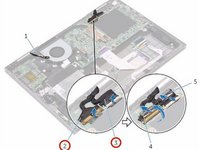
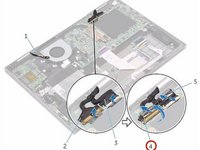
  9. Dell Inspiron 13-5378 Display Assembly Replacement, Sliding the Display Cable: step 10, image 1 of 2 Dell Inspiron 13-5378 Display Assembly Replacement, Sliding the Display Cable: step 10, image 2 of 2
    • Slide the display cable and the touch-screen board-cable into their respective connectors on the system board and close the latches to secure the cables.

    Ask FixBot

    Add Comment

  10. Dell Inspiron 13-5378 Display Assembly Replacement, Adhering the Pieces: step 11, image 1 of 1
    • Adhere the pieces of tape that secure the display cable and the touch-screen board-cable to their respective connectors on the system board.

    Ask FixBot

    Add Comment

Conclusion

To reassemble your device, follow these instructions in reverse order.

Cancel: I did not complete this guide.

Terrence15

Member since: 12/18/17

80,125 Reputation

441 Guides authored

Team

RampUP America, Inc. Member of RampUP America, Inc.

Community

45 Members

2,003 Guides authored

0 Guide Comments

Add Comment

View Statistics:

Past 24 Hours: 3

Past 7 Days: 14

Past 30 Days: 44

All Time: 4,020