Free Shipping on Domestic Orders $75+

Dell Inspiron 13-5368 Touchpad Replacement

What you need

  1. Dell Inspiron 13-5368 Touchpad Replacement, Battery: step 1, image 1 of 3 Dell Inspiron 13-5368 Touchpad Replacement, Battery: step 1, image 2 of 3 Dell Inspiron 13-5368 Touchpad Replacement, Battery: step 1, image 3 of 3
    • Remove the nine 6mm Phillips #0 screws that secure the back cover of the laptop.

    Ask FixBot

    Add Comment

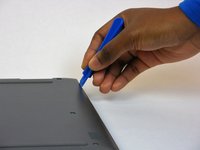
  2. Dell Inspiron 13-5368 Touchpad Replacement: step 2, image 1 of 2 Dell Inspiron 13-5368 Touchpad Replacement: step 2, image 2 of 2
    • Use a spudger / pry tool to pry up and remove the back cover.

    Ask FixBot

    Add Comment

  3. Dell Inspiron 13-5368 Touchpad Replacement: step 3, image 1 of 1
    • Remove the four 3mm Phillips #0 screws at the corners of the battery that secure it to the laptop.

    Ask FixBot

    Add Comment

  4. Dell Inspiron 13-5368 Touchpad Replacement: step 4, image 1 of 1
    • Pull the battery cable's black tab towards the battery to disconnect it from the motherboard.

    • Pull the tab parallel to the motherboard, not straight up.

    Ask FixBot

    Add Comment

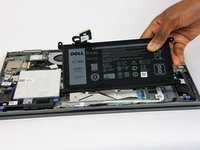
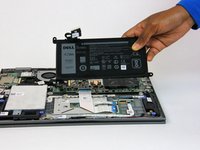
  5. Dell Inspiron 13-5368 Touchpad Replacement: step 5, image 1 of 2 Dell Inspiron 13-5368 Touchpad Replacement: step 5, image 2 of 2
    • Lift the battery straight up out of the housing.

    Ask FixBot

    Add Comment

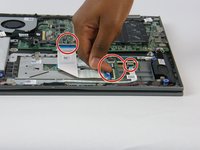
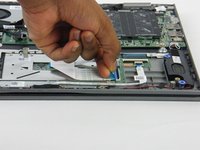
  6. Dell Inspiron 13-5368 Touchpad Replacement, Touchpad: step 6, image 1 of 2 Dell Inspiron 13-5368 Touchpad Replacement, Touchpad: step 6, image 2 of 2
    • Undo the clasps that hold the ribbon cables in place. Then, remove the ribbon cables.

    Ask FixBot

    Add Comment

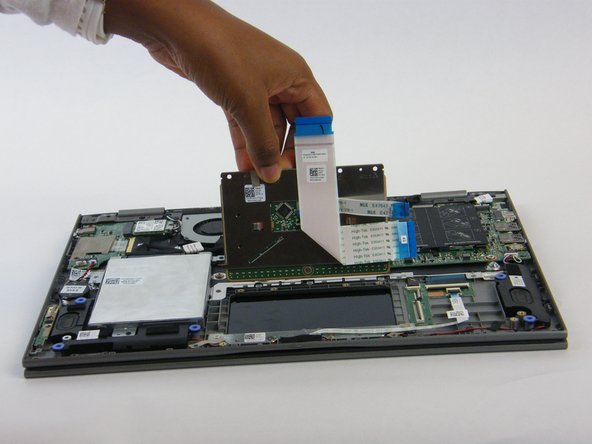
  7. Dell Inspiron 13-5368 Touchpad Replacement: step 7, image 1 of 1
    • Remove the 1.5mm Phillips #0 screws that hold the touchpad to the laptop case.

    Ask FixBot

    Add Comment

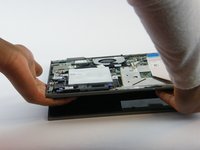
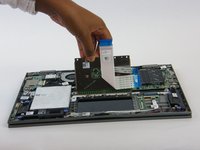
  8. Dell Inspiron 13-5368 Touchpad Replacement: step 8, image 1 of 2 Dell Inspiron 13-5368 Touchpad Replacement: step 8, image 2 of 2
    • Push up on the touchpad to release it from the housing. Then you can remove the touchpad.

    Ask FixBot

    Add Comment

Conclusion

To reassemble your device, follow these instructions in reverse order.

Cancel: I did not complete this guide.

Matt Sugrim

Member since: 09/27/17

1,078 Reputation

6 Guides authored

Team

USF Tampa, Team S14-G6, Boczar Fall 2017 Member of USF Tampa, Team S14-G6, Boczar Fall 2017

USFT-BOCZAR-F17S14G6

4 Members

13 Guides authored

0 Guide Comments

Add Comment

View Statistics:

Past 24 Hours: 1

Past 7 Days: 9

Past 30 Days: 27

All Time: 4,311