
Dell Inspiron 11-3152 Screen Replacement

Matthew Duncan and 5 other contributors
Last updated on Sep 25, 2017
Views: 913
View statistics:
- Past 24 Hours:
- 3
- Past 7 Days:
- 28
- Past 30 Days:
- 97
- All Time:
- 913
Comments: 0
No one has left comments on this guide. Will you be first?
Go to guide commentsCompleted: 1 2
1 person has marked this guide "completed." Will you be next?
2 people have marked this guide "completed." Including you — great job!
Favorites: 0 1
No one has favorited (and subscribed to) this guide. Will you be the first?
1 person has favorited (and subscribed to) this guide — and that's you!
Introduction
Go to step 1 ↓This guide will show you how to remove your screen so you can replace it.
What you need
Tools
-
Spudger4.9


-
-
-
Remove all nine 5mm Phillips head screws from the back cover using #0 Phillips head.
-
-
-
Gently use a spudger to pull the cover away from the rest of the laptop. The cover will come off after you use the tool on two or three sides.
-
-
-
-
After taking off the back panel, you will see the battery located at the bottom of the computer system. It's black and is clearly labeled "dell battery".
-
-
-
-
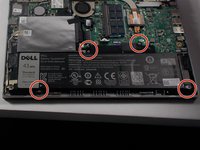
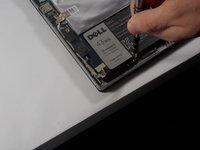
Locate the battery at the bottom of the computer and remove the four 3mm screws with a Phillips #0 head that hold the battery down.
-
-
-
Remove the Solid State Drive wire from the battery clip by detaching the wire.
-
This can be done by gently pulling the connector away from the battery clip.
-
-
-
Remove the battery from the computer system by gently lifting it from the side.
-
-
-
-
-
Unscrew the brackets in the top right and top left of the laptop. Unscrew the two 1mm screw from both of the brackets on both sides with #0 phillips head.
-
-
-
Disconnect the aerial cables from the wireless controller by pulling them away from the laptop.
-
-
-
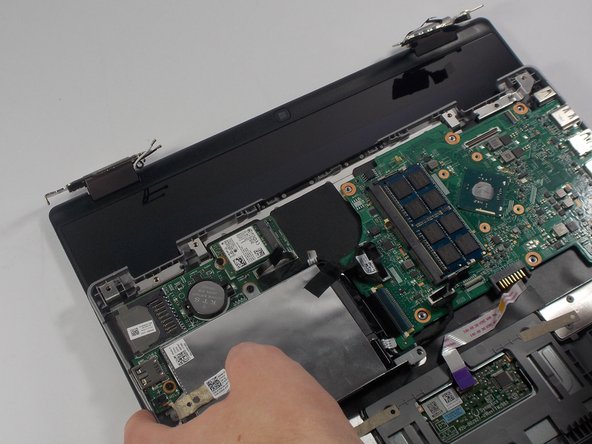
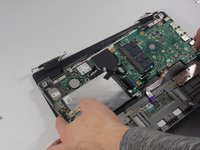
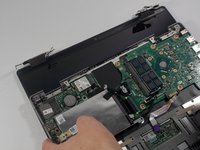
At this point you can pull the bottom half of the computer away from the screen.
-
The screen is now fully detached and ready to be replaced!
-
-


 Ask FixBot




To reassemble your device, follow these instructions in reverse order.
Cancel: I did not complete this guide.
One other person completed this guide.

Team

UMass Dartmouth, Team 4-6, Catania Spring 2016 Member of UMass Dartmouth, Team 4-6, Catania Spring 2016
UMASSD-CATANIA-S16S4G6
3 Members
72 Guides authored
