Introduction
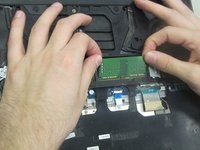
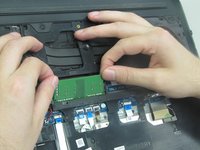
This guide will show you how to replace the RAM (Random Access Memory) in G7 15-7588 Laptops.
RAM stores information and allows for this memory to be received and read. It is also a common part that is upgraded in computers. If your G7 15-7588 Laptop is slowing down and not running properly, you may need to replace the RAM.
Before following this guide, please make sure to power off your laptop completely and disconnect from any external power source to avoid causing unnecessary and possible damage. You will also need both a Phillips #0 Screwdriver and a Phillips #00 Screwdriver for this replacement.
What you need
-
-
-
Use a Phillips #00 screwdriver to unscrew the 2 mm screw that secures the bottom cover.
 Ask FixBot
-
-
-
-
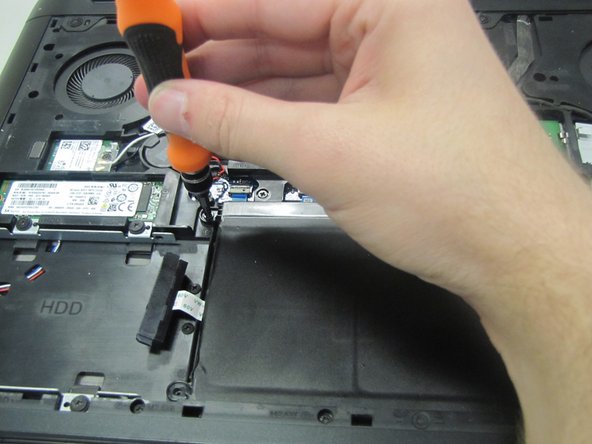
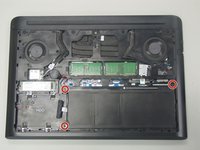
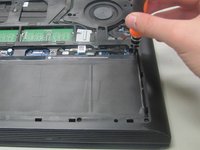
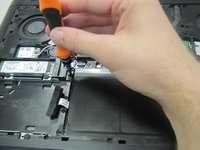
Use a Phillips #0 screwdriver to remove the three 2.5 mm screws from the battery brackets.
-
-
-
Grab both sides of the battery connector.
-
Pull the battery connector straight back to disconnect it from the laptop.
-
-




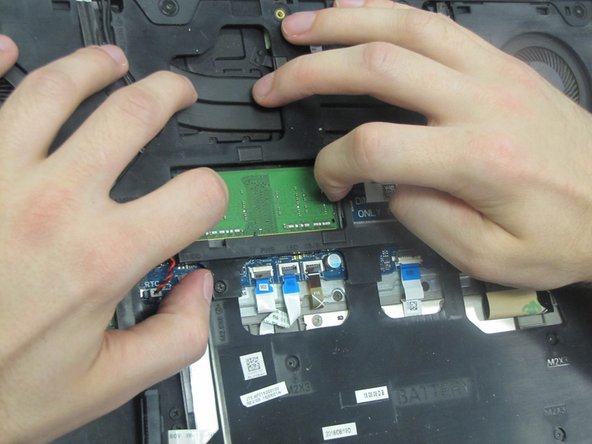

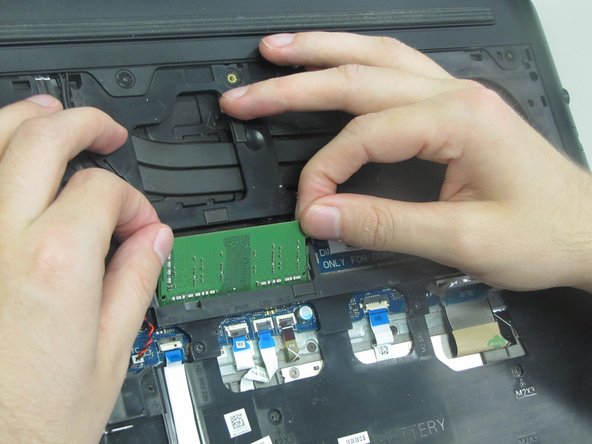
To reassemble your device, follow these instructions in reverse order.

Team

University of North Texas, Team 1-10, Smith Spring 2022 Member of University of North Texas, Team 1-10, Smith Spring 2022
UNT-SMITH-S22S1G10
2 Members
12 Guides authored
