Free Shipping on Domestic Orders $75+

Dell G15-5511 Gaming Back Cover Replacement

What you need

    1. Dell G15-5511 Gaming Back Cover Replacement, Unfasten the back cover: step 1, image 1 of 2 Dell G15-5511 Gaming Back Cover Replacement, Unfasten the back cover: step 1, image 2 of 2
      • For your safety, discharge the battery below 25% and power down your device before disassembly.

      • Use a Phillips #1 screwdriver to remove the four 6.8 mm-long screws that secure the cover.

      • Use a Phillips #1 screwdriver to loosen the four captive screws.

      Ask FixBot

      Add Comment

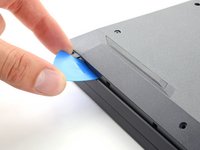
    2. Dell G15-5511 Gaming Back Cover Replacement, Unclip the front corners: step 2, image 1 of 2 Dell G15-5511 Gaming Back Cover Replacement, Unclip the front corners: step 2, image 2 of 2
      • Insert an opening pick between the bottom-left corner of the back cover and the chassis.

      • Pry up to release the clips securing the back cover.

      • You'll hear a click whenever a clip is released.

      Ask FixBot

      Add Comment

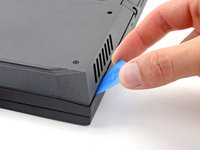
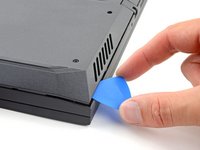
    3. Dell G15-5511 Gaming Back Cover Replacement: step 3, image 1 of 2 Dell G15-5511 Gaming Back Cover Replacement: step 3, image 2 of 2
      • Insert your opening pick again between the bottom-right corner of the back cover and the chassis.

      • Pry up to release the remaining clips securing the back cover.

      Ask FixBot

      Add Comment

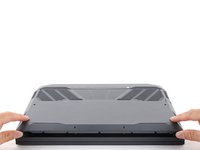
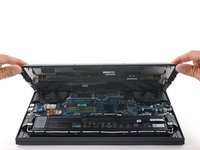
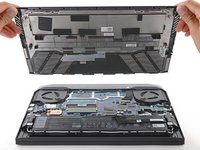
    4. Dell G15-5511 Gaming Back Cover Replacement, Remove the back cover: step 4, image 1 of 3 Dell G15-5511 Gaming Back Cover Replacement, Remove the back cover: step 4, image 2 of 3 Dell G15-5511 Gaming Back Cover Replacement, Remove the back cover: step 4, image 3 of 3
      • Grip the front of the back cover and lift it away from the laptop.

      • Pull the back cover towards you to disconnect the clips along the top of the back cover.

      • Remove the back cover.

      Ask FixBot

      Add Comment

Conclusion

To reassemble your device, follow these instructions in reverse order.

Take your e-waste to an R2 or e-Stewards certified recycler.

Repair didn’t go as planned? Try some basic troubleshooting, or ask our Dell laptop answers community for help.

Cancel: I did not complete this guide.

2 other people completed this guide.

Clay Eickemeyer

Member since: 09/19/22

106,250 Reputation

472 Guides authored

0 Guide Comments

Add Comment

View Statistics:

Past 24 Hours: 2

Past 7 Days: 17

Past 30 Days: 88

All Time: 3,994