Introduction
Use this guide to replace a faulty fan in a Dell EMC PowerEdge R750 data server. The fans are designed to run continuously and handle heavy workloads.
If you work with server hardware, you know cooling is everything. A server fan can be a quiet hero- until it's not. Over time, a fan may become faulty due to wear, debris buildup, or internal damage, leading to overheating risks. But how do you know when a fan needs to be replaced? A common sign could be your server's suddenly sounding like a jet engine.
Before continuing, make sure to power off the server or reach out to CNS, (Compliance Navigation Specialist), for system downtime. Place it on a clean, stable surface, ready for maintenance.
What you need
-
-
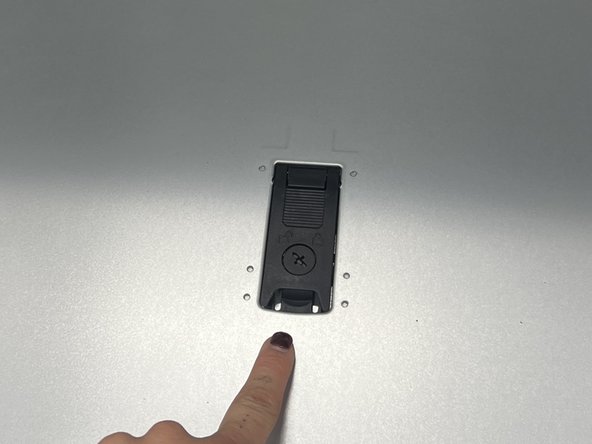
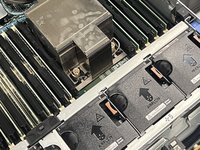
Gently slide or lift the cover off, exposing the internal components.
 Ask FixBot
-
-
-
-
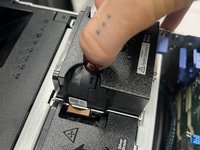
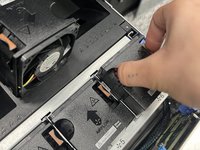
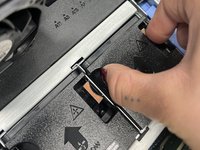
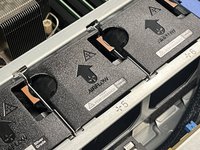
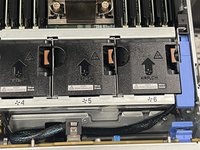
Release the clips holding the fan in place.
-
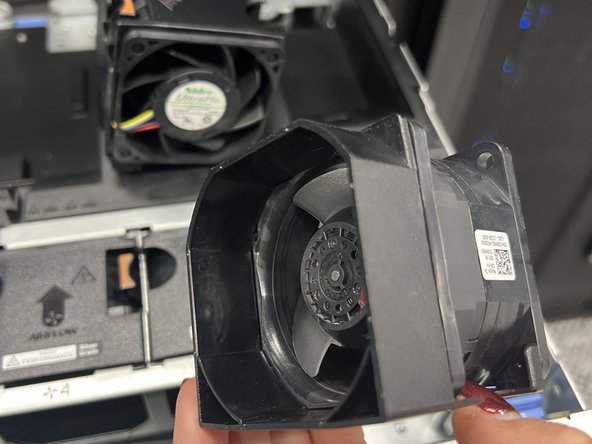
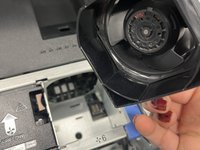
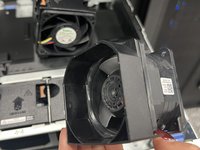
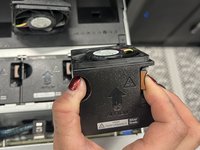
Carefully lift the fan out of its slot. Take note of the positioning to ensure the replacement fan is aligned correctly.
-
-
-
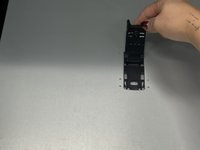
Place the new fan in the same position, ensuring it is aligned as the previous one.
-
Secure it by replacing the screws or clipping it into place.
-
-
-
Now that the new fan is inserted correctly, make a visual verification that all parts look properly placed.
-








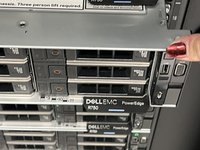
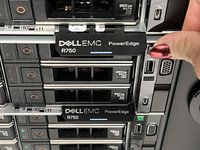
To reassemble your device, follow these instructions in reverse order.

Team

Austin Community College, Team 8-8, Kapoor Fall 2024 Member of Austin Community College, Team 8-8, Kapoor Fall 2024
AUSTINCC-KAPOOR-F24S8G8
1 Member
1 Guide authored
