
Dell Dimension 4600 RAM Replacement

Daniel Crawford and 4 other contributors
Last updated on Jan 28, 2014
Views: 11K
View statistics:
- Past 24 Hours:
- 3
- Past 7 Days:
- 21
- Past 30 Days:
- 106
- All Time:
- 10,966
Comments: 1
1 guide comment.
Go to guide commentsCompleted: 13 14
13 people have marked this guide "completed." Will you be next?
14 people have marked this guide "completed." Including you — great job!
Favorites: 7 8
7 people have favorited (and subscribed to) this guide. Will you be next?
8 people have favorited (and subscribed to) this guide — including you!
Featured Guide
This guide has been found to be exceptionally cool by the iFixit staff.
Introduction
Go to step 1 ↓Use this guide to replace the RAM in your Dell Dimension 4600.
What you need
Parts
-
-
-
Using your index finger, slide and hold the cover latch down.
-
While holding the latch down, place your other hand flat on the side of the case and firmly shift the side panel to the left until it disengages.
-
-
-
Grab the edge of the panel and slide it away from the case until it is removed.
-
-
-
-
-
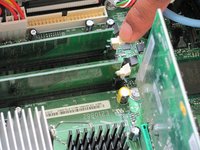
Locate the white or black tabs holding the RAM module in place.
-
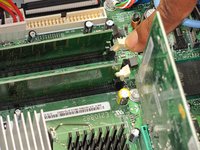
Place your index finger on the tab and firmly press down. The tab should release and the RAM module should be slightly raised.
-
Repeat this for the tab on the other side of the RAM module.
-
Repeat this step for each RAM module.
-
-
-
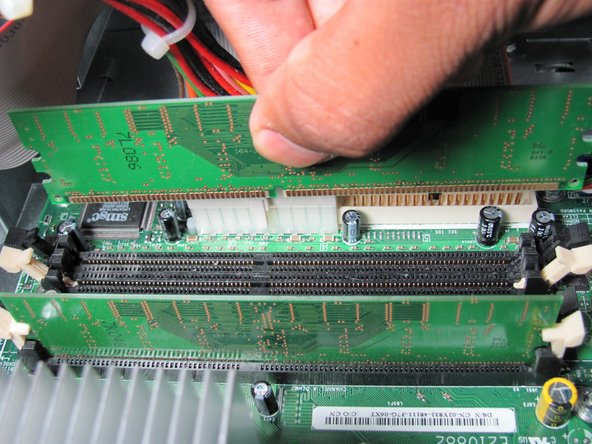
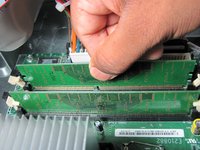
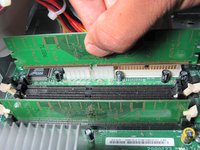
Grasp the RAM module and firmly pull upwards until it is released from its slot.
-
Repeat this step for each RAM module.
-

 Ask FixBot



To reassemble your device, follow these instructions in reverse order.
Cancel: I did not complete this guide.
13 other people completed this guide.

Team

Cal Poly, Team 6-10, Regan Fall 2011 Member of Cal Poly, Team 6-10, Regan Fall 2011
CPSU-REGAN-F11S6G10
4 Members
72 Guides authored
