Introduction
This guide will aid you in replacing your Dell Chromebook 5190 battery.
The Dell Chromebook 5190 was released alongside its sister model Dell Chromebook 5190 2-in-1. This guide will focus on the 5190 model that lacks a touchscreen.
A battery's purpose is to keep your laptop powered on. If your laptop battery is not holding a charge or is not charging after the battery is drained, try the Dell Chromebook 5190 troubleshooting page for possible solutions before replacing the battery. If you are still experiencing these issues after troubleshooting, you may need a battery replacement.
Before starting please take caution and look for signs of a swollen battery. Handling a swollen battery can be a fire hazard, please refer to this page for further information on how to identify a swollen battery and how to handle it.
Please make sure your laptop is off before beginning and remove all cables or devices populating your laptop ports.
What you need
-
-
Remove the nine M2.5x7.5 screws located on the bottom side of the laptop.
 Ask FixBot
-
-
-
With the opening tool, pry open the upper left corner by the laptop hinge.
-
With the opening tool, pry open the upper right corner by the laptop hinge.
-
Lift off base cover.
-
-
-
-
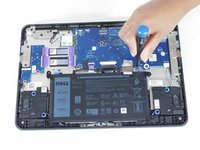
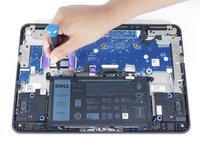
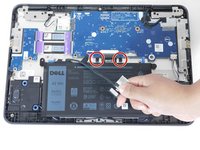
Unscrew and remove the M2x3 screw holding the silver metal brackets labeled "Battery Bracket" located on the top left side of the battery.
-
Unscrew and remove the M2x3 screw holding the silver metal brackets labeled "Battery Bracket" located on the top right side of the battery.
-
-
-
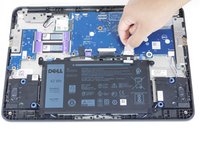
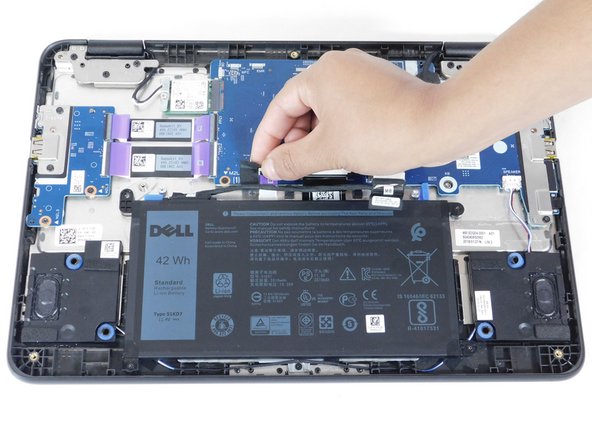
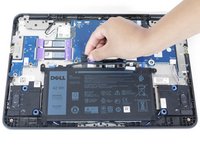
Remove the clear adhesive tape on the system board from the battery cable from where it's seated above the battery.
-
Pull out the keyboard cable toward you to disconnect it.
-
-
-
Remove the black adhesive tape on the system board from the battery cable.
-
Dismount the cable from where it's seated above the battery.
-
-
-
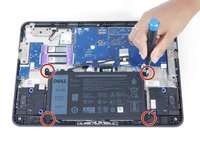
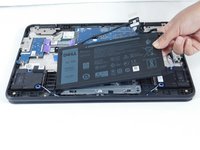
Unscrew and remove the four M2x3 screws on each corner of the battery.
-
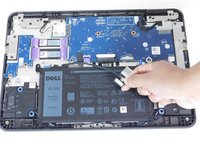
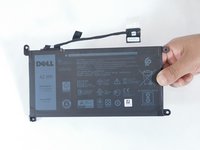
Dismount the battery.
-







To reassemble your device, follow these instructions in reverse order.

Team

Gateway, Team 1-3, Pee Spring 2022 Member of Gateway, Team 1-3, Pee Spring 2022
GCC-PEE-S22S1G3
3 Members
5 Guides authored
