Introduction
This guide will show you how to replace the keyboard in your Dell Chromebook 13 3380. Sticky, unresponsive, or missing keys can make your Chromebook frustrating to use. Liquid spills, debris, or internal wear may damage the keyboard over time. This repair involves disconnecting internal cables and removing the top case, so take your time and handle all ribbon cables gently to avoid tearing them. If your troubleshooting pointed to keyboard failure rather than a software or connection issue, this guide will walk you through replacing it and getting your Chromebook typing smoothly again.
What you need
-
-
Flip over the device so it is face down.
-
Use a Phillips #0 screwdriver to remove all nine anchor screws.
 Ask FixBot
-
-
-
Use the Phillips #0 screwdriver to remove the four screws attached to the battery.
-
-
-
-
Pull back the locking clips and gently pull back to remove the keyboard cable.
-
-
-
Flip the unit over and open the screen.
-
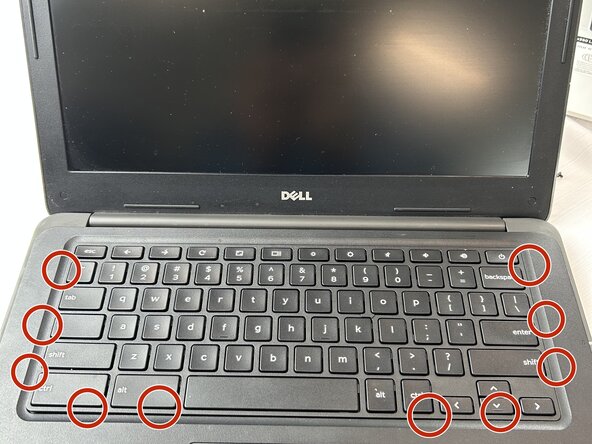
Gently insert a flat prying tool and unclip the ten plastic clips to pop the keyboard free.
-



To reassemble your device, follow these instructions in reverse order.

Team

Texas Tech, Team 46-2, Johansen Fall 2025 Member of Texas Tech, Team 46-2, Johansen Fall 2025
TTU-JOHANSEN-F25S46G2
4 Members
4 Guides authored
