
Craig CMP801 Volume Controls Replacement

Mohammed and 3 other contributors
Last updated on May 16, 2024
Views: 769
View statistics:
- Past 24 Hours:
- 4
- Past 7 Days:
- 19
- Past 30 Days:
- 88
- All Time:
- 769
Comments: 0
No one has left comments on this guide. Will you be first?
Go to guide commentsCompleted: 0 1
No one has marked this guide "completed." Will you be the first?
1 person has marked this guide "completed." It's you — great job!
Favorites: 0 1
No one has favorited (and subscribed to) this guide. Will you be the first?
1 person has favorited (and subscribed to) this guide — and that's you!
Better Introduction
Improve this guide by completing or revising its introduction.
What you need
Tools


-
-
-
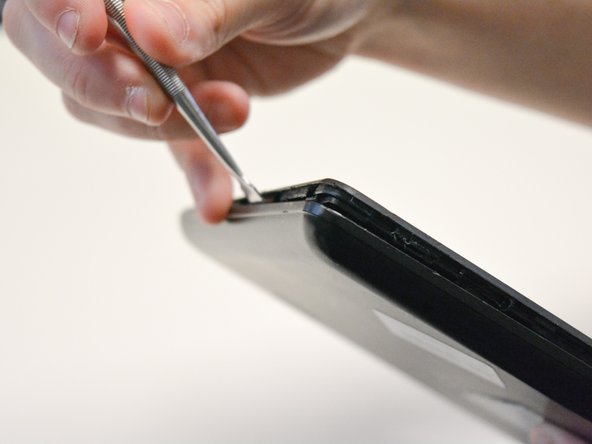
Locate the opening line between the cover and the device. Then locate the groove near the charging port.
 Ask FixBot
-
-
-
Use a metal spudger to separate the back cover from the front touch screen.
-
To do this, place the metal spudger in between the groove near the charging port of the device to unlatch the first clip.
-
-
-
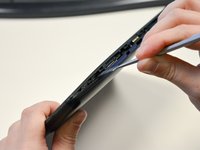
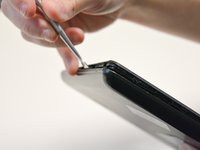
Continue to separate all of the clips around the device until the back cover comes off completely.
-
-
-
-
-
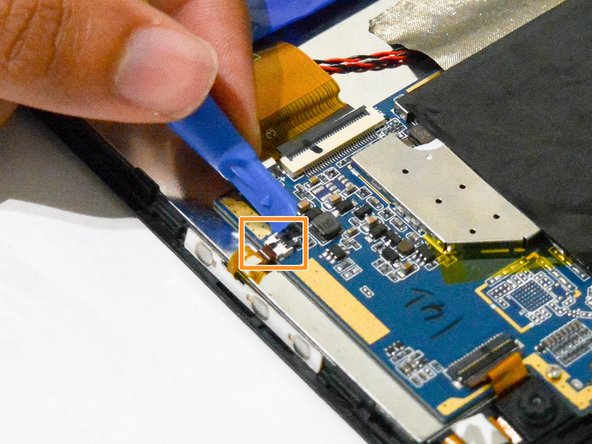
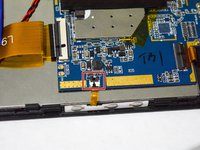
After taking out the back cover, locate the black flap.
-
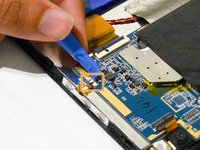
Open the black flap with the plastic opening tools.
-
-
-
Tool used on this step:Tweezers$3.99
-
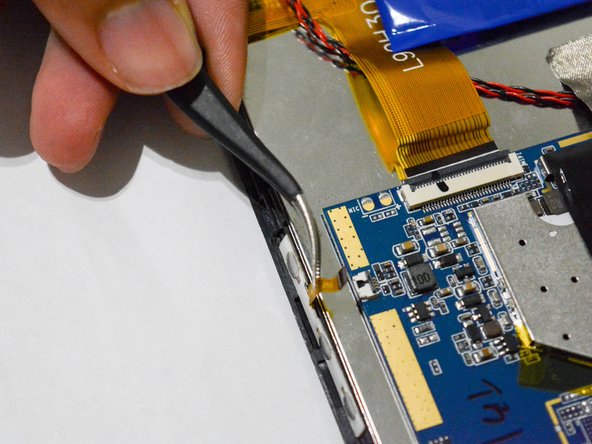
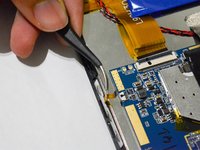
Once the tab is released, use the angled tweezers to take out the tab.
-
-
-
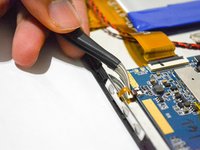
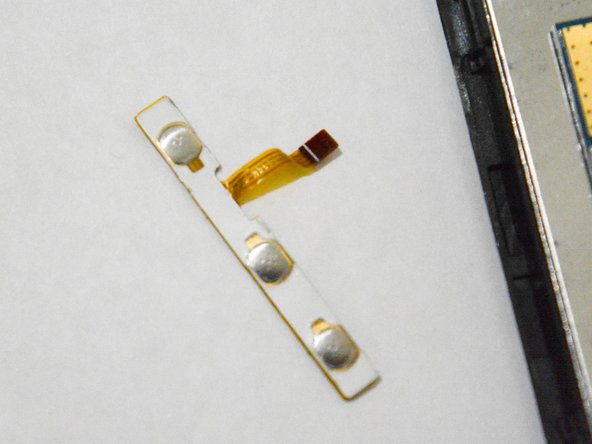
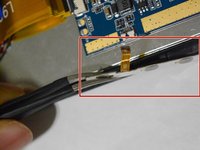
Use the angled tweezers to pull the volume controls out and replace it with a new one.
-
-






To reassemble your device, follow these instructions in reverse order.

Team

University of North Texas, Team S2-G2, Thompson Fall 2017 Member of University of North Texas, Team S2-G2, Thompson Fall 2017
UNT-THOMPSON-F17S2G2
4 Members
60 Guides authored
