Free Shipping on Domestic Orders $75+

Cosori Pro II Motor/Fan Replacement

What you need

  1. Cosori Pro II Motor/Fan Replacement, Shell: step 1, image 1 of 1
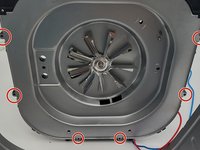
    • Flip the device upside down and remove all of the Phillips #1 screws.

    Ask FixBot

    Add Comment

  2. Cosori Pro II Motor/Fan Replacement: step 2, image 1 of 2 Cosori Pro II Motor/Fan Replacement: step 2, image 2 of 2
    • Use an opening tool to push on the retaining hooks to disengage them while prying slightly.

    • Remove the panel.

    Ask FixBot
    Add Comment

  3. Cosori Pro II Motor/Fan Replacement: step 3, image 1 of 1
    • Use a Phillips #1 screwdriver to remove all four screws.

    • Lift off the bracket.

    • When lifting this off be careful to not unplug the screen.

    Ask FixBot
    Add Comment

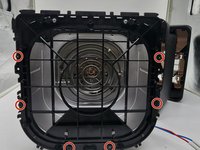
  4. Cosori Pro II Motor/Fan Replacement: step 4, image 1 of 2 Cosori Pro II Motor/Fan Replacement: step 4, image 2 of 2
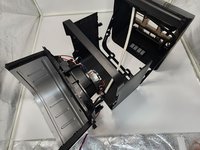
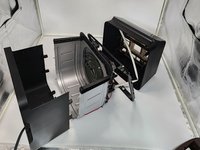
    • Use a Phillips #0 screwdriver to remove all the screws connecting to the shell.

    • Dissemble the shell going up to separate the basket holder.

    Ask FixBot
    Add Comment

  5. Cosori Pro II Motor/Fan Replacement: step 5, image 1 of 2 Cosori Pro II Motor/Fan Replacement: step 5, image 2 of 2
    • Use a Phillips #0 screwdriver and the 150 mm Flex Extension to unscrew the bottom plastic connecting to the basket holder.

    • Be careful to not apply too much force to the metal as it can cause it to warp it, and so it is easy rescrew the plastic piece in place.

    Ask FixBot

    Add Comment

  6. Cosori Pro II Motor/Fan Replacement: step 6, image 1 of 2 Cosori Pro II Motor/Fan Replacement: step 6, image 2 of 2
    • Pull the bottom shell down pulling at the sides to get them over screw holes.

    Ask FixBot

    Add Comment

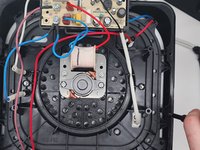
  7. Cosori Pro II Motor/Fan Replacement, Heating Coil: step 7, image 1 of 1
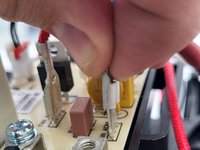
    • Remove the screws holding the cables into the distribution board with a Phillips #2 screwdriver.

    • Remove the 2 cables that connect the heating coil to the distribution board on the top of the cooking chamber, there should be one blue and one white cable, both with a white shroud leading into the cooking chamber.

    Ask FixBot
    Add Comment

  8. Cosori Pro II Motor/Fan Replacement: step 8, image 1 of 2 Cosori Pro II Motor/Fan Replacement: step 8, image 2 of 2
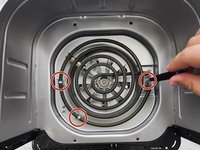
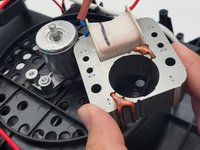
    • Flip the device backward so the metal walls appear in a U-shape.

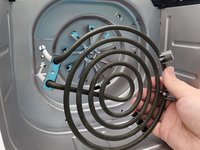
    • Remove the 3 screws inside the cooking chamber that hold the heating coil in place using a 2 Philips screwdriver.

    • Remove the heating coil.

    Ask FixBot
    Add Comment

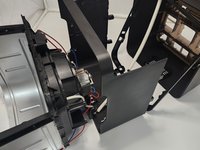
  9. Cosori Pro II Motor/Fan Replacement, Motor/fan: step 9, image 1 of 2 Cosori Pro II Motor/Fan Replacement, Motor/fan: step 9, image 2 of 2
    • Remove the walls of the cooking chamber to get easier access to the fan.

    Ask FixBot

    Add Comment

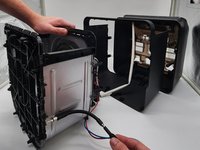
  10. Cosori Pro II Motor/Fan Replacement: step 10, image 1 of 3 Cosori Pro II Motor/Fan Replacement: step 10, image 2 of 3 Cosori Pro II Motor/Fan Replacement: step 10, image 3 of 3
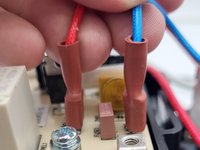
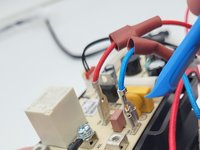
    • Squeeze and disconnect the connectors.

    • Press the tab on the disconnector down then carefully pull it off to remove the wires from the board.

    Ask FixBot

    Add Comment

  11. Cosori Pro II Motor/Fan Replacement: step 11, image 1 of 2 Cosori Pro II Motor/Fan Replacement: step 11, image 2 of 2
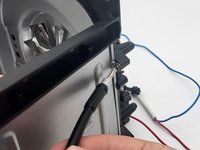
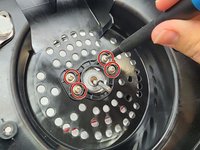
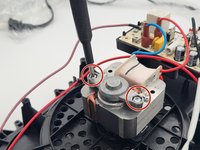
    • Use a Phillips screwdriver to remove the two screws from the motor.

    Ask FixBot

    Add Comment

  12. Cosori Pro II Motor/Fan Replacement: step 12, image 1 of 1
    • Remove the screws securing the heat detector using a Phillips #1 screwdrivers.

    Ask FixBot

    Add Comment

  13. Cosori Pro II Motor/Fan Replacement: step 13, image 1 of 1
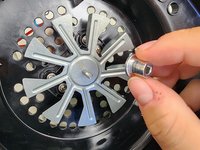
    • Using a 3/8" socket, unscrew the hex nut holding the fan in place, making sure to not apply to much pressure on the fan to avoid warping.

    Ask FixBot

    Add Comment

  14. Cosori Pro II Motor/Fan Replacement: step 14, image 1 of 2 Cosori Pro II Motor/Fan Replacement: step 14, image 2 of 2
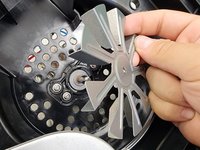
    • Remove each piece to the roof of the cooking chamber.

    Ask FixBot

    Add Comment

  15. Cosori Pro II Motor/Fan Replacement: step 15, image 1 of 2 Cosori Pro II Motor/Fan Replacement: step 15, image 2 of 2
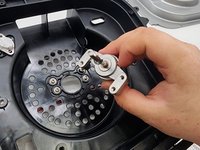
    • Use a Phillips #2 screwdriver to remove the screws securing the motor.

    • Remove the motor.

    Ask FixBot

    Add Comment

Conclusion

To reassemble your device, follow these instructions in reverse order.

Cancel: I did not complete this guide.

1 Guide Comment

Advice regarding a compatible motor?

Emily Sue - Reply Share

Add Comment

View Statistics:

Past 24 Hours: 0

Past 7 Days: 11

Past 30 Days: 59

All Time: 950