
Corsair Katar DPI Sensor Replacement

Margaret Loughren and 3 other contributors
Last updated on Aug 29, 2018
Views: 842
View statistics:
- Past 24 Hours:
- 2
- Past 7 Days:
- 14
- Past 30 Days:
- 61
- All Time:
- 842
Comments: 0
No one has left comments on this guide. Will you be first?
Go to guide commentsCompleted: 2 3
2 people have marked this guide "completed." Will you be next?
3 people have marked this guide "completed." Including you — great job!
Favorites: 0 1
No one has favorited (and subscribed to) this guide. Will you be the first?
1 person has favorited (and subscribed to) this guide — and that's you!
Introduction
Go to step 1 ↓If the DPI (dots per inch) sensor inside your Corsair Katar mouse is not operating correctly, this guide will show you how to replace it.
What you need
Tools


-
-
-
Remove the three skates on the bottom of the mouse using the plastic opening tools.
-
-
-
-
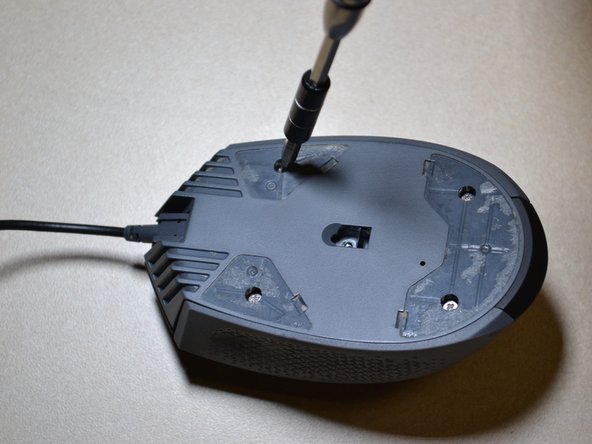
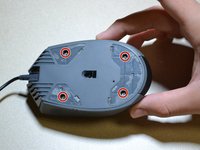
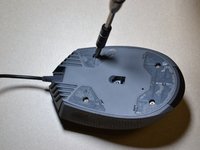
Use the JIS 0 screwdriver to remove the four 5 mm screws on the bottom of the mouse.
-
-
-
Detach the bottom of the mouse from the upper shell.
-
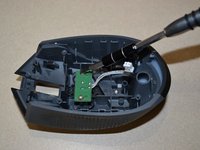
Use the plastic opening tool to detach the white DPI sensor cable from its port.
-
-
-
-
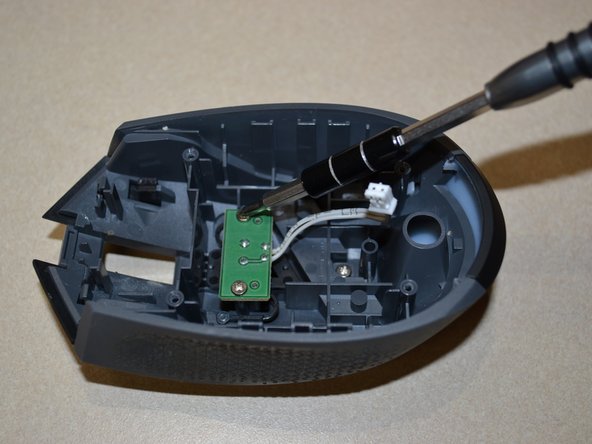
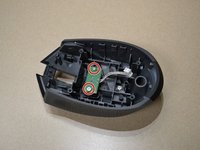
Use the JIS 0 screwdriver to remove the two 5mm screws holding the DPI sensor.
-
-


 Ask FixBot





To reassemble your device, follow these instructions in reverse order.
Cancel: I did not complete this guide.
2 other people completed this guide.

Team

UW Tacoma, Team S1-G3, Cardinal Summer 2018 Member of UW Tacoma, Team S1-G3, Cardinal Summer 2018
UWT-CARDINAL-SU18S1G3
3 Members
72 Guides authored
