Introduction
Use this guide to replace the key stabilizers in a Corsair K65 Plus Wireless keyboard.
Before you begin this repair, turn off the keyboard and disconnect it from any USB cable. Make sure the device is completely powered down before opening it.
What you need
-
-
-
Use a keycap puller or a pair of tweezers to remove the keycaps.
-
Set the keycaps aside in the same order they were removed, if possible.
 Ask FixBot
-
-
-
Grip the multi-function knob and pull it straight up to remove it from the stem.
-
-
-
Use a switch puller or a pair of tweezers to grip the switch, then pull straight up to remove it.
-
Set the switches aside in a safe location.
-
-
-
Flip the keyboard so that back cover is facing up.
-
Use a JIS #1 screwdriver to remove the eight 6.0 mm screws from the bottom of the device.
-
Remove the 2.4 Gz Wireless USB adapter from the keyboard.
-
-
-
-
To disconnect the battery cable, use the point of a spudger to push on alternating sides of the connector to "walk" it out of its socket.
-
If that doesn't work, use a pair of tweezers to firmly grip the sides of the connector and pull straight away from the socket. Hold the tweezers closer to the connector to get a better grip.
-
-
-
Slide a thin, ESD-safe pry tool or angled tweezers under the metal neck of the connector (as close to the head as possible) and lift straight up from the board.
-
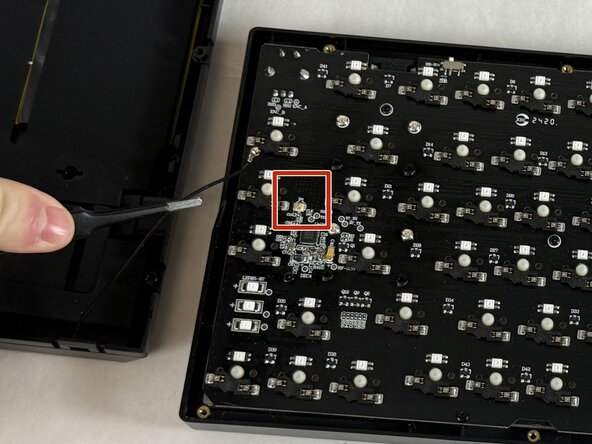
Carefully disconnect the multi-purpose indicator light cable from the PCB.
-
Set the back cover aside once all cables are disconnected.
-
-
-
Use a JIS #1 screwdriver to remove the nine black 6.0 mm screws securing the PCB to the keyboard housing.
-
-
-
Flip the keyboard right side up.
-
Remove the gray metal plate.
-
Remove the foam board from the keyboard.
-
-




To reassemble your device, follow these instructions in reverse order. Take your e-waste to an R2 or e-Stewards certified recycler.

Team

UMass Dartmouth, Team 3-3, Shaddix Spring 2026 Member of UMass Dartmouth, Team 3-3, Shaddix Spring 2026
UMASSD-SHADDIX-S26S3G3
4 Members
60 Guides authored
