Introduction
This is a guide to replace the battery of the Chromo Noria. Replacing the battery is one of the main important replacements. Without a functional battery, the life of the tablet ceases to exist.
What you need
-
-
-
Insert your Plastic Opening Tool into the crease between the front panel and back panel.
-
Slide the Opening Tool around the entire device. As you progress, you should see the device open.
 Ask FixBot
-
-
-
Carefully turn the device over.
-
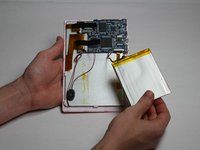
Lay the back panel aside so you can see the device's parts.
-
-
-
-
-
-
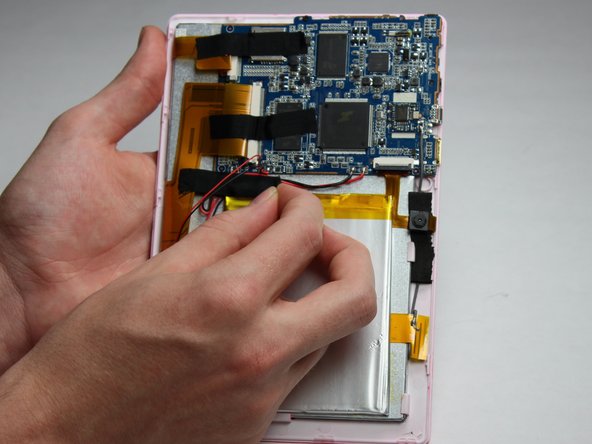
Place your finger at the end of the tape closest to the battery.
-
Peel the tape towards the flex cables to free the battery wires.
-
-
-
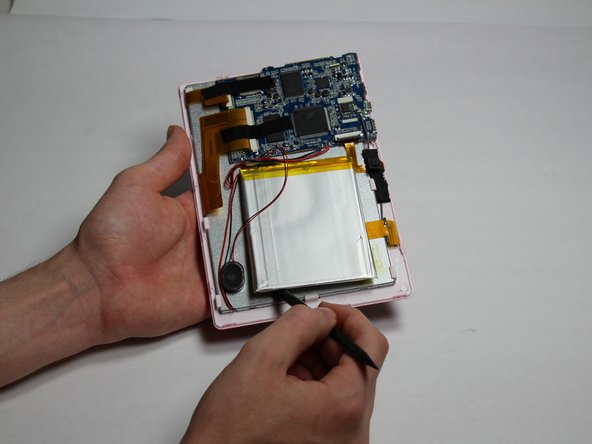
Using the spudger tool, place the tool along an edge of the battery.
-
Move the spudger around the edges of the battery to detach it from the tablet.
-
-
-
Using a soldering iron, desolder both of the battery wires. The battery's wires are located to the left of the camera's flex cable.
-
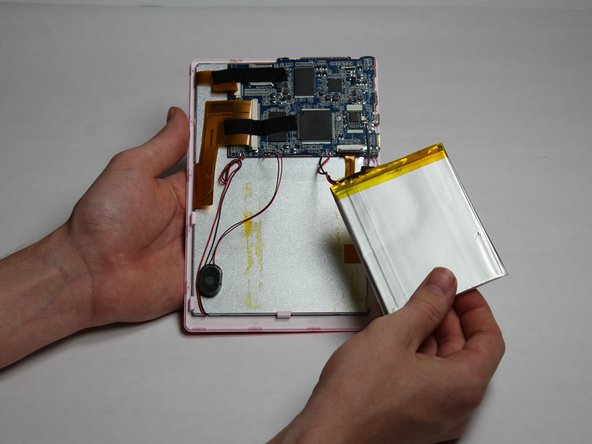
Remove the battery.
-
-





To reassemble your device, follow these instructions in reverse order.
Cancel: I did not complete this guide.
One other person completed this guide.

Team

Baylor, Team 5-6, Williams Fall 2016 Member of Baylor, Team 5-6, Williams Fall 2016
BU-WILLIAMS-F16S5G6
3 Members
72 Guides authored
