
Cherry Stream Desktop - Low Profile Keycap - Repair

Beatriz Pozo Arcos and one other contributor
Last updated on Jul 26, 2023
Views: 1.9K
View statistics:
- Past 24 Hours:
- 7
- Past 7 Days:
- 46
- Past 30 Days:
- 280
- All Time:
- 1,879
Comments: 0
No one has left comments on this guide. Will you be first?
Go to guide commentsCompleted: 0 1
No one has marked this guide "completed." Will you be the first?
1 person has marked this guide "completed." It's you — great job!
Favorites: 0 1
No one has favorited (and subscribed to) this guide. Will you be the first?
1 person has favorited (and subscribed to) this guide — and that's you!
Community-Contributed Guide
An awesome member of our community made this guide. It was not created by iFixit staff.
Introduction
Go to step 1 ↓My keycap came out of place while working on the computer. I don't really know how that happened. But luckily I could fix it. A small pin on the white bracket broke. But I could still put it back in place, and works perfectly.
-
-
-
Image 1: Put the 3 components on a flat surface. The keycap (black component)
-
Image 2: the 2-component bracket
 Ask FixBot
-
-
-
image 1: Click the inserts of the smaller bracket onto the keycap
-
image 2: once it's clicked, the bracket should stay in place if you shake the keycap
-
-
-
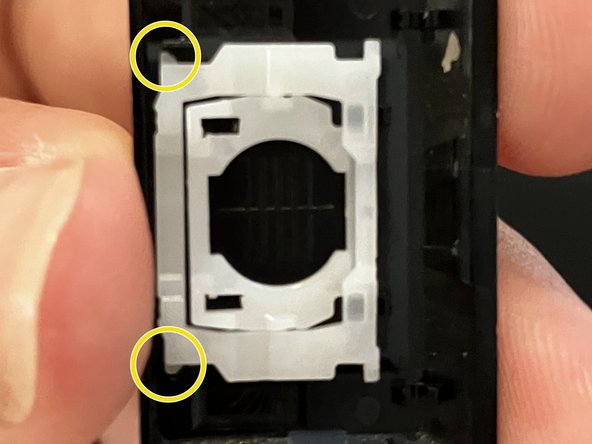
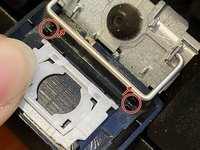
Image 1: Insert the pin of the small bracket onto the larger one.
-
Image 2: Just place the larger bracket on the keycap. There is no click
-
-
-
-
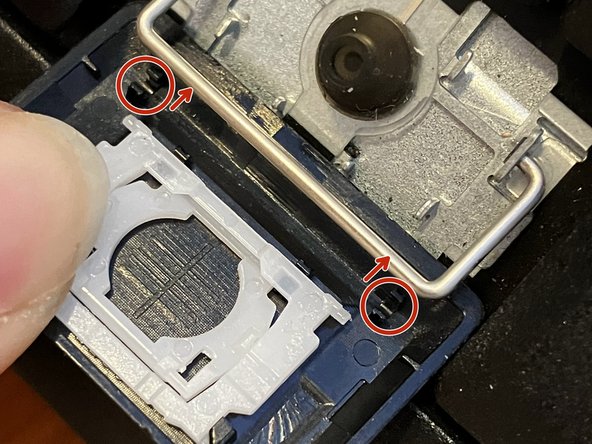
Image 1: you need to orient the keycap so that it can click to the tiny metal bar
-
Image 2: Once oriented, place the keycap on top of the space for the keycap on the keyboard, while holding the white bracket.
-
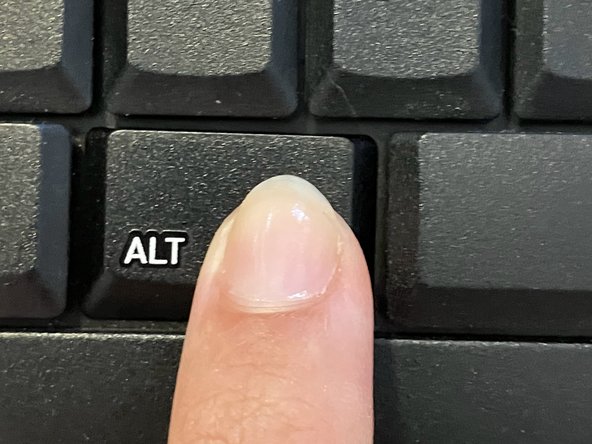
Next, simply press the keycap down
-
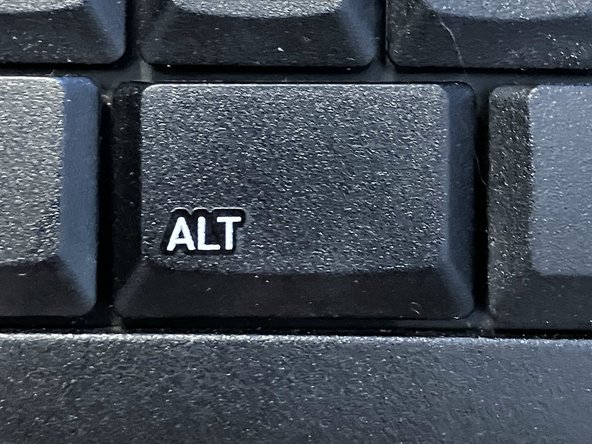
Image 3: Congratulations! Your keyboard should be working again. :D
-
-






To reassemble your device, follow these instructions in reverse order.

