
Casio FX-991ES Plus Battery Replacement

Zinab Alhamoud and 3 other contributors
Last updated on Sep 25, 2023
Views: 92K
View statistics:
- Past 24 Hours:
- 30
- Past 7 Days:
- 228
- Past 30 Days:
- 990
- All Time:
- 92,032
Comments: 9
3 comments on steps, 6 guide comments.
Go to guide commentsCompleted: 22 23
22 people have marked this guide "completed." Will you be next?
23 people have marked this guide "completed." Including you — great job!
Favorites: 0 1
No one has favorited (and subscribed to) this guide. Will you be the first?
1 person has favorited (and subscribed to) this guide — and that's you!
Introduction
Go to step 1 ↓This guide demonstrates the process of replacing the battery for a Casio FX-991ES Plus calculator. The battery will need to be replaced when a dim or distorted display is noticed, or when the calculator stops working. The calculator is equipped with a solar cell that can provide power to the device, but if the battery becomes old or bloated, it should be replaced in order to prevent leakage that might damage the calculator. Although this calculator uses two-way power, it is inconvenient to depend on having to charge the built-in solar cell when the battery is dead.
What you need


-
-
-
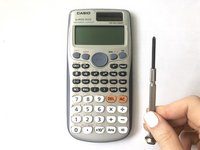
Make sure the calculator is off. If not, turn it off by pressing the [Shift] button then the [AC] [OFF] button.
 Ask FixBot
-
-
-
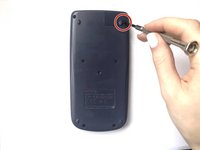
Use a Phillips #0 screwdriver to unscrew the 1.6 mm screw on the battery cover.
-
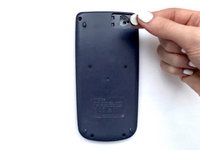
Remove the battery cover.
-
-
-
Use a spudger to remove the old battery. Insert it in the empty slot to pry out the battery.
-
-
-
Place the new battery into the compartment with the positive (+) side facing upwards.
-
-
-
-
Attach the battery cover and tighten the screw with a Phillips #0 screwdriver.
-
-
-
To reset the calculator, press the [ON] button.
-
Press the [SHIFT] button.
-
Press the [9] [CLR] button to clear the data.
-
Press the [3] button to choose "ALL".
-
Press the [=] button to agree.
-
Press the [AC] button
-
-








Cancel: I did not complete this guide.
22 other people completed this guide.

Team

York University, Team S1-G4, O'Regan Winter 2021 Member of York University, Team S1-G4, O'Regan Winter 2021
YORK-O'REGAN-W21S1G4
1 Member
12 Guides authored
6 Guide Comments
Thank you so much! God bless you.
Can you send me one please
In Jaigaon india
Thank you ,
🙏
La touche ON de ma calculatrice ne fonctionne plus comment faire ?
Merci du fond du cœur 🫶🫶🫶
