Free Shipping on Domestic Orders $75+

Cardinal Health Vela Ventilator Left Panel Replacement

Medical Equipment
Neither iFixit nor this repair guide is endorsed by or affiliated with the medical device manufacturer.

What you need

  1. Cardinal Health Vela Ventilator Left Panel Replacement, Power Cable: step 1, image 1 of 1
    • Use a screwdriver to remove the two Phillips pan-head screws at the top of the plug guard.

    Ask FixBot

    Add Comment

    • Remove the plug guard and unplug the ventilator.

    Ask FixBot

    Add Comment

  2. Cardinal Health Vela Ventilator Left Panel Replacement, Cardinal Health Vela Ventilator Top Cover Disassembly: step 3, image 1 of 1
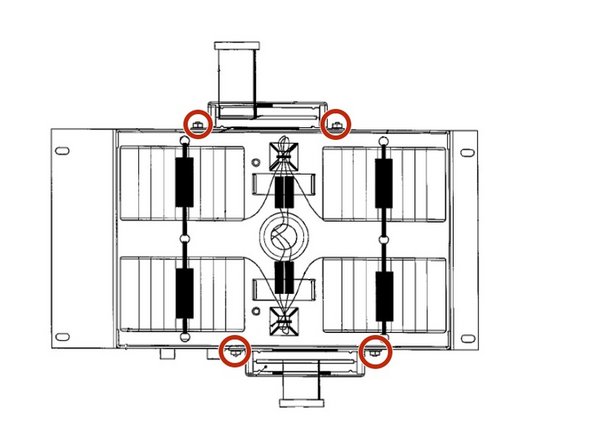
    • Remove the four Phillips #0 screws on the back side of the ventilator.

    Ask FixBot

    Add Comment

  3. Cardinal Health Vela Ventilator Left Panel Replacement: step 4, image 1 of 1
    • Remove all six small side panel screws along the bottom of each side of the top cover with the same screwdriver.

    Ask FixBot

    Add Comment

    • Slide the top cover towards the back side of the ventilator to remove it.

    Ask FixBot

    Add Comment

  4. Cardinal Health Vela Ventilator Left Panel Replacement, Battery Tray: step 6, image 1 of 1
    • Use your Phillips screwdriver to unscrew the 4 Phillips pan head screws positioned on each side of the battery tray.

    Ask FixBot

    Add Comment

    • Lift the battery tray out of the ventilator.

    • Caution: The wires connecting the batteries to the ventilator will still be connected so lift the battery tray carefully.

    Ask FixBot

    Add Comment

  5. Cardinal Health Vela Ventilator Left Panel Replacement: step 8, image 1 of 1
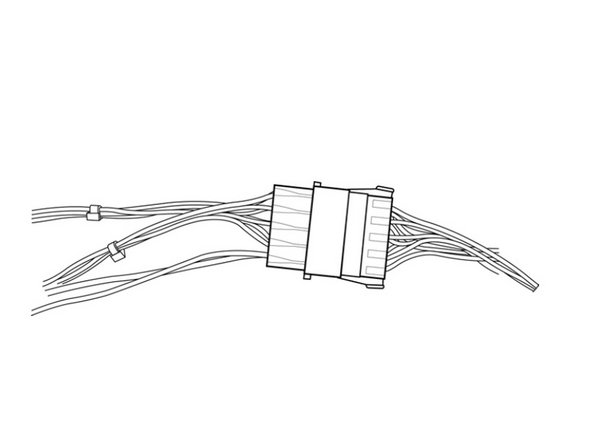
    • Disconnect the batteries from the ventilator by pulling apart the Battery Connector.

    Ask FixBot

    Add Comment

    • Remove the two Phillips countersink at the rear of the panel.

    Ask FixBot

    Add Comment

    • Remove the Phillips countersink in the upper front of the panel.

    Ask FixBot

    Add Comment

    • The panel is now free and can be lifted from the device.

    Ask FixBot

    Add Comment

    • To install the left panel follow these steps in reverse order.

    Ask FixBot

    Add Comment

Conclusion

To reassemble your device, follow these instructions in reverse order.

Cancel: I did not complete this guide.

Tanner Hillman

Member since: 04/10/20

370 Reputation

3 Guides authored

Team

Cal Poly, Team S7-G22, Paton Spring 2020 Member of Cal Poly, Team S7-G22, Paton Spring 2020

CPSU-PATON-S20S7G22

1 Member

3 Guides authored

0 Guide Comments

Add Comment

View Statistics:

Past 24 Hours: 2

Past 7 Days: 4

Past 30 Days: 15

All Time: 272