Free Shipping on Domestic Orders $75+

Canon Vixia HF R600 Power Button Replacement

What you need

    1. Canon Vixia HF R600 Power Button Replacement, Handstrap: step 1, image 1 of 2 Canon Vixia HF R600 Power Button Replacement, Handstrap: step 1, image 2 of 2
      • Pull up the Velcro strap starting from the front of the camera and working your way towards the back.

      • If you are adjusting the hand-strap, tighten or loosen the Velcro strap accordingly and reattach it.

      • To remove the hand-strap, pull the Velcro strip through the leather pad.

      Ask FixBot

      Add Comment

    2. Canon Vixia HF R600 Power Button Replacement: step 2, image 1 of 2 Canon Vixia HF R600 Power Button Replacement: step 2, image 2 of 2
      • Remove the strap from the camera body.

      Ask FixBot

      Add Comment

    1. Canon Vixia HF R600 Power Button Replacement, Battery: step 3, image 1 of 2 Canon Vixia HF R600 Power Button Replacement, Battery: step 3, image 2 of 2
      • Press in the battery release tab located on the bottom of the camera.

      • Slide the battery out from the body.

      Ask FixBot

      Add Comment

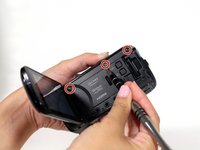
    1. Canon Vixia HF R600 Power Button Replacement, Casing: step 4, image 1 of 2 Canon Vixia HF R600 Power Button Replacement, Casing: step 4, image 2 of 2
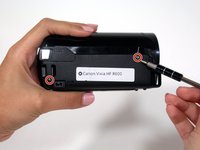
      • Start by removing the two 6mm Phillips #00 screws located on the right side of the camera.

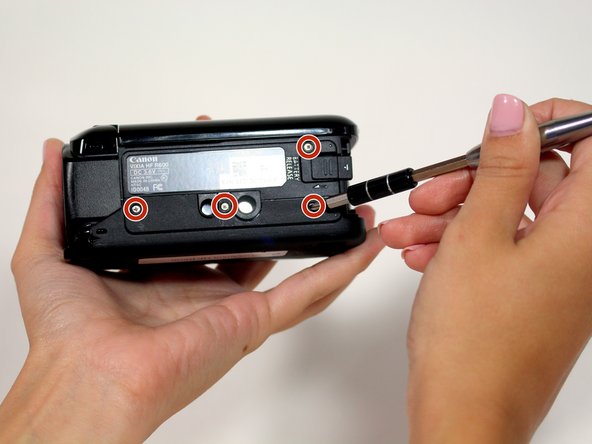
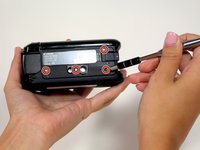
      • Remove four more 6mm Phillips #00 screws found on the bottom of the camera.

      Ask FixBot

      Add Comment

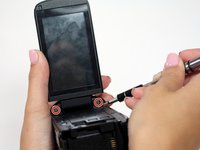
    2. Canon Vixia HF R600 Power Button Replacement: step 5, image 1 of 2 Canon Vixia HF R600 Power Button Replacement: step 5, image 2 of 2
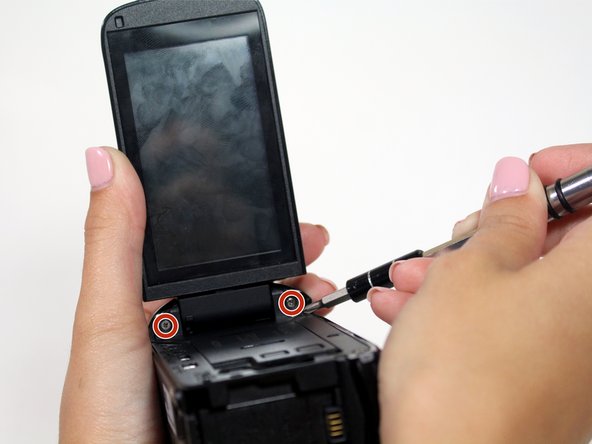
      • Open the display screen and remove the three 5mm Phillips #00 screws.

      • Look to the swivel point for the screen to find the last two 5mm Phillips #00 screws that must be removed.

      Ask FixBot

      Add Comment

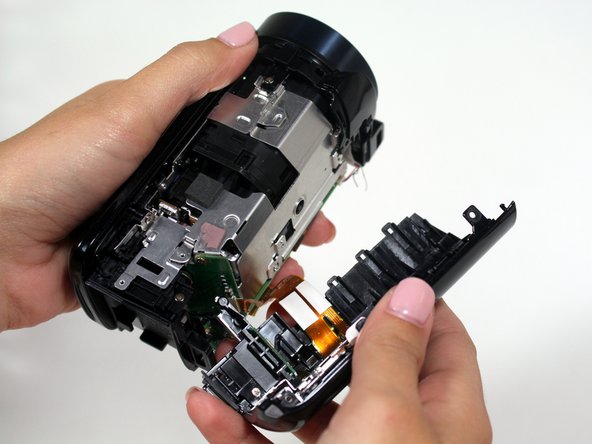
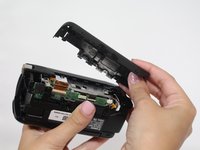
    3. Canon Vixia HF R600 Power Button Replacement: step 6, image 1 of 2 Canon Vixia HF R600 Power Button Replacement: step 6, image 2 of 2
      • Gently pull the plastic casing away from the camera.

      Ask FixBot

      Add Comment

    1. Canon Vixia HF R600 Power Button Replacement, Speaker: step 7, image 1 of 2 Canon Vixia HF R600 Power Button Replacement, Speaker: step 7, image 2 of 2
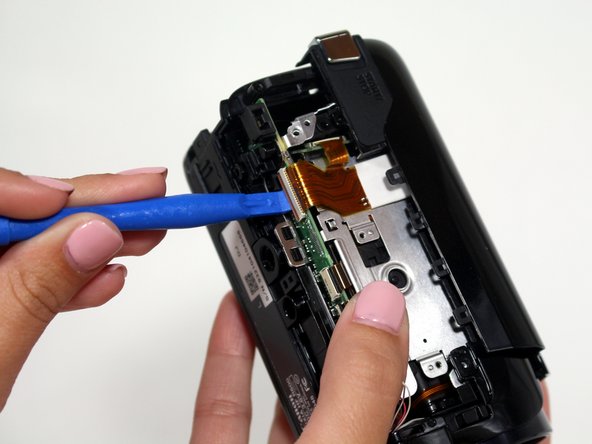
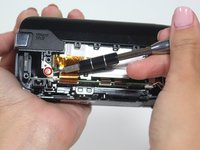
      • Remove one 4mm Phillips JIS#00 screw on the right side of the camera.

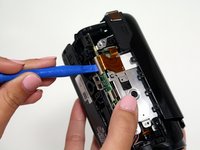
      • Use the plastic opening tool to undo the bronze ribbon connector.

      Ask FixBot

      Add Comment

    2. Canon Vixia HF R600 Power Button Replacement: step 8, image 1 of 2 Canon Vixia HF R600 Power Button Replacement: step 8, image 2 of 2
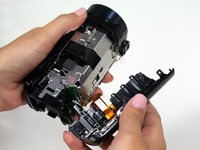
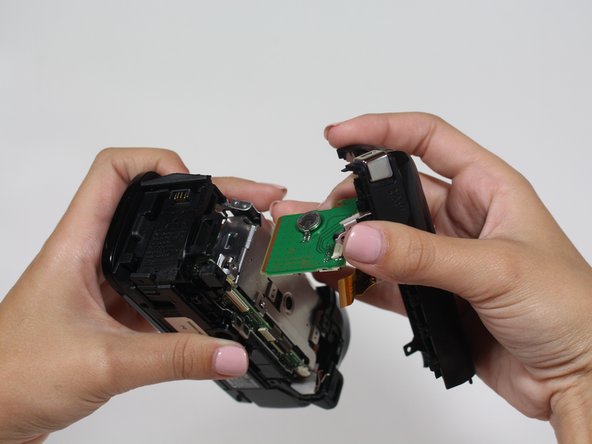
      • Remove one 4mm Phillips JIS#00 screw located on the top of the camera near the battery connection.

      • Pull the plastic casing away from the camera. The speaker and power button are housed in this casing.

      Ask FixBot

      Add Comment

    3. Canon Vixia HF R600 Power Button Replacement: step 9, image 1 of 2 Canon Vixia HF R600 Power Button Replacement: step 9, image 2 of 2
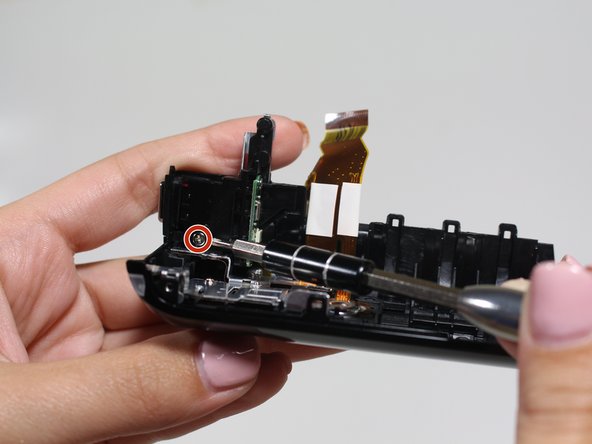
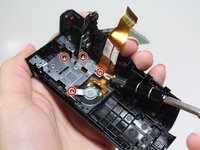
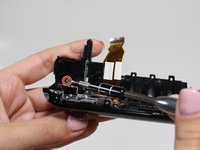
      • Remove four 5mm Phillips PH#00 screws holding the speaker bracket in place.

      • Remove one more 5mm screw below the power button.

      Ask FixBot

      Add Comment

    4. Canon Vixia HF R600 Power Button Replacement: step 10, image 1 of 2 Canon Vixia HF R600 Power Button Replacement: step 10, image 2 of 2
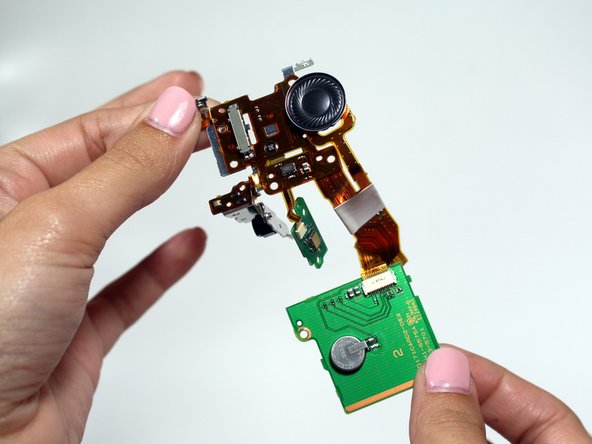
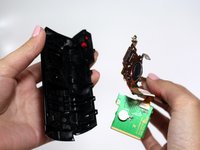
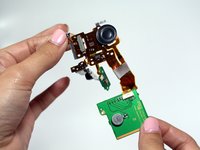
      • Carefully pull the speaker out of the casing.

      Ask FixBot

      Add Comment

    1. Canon Vixia HF R600 Power Button Replacement, Power Button: step 11, image 1 of 2 Canon Vixia HF R600 Power Button Replacement, Power Button: step 11, image 2 of 2
      Tool used on this step:
      Tweezers
      $4.99
      Buy
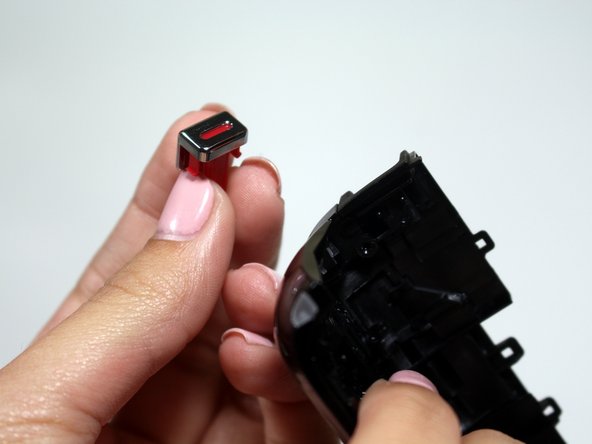
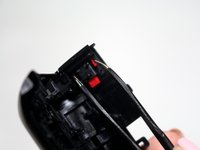
      • Using a pair of tweezers, gently push in the red tabs of the power button.

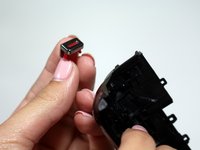
      • Pull the power button out of the camera casing.

      Ask FixBot

      Add Comment

Conclusion

To reassemble your device, follow these instructions in reverse order.

Cancel: I did not complete this guide.

Brian Luna

Member since: 02/10/16

483 Reputation

4 Guides authored

Team

USF Tampa, Team 14-4, Lacy Spring 2016 Member of USF Tampa, Team 14-4, Lacy Spring 2016

USFT-LACY-S16S14G4

3 Members

16 Guides authored

0 Guide Comments

Add Comment

View Statistics:

Past 24 Hours: 1

Past 7 Days: 7

Past 30 Days: 26

All Time: 691