Free Shipping on Domestic Orders $75+

Canon Selphy CP910 Buttons Replacement

What you need

  1. Canon Selphy CP910 Buttons Replacement, Body: step 1, image 1 of 2 Canon Selphy CP910 Buttons Replacement, Body: step 1, image 2 of 2
    • Turn the printer over.

    • Use the PH1 screw bit to remove the three 8 mm screws in the middle of the back plate.

    • Keep track of these screws because you will need them to reassemble the printer.

    Ask FixBot

    Add Comment

  2. Canon Selphy CP910 Buttons Replacement: step 2, image 1 of 3 Canon Selphy CP910 Buttons Replacement: step 2, image 2 of 3 Canon Selphy CP910 Buttons Replacement: step 2, image 3 of 3
    • Loosen up the four 10 mm corner screws.

    • A screwdriver with a long shaft approximately 7mm in diameter will make it easier to reach these screws.

    Ask FixBot

    Add Comment

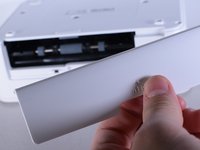
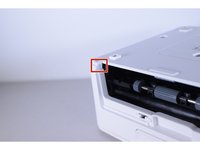
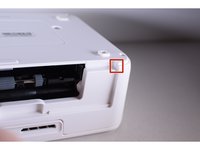
  3. Canon Selphy CP910 Buttons Replacement: step 3, image 1 of 3 Canon Selphy CP910 Buttons Replacement: step 3, image 2 of 3 Canon Selphy CP910 Buttons Replacement: step 3, image 3 of 3
    • Turn the device around and remove the "open" lid.

    • This lid needs to be removed in order to take the printer apart.

    • Gently bend the lid and remove it from its hinges.

    Ask FixBot

    Add Comment

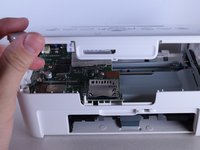
  4. Canon Selphy CP910 Buttons Replacement: step 4, image 1 of 3 Canon Selphy CP910 Buttons Replacement: step 4, image 2 of 3 Canon Selphy CP910 Buttons Replacement: step 4, image 3 of 3
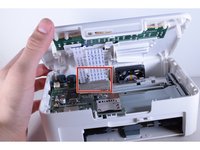
    • Turn the device back over and lift the top panel up.

    • Disconnect the ribbon cables leading to the LCD screen.

    • Pull the top panel off.

    Ask FixBot

    Add Comment

  5. Canon Selphy CP910 Buttons Replacement, Buttons: step 5, image 1 of 2 Canon Selphy CP910 Buttons Replacement, Buttons: step 5, image 2 of 2
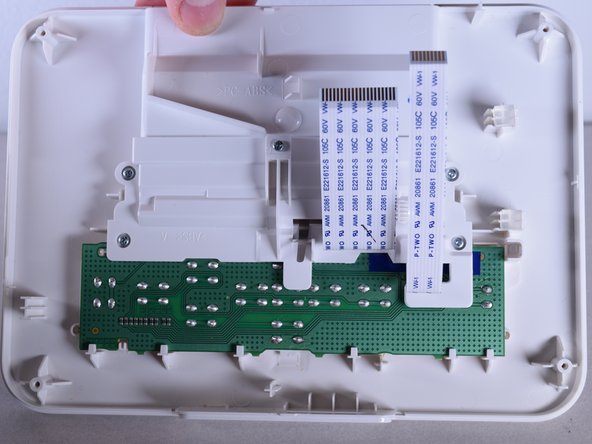
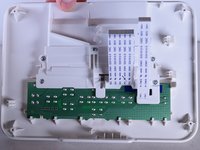
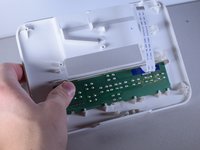
    • Turn the top panel over so the inside faces toward you.

    Ask FixBot

    Add Comment

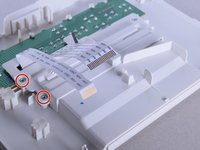
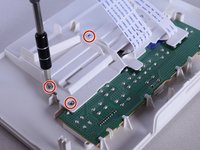
  6. Canon Selphy CP910 Buttons Replacement: step 6, image 1 of 3 Canon Selphy CP910 Buttons Replacement: step 6, image 2 of 3 Canon Selphy CP910 Buttons Replacement: step 6, image 3 of 3
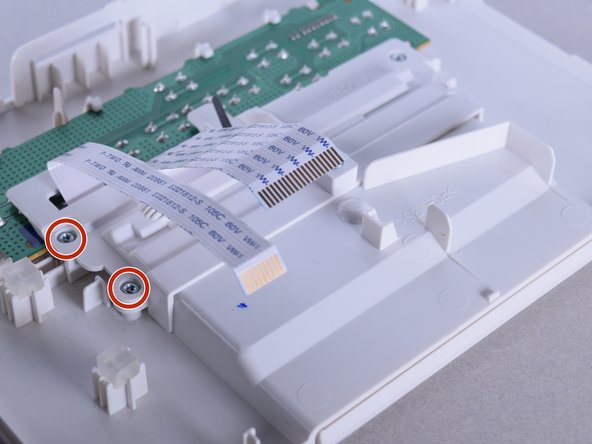
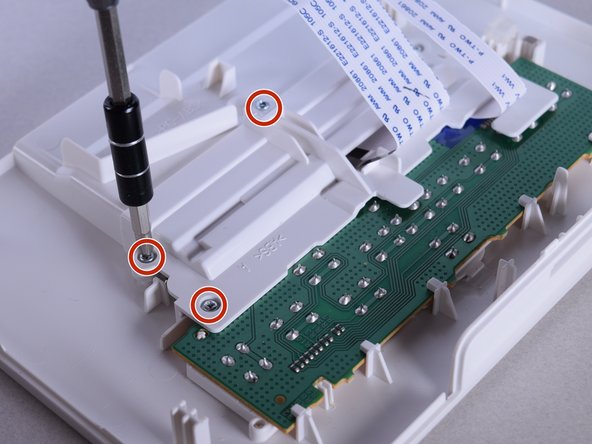
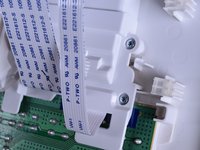
    • Use the PH0 screw bit to remove the five 10 mm screws located above the circuit board.

    Ask FixBot

    Add Comment

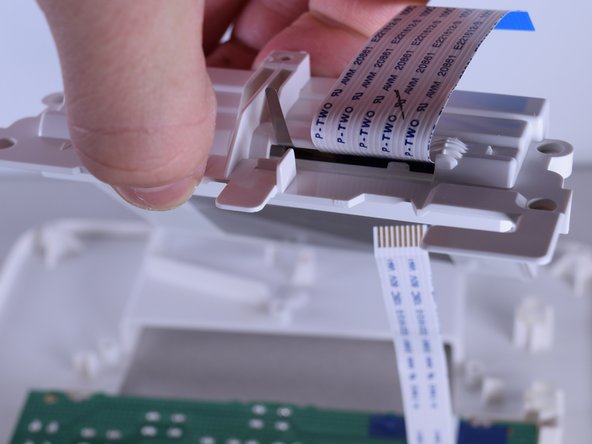
  7. Canon Selphy CP910 Buttons Replacement: step 7, image 1 of 2 Canon Selphy CP910 Buttons Replacement: step 7, image 2 of 2
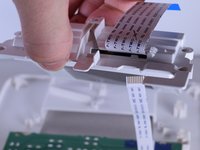
    • Carefully remove the frame attached to the screen.

    Ask FixBot

    Add Comment

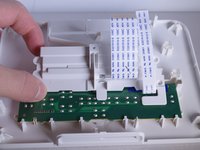
  8. Canon Selphy CP910 Buttons Replacement: step 8, image 1 of 3 Canon Selphy CP910 Buttons Replacement: step 8, image 2 of 3 Canon Selphy CP910 Buttons Replacement: step 8, image 3 of 3
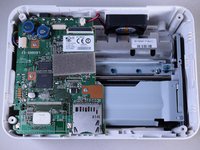
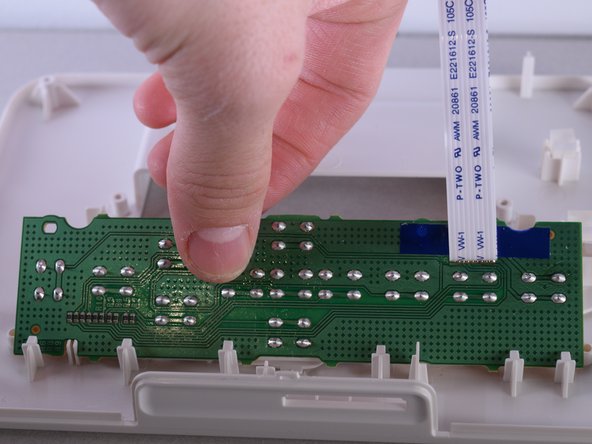
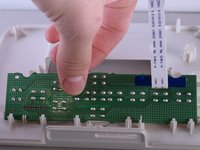
    • Take out the circuit board.

    • Once you take out the circuit board, you should be left with just the case.

    Ask FixBot

    Add Comment

  9. Canon Selphy CP910 Buttons Replacement: step 9, image 1 of 2 Canon Selphy CP910 Buttons Replacement: step 9, image 2 of 2
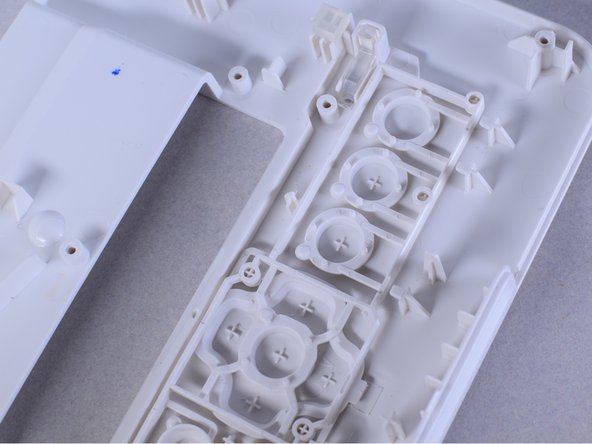
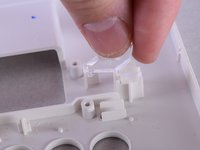
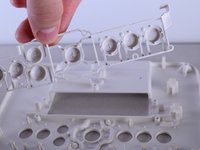
    • There is a clear plastic ā€œLā€ shaped piece that acts as the power light for the printer. The piece is not attached to the printer so take care not to lose it.

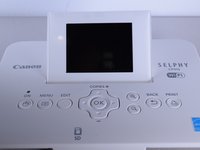
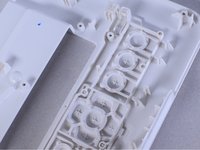
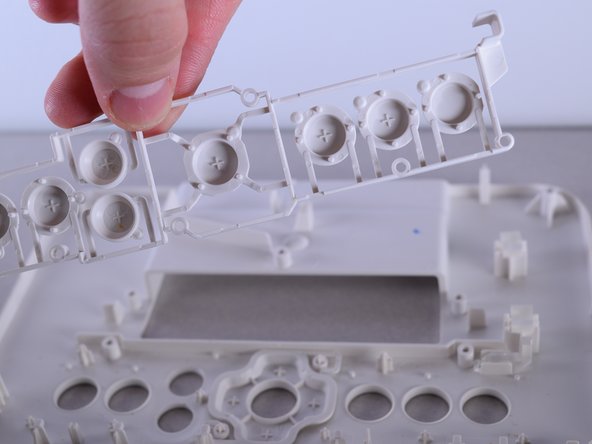
    • Remove the button framework and replace it with new one.

    Ask FixBot

    Add Comment

Conclusion

To reassemble your device, follow these instructions in reverse order.

Cancel: I did not complete this guide.

One other person completed this guide.

Christie Peralta

Member since: 02/01/16

751 Reputation

5 Guides authored

Team

UW Tacoma, Team 1-6, Rose Winter 2016 Member of UW Tacoma, Team 1-6, Rose Winter 2016

UWT-ROSE-W16S1G6

4 Members

11 Guides authored

0 Guide Comments

Add Comment

View Statistics:

Past 24 Hours: 1

Past 7 Days: 10

Past 30 Days: 31

All Time: 1,230