
Canon Powershot A720 IS Shutter Button Replacement

Ismael R and 4 other contributors
Last updated on May 7, 2024
Views: 1.7K
View statistics:
- Past 24 Hours:
- 2
- Past 7 Days:
- 12
- Past 30 Days:
- 98
- All Time:
- 1,673
Comments: 0
No one has left comments on this guide. Will you be first?
Go to guide commentsCompleted: 0 1
No one has marked this guide "completed." Will you be the first?
1 person has marked this guide "completed." It's you — great job!
Favorites: 0 1
No one has favorited (and subscribed to) this guide. Will you be the first?
1 person has favorited (and subscribed to) this guide — and that's you!
Slice and Dice
The steps in this guide should be split up and made into a series of prerequisite guides.
Step Trimmer
This guide has unnecessary steps. Trim them to be more concise!
Better Introduction
Improve this guide by completing or revising its introduction.
Introduction
Go to step 1 ↓Have you ever had your shutter button get stuck in the middle of taking pictures? Use this guide to get it back in place.
What you need
Tools
-
Spudger4.9
-
-
-
-


-
-
Tool used on this step:Tweezers$4.99
-
Carefully insert the tip of the tweezers in the space between the shutter button and the zoom dial. Gently insert the tip under the button and slowly lift.
 Ask FixBot
-
-
-
On the bottom of the camera, open the battery compartment by pushing the lock up. The door will then spring open allowing you to slide the batteries out.
-
-
-
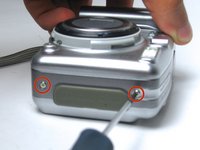
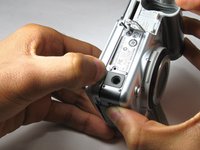
On the left side of the camera remove the two visible 4mm Phillips head screws.
-
On the right side of the camera remove the two visible 4mm Phillips head screws.
-
On the bottom of the camera remove the two visible 4mm Phillips head screws.
-
-
-
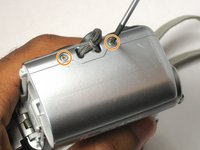
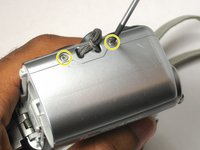
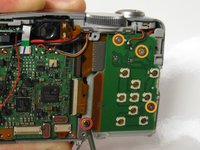
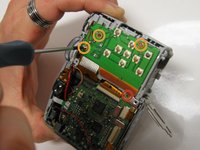
Remove the two 3 mm screws below the LCD screen using a Phillips #00 screwdriver.
-
Unscrew the top 4 mm Phillips head screw.
-
-
-
Gently turnover the LCD screen so that the motherboard is exposed.
-
Carefully pull the ribbon cable straight out using your thumb and index finger.
-
-
-
-
Remove the 3mm Phillips head screw between the circuit boards.
-
Remove the three 3.5mm Phillips head screws on the circuit board.
-
-
-
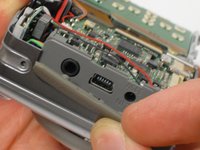
Remove the gray rubber cover labeled DC IN DIGITAL A/V OUT if it hasn't fallen out yet on its own.
-
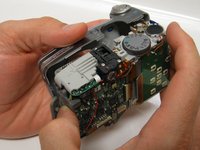
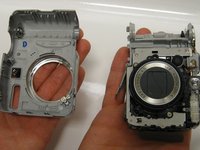
Carefully pull the front panel away from the rest of the camera.
-
-
-
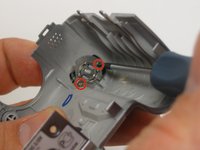
In the front panel remove the two 2.5mm Phillips head screws attached to the shutter button.
-
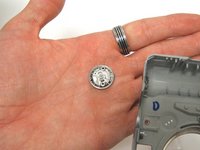
The shutter button and other components will fall out.
-
-




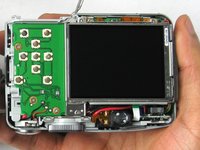
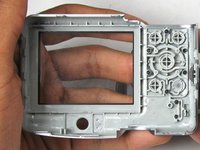


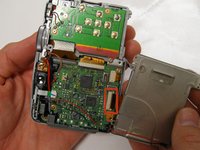
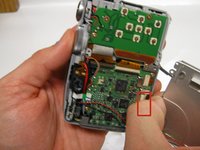






To reassemble your device, follow these instructions in reverse order.

Team

USF Tampa, Team 17-4, Watkins Winter 2015 Member of USF Tampa, Team 17-4, Watkins Winter 2015
USFT-WATKINS-W15S17G4
3 Members
60 Guides authored
