Introduction
If your Canon PowerShot SX620 HS has a display screen that is broken or malfunctioning, use this guide to replace the display screen.
The LCD screen is the large screen on the back of the camera that allows the user to frame photos, view images, change camera settings, and more. The screen is glass, so it could also crack easily if dropped. It could also go black if an electronic component inside the screen fails. In these situations, you will need to replace your screen using the process in this guide.
Make sure your device is powered off and your SD card is removed before performing this fix.
What you need
-
-
Open the battery door located on the bottom of the camera.
-
Push the orange tab until the battery springs upwards and out.
-
Remove the battery from the camera.
 Ask FixBot
-
-
-
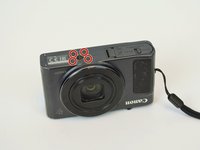
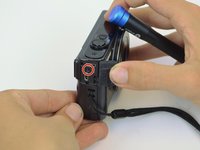
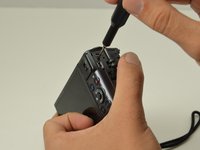
Remove the two 4 mm screws from the side of the camera with the flash assembly using a Phillips #000 screwdriver
-
-
-
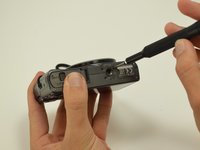
Remove the four 2 mm screws from the bottom of the camera using a Phillips #000 screwdriver.
-
-
-
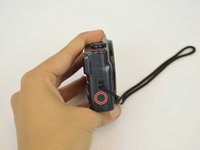
Remove the single 4 mm screw from the other side of the camera using a Phillips #000 screwdriver.
-
-
-
Open the HDMI cover.
-
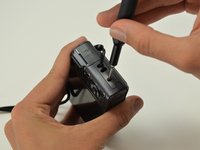
Remove the single 4 mm screw inside the HDMI cover using a Phillips #000 screwdriver.
-
-
-
-
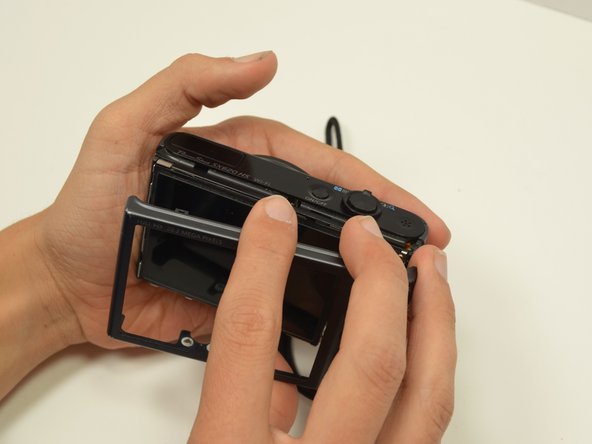
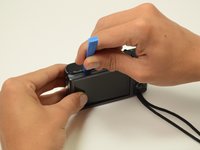
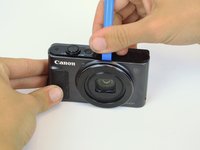
Use a plastic opening tool at the top of the camera to loosen the back piece of the outer case. Once it is loose, pull it straight out.
-
Use the same technique to remove the front piece of the camera case.
-
-
-
Place the camera with the LCD screen facing up.
-
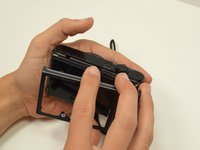
Pull the side cover pieces out.
-
-
-
Flip the camera over so the lens is facing upwards.
-
Use the Phillips #000 screwdriver to remove the screw located near the photo button.
-
-
Tool used on this step:Tweezers$4.99
-
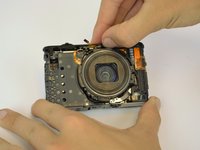
Detach the orange connector from the lens piece using tweezers.
-
-
-
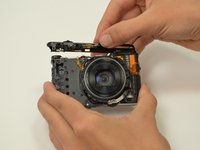
Grab the top cover piece directly above the lens. Pull upward to remove it from the camera body.
-
-
-
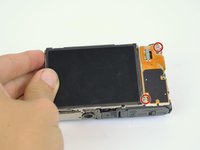
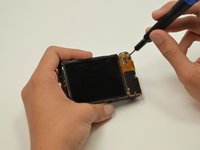
Use the Phillips #000 screwdriver to remove the two 2 mm screws from the button panel.
-
-
-
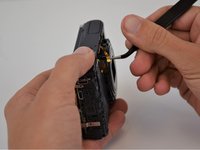
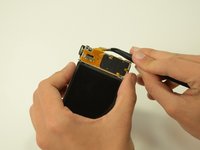
Use tweezers to carefully detach the connector that is hidden underneath the button panel.
-
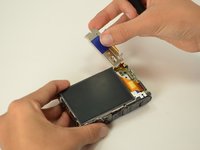
Flip the button panel upward.
-
-
-
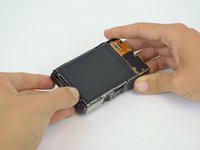
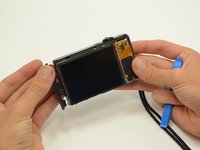
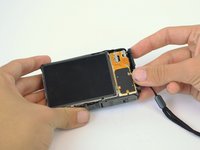
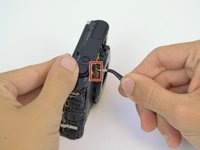
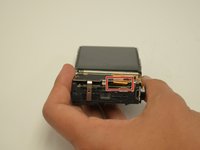
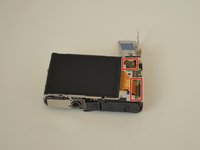
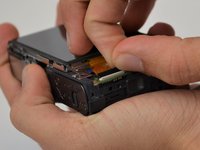
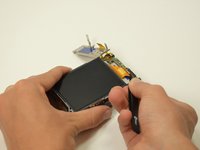
Flip the small black cover upward so you can remove the large orange connector. Carefully remove this connector and the smaller connector holding the LCD screen in place.
-
Lift the LCD screen out of the metal frame.
-




















To reassemble your device, follow these instructions in reverse order.
Cancel: I did not complete this guide.
3 other people completed this guide.

Team

Embry-Riddle Aeronautical University, Team 9-10, Rauch Fall 2021 Member of Embry-Riddle Aeronautical University, Team 9-10, Rauch Fall 2021
ERAU-RAUCH-F21S9G10
3 Members
2 Guides authored
