Free Shipping on Domestic Orders $75+

Canon PowerShot SD1400 IS USB Port Replacement

What you need

  1. Canon PowerShot SD1400 IS USB Port Replacement, USB Port: step 1, image 1 of 3 Canon PowerShot SD1400 IS USB Port Replacement, USB Port: step 1, image 2 of 3 Canon PowerShot SD1400 IS USB Port Replacement, USB Port: step 1, image 3 of 3
    • Remove the four 2mm Phillips #00 screws on both sides of the camera.

    Ask FixBot
  2. Canon PowerShot SD1400 IS USB Port Replacement: step 2, image 1 of 1
    • Remove the single 4mm Phillips #00 screw from the bottom.

    Ask FixBot
  3. Canon PowerShot SD1400 IS USB Port Replacement: step 3, image 1 of 1
    • Remove the front face panel off of the camera.

    Ask FixBot
  4. Canon PowerShot SD1400 IS USB Port Replacement: step 4, image 1 of 1
    • Remove the rear panel of the camera.

    • The user interface panel, side and bottom panel of the camera may fall down by itself while you are taking the rear panel of the camera.

    Ask FixBot
  5. Canon PowerShot SD1400 IS USB Port Replacement: step 5, image 1 of 1
    • Remove the 3mm Phillips #000 screw from the top of the camera.

    Ask FixBot
  6. Canon PowerShot SD1400 IS USB Port Replacement: step 6, image 1 of 1
    • Pry the golden ribbon cable from the motherboard with a plastic opening tool.

    • A screw will be visible underneath the golden ribbon after prying it.

    Ask FixBot
  7. Canon PowerShot SD1400 IS USB Port Replacement: step 7, image 1 of 1
    • Remove the 3mm Phillips #000 screw from the motherboard.

    Ask FixBot
  8. Canon PowerShot SD1400 IS USB Port Replacement: step 8, image 1 of 1
    • Use a plastic opening tool to flip up the retaining flap on the ribbon cable ZIF socket.

    Ask FixBot
  9. Canon PowerShot SD1400 IS USB Port Replacement: step 9, image 1 of 2 Canon PowerShot SD1400 IS USB Port Replacement: step 9, image 2 of 2
    Tool used on this step:
    Tweezers
    $4.99
    Buy
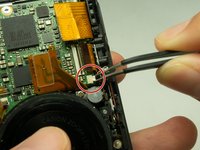
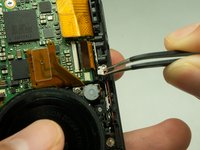
    • Unplug the small chip from the face of the camera using a pair of tweezers.

    Ask FixBot
  10. Canon PowerShot SD1400 IS USB Port Replacement: step 10, image 1 of 1
    • Remove the 3mm Phillips #000 screw from the rear face of the camera.

    Ask FixBot
  11. Canon PowerShot SD1400 IS USB Port Replacement: step 11, image 1 of 1
    • Remove the top panel from the camera.

    Ask FixBot
  12. Canon PowerShot SD1400 IS USB Port Replacement: step 12, image 1 of 1
    • Pry the golden ribbon cable attached to the USB port using a plastic opening tool.

    Ask FixBot
  13. Canon PowerShot SD1400 IS USB Port Replacement: step 13, image 1 of 1
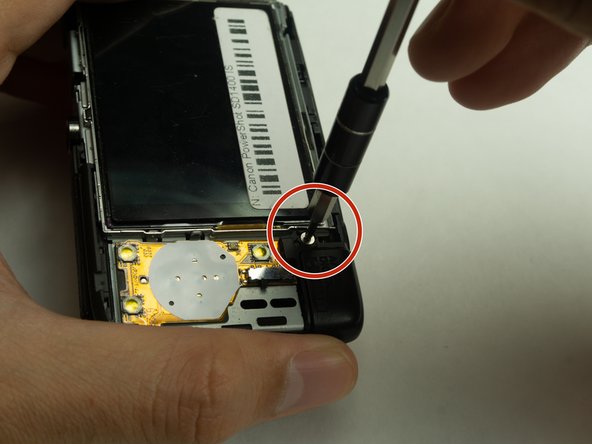
    • Remove the 3mm Phillips #000 screw located at the top right of the USB port.

    Ask FixBot
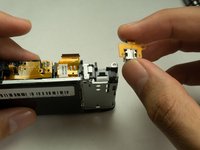
  14. Canon PowerShot SD1400 IS USB Port Replacement: step 14, image 1 of 2 Canon PowerShot SD1400 IS USB Port Replacement: step 14, image 2 of 2
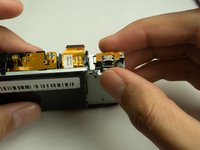
    • Remove the USB port.

    Ask FixBot
Conclusion

To reassemble your device, follow these instructions in reverse order.

One other person completed this guide.

Faris Rezwan

Member since: 05/21/18

457 Reputation

2 Guides authored

Team

IUPUI, Team S1-G2, Harley Spring 2018 Member of IUPUI, Team S1-G2, Harley Spring 2018

IUPUI-HARLEY-S18S1G2

7 Members

4 Guides authored

0 Guide Comments

Add Comment

View Statistics:

Past 24 Hours: 0

Past 7 Days: 11

Past 30 Days: 48

All Time: 532