
Canon PowerShot SD1200 IS Function Button Board Replacement

Jeff Casper and 4 other contributors
Last updated on Dec 25, 2016
Views: 729
View statistics:
- Past 24 Hours:
- 2
- Past 7 Days:
- 12
- Past 30 Days:
- 83
- All Time:
- 729
Comments: 1
1 comment on steps.
Completed: 0 1
No one has marked this guide "completed." Will you be the first?
1 person has marked this guide "completed." It's you — great job!
Favorites: 0 1
No one has favorited (and subscribed to) this guide. Will you be the first?
1 person has favorited (and subscribed to) this guide — and that's you!
Slice and Dice
The steps in this guide should be split up and made into a series of prerequisite guides.
Introduction
Go to step 1 ↓Use this guide to replace the function buttons on the back of the camera.
What you need
Tools


-
-
-
Remove the two screws from the side of the camera casing with the strap. (4mm Phillips 00)
-
Remove the two screws from the bottom of the camera. (4mm Phillips 00)
-
Remove the two screws from the right side of the camera opposite the strap. (2mm Phillips 00)
-
-
-
-
Use the spudger to lift the tab on the Zero Insertion Force (ZIF) connector located at the top of the function button board.
-
Slide out the ribbon cable from the connector.
-
-
-
-
Remove the top screw from the function button board. (3.5mm Phillips 00)
-
Remove the bottom screw from the function button board. (2.5mm Phillips 00)
-
-

 Ask FixBot


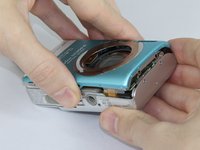
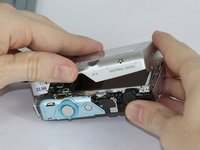


To reassemble your device, follow these instructions in reverse order.

Team

USF Tampa, Team 17-5, Blackwell Fall 2016 Member of USF Tampa, Team 17-5, Blackwell Fall 2016
USFT-BLACKWELL-F16S17G5
3 Members
84 Guides authored
