Free Shipping on Domestic Orders $75+

Canon PowerShot S80 Flash Replacement

What you need

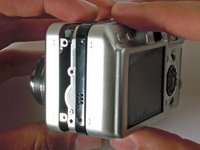
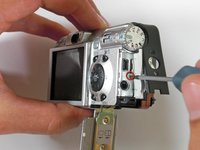
    1. Canon PowerShot S80 Flash Replacement, Outer Casing: step 1, image 1 of 2 Canon PowerShot S80 Flash Replacement, Outer Casing: step 1, image 2 of 2
      • Remove the knot on the wrist lanyard.

      • Remove the battery and the memory card.

      Ask FixBot

      Add Comment

    2. Canon PowerShot S80 Flash Replacement: step 2, image 1 of 2 Canon PowerShot S80 Flash Replacement: step 2, image 2 of 2
      • Begin removing the screws on the bottom of the outer casing.

      • Next, remove the rest of the screws from the outer casing.

      Ask FixBot

      Add Comment

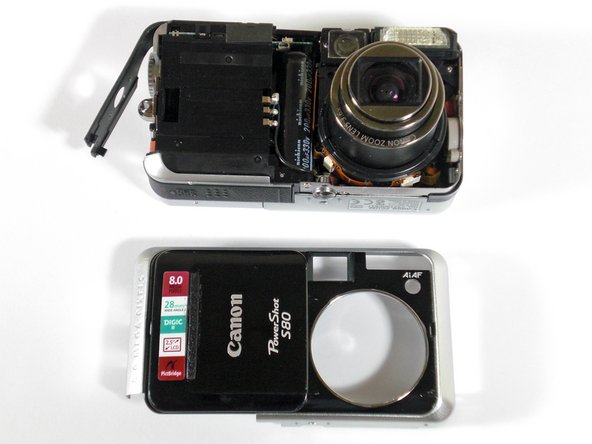
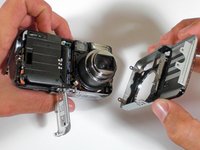
    3. Canon PowerShot S80 Flash Replacement: step 3, image 1 of 3 Canon PowerShot S80 Flash Replacement: step 3, image 2 of 3 Canon PowerShot S80 Flash Replacement: step 3, image 3 of 3
      • Gently pull the front cover off of the camera.

      Ask FixBot

      Add Comment

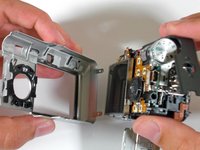
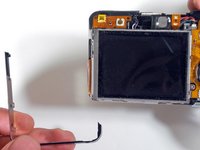
    4. Canon PowerShot S80 Flash Replacement: step 4, image 1 of 3 Canon PowerShot S80 Flash Replacement: step 4, image 2 of 3 Canon PowerShot S80 Flash Replacement: step 4, image 3 of 3
      • Open the "A/V Out Digital" cover. Remove the screw inside.

      • Gently pull off the back casing.

      • Remove the black "L" shaped piece of metal.

      Ask FixBot

      Add Comment

    1. Canon PowerShot S80 Flash Replacement, LCD Screen: step 5, image 1 of 1
      • Remove the three screws that are holding the screen in place. Free the screen from the underlying components.

      • Be careful with the ribbon wire that is still attached on the left side of the screen.

      Ask FixBot

      Add Comment

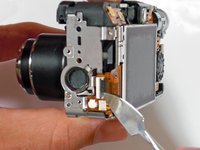
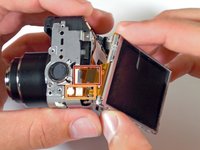
    2. Canon PowerShot S80 Flash Replacement: step 6, image 1 of 2 Canon PowerShot S80 Flash Replacement: step 6, image 2 of 2
      • With the spudger, gently lift the black flap that is holding the wide ribbon cable wire in place.

      • Unplug the wide ribbon cable.

      • Unplug the narrow ribbon cable to free the LCD screen from the camera body.

      Ask FixBot

      Add Comment

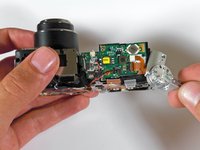
    1. Canon PowerShot S80 Flash Replacement, Flash: step 7, image 1 of 1
      • Remove the L-shaped corner trim containing the picture button.

      • Carefully unplug the connection cable that is attached.

      Ask FixBot

      Add Comment

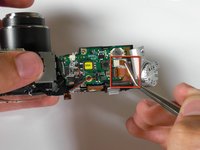
    2. Canon PowerShot S80 Flash Replacement: step 8, image 1 of 2 Canon PowerShot S80 Flash Replacement: step 8, image 2 of 2
      Tool used on this step:
      Tweezers
      $4.99
      Buy
      • Pull the selector wheel from the top corner of the camera.

      • Carefully remove the ribbon cable connection with a set of tweezers.

      Ask FixBot

      Add Comment

    3. Canon PowerShot S80 Flash Replacement: step 9, image 1 of 1
      • With a Phillips #00 Screwdriver, unscrew the zoom toggle switch and remove it from the camera.

      Ask FixBot

      Add Comment

    4. Canon PowerShot S80 Flash Replacement: step 10, image 1 of 1
      • With a Phillips #00 Screwdriver, unscrew the flash board.

      Ask FixBot

      Add Comment

    5. Canon PowerShot S80 Flash Replacement: step 11, image 1 of 1
      • Remove the cable connection. With a metal spudger, gently pry up.

      • Remove the ribon cable. With a metal spudger, gently lift up the black tab.

      Ask FixBot

      Add Comment

    6. Canon PowerShot S80 Flash Replacement: step 12, image 1 of 1
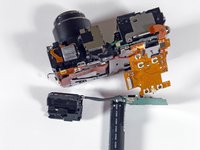
      • Lift the flash bulb unit upwards from the camera.

      Ask FixBot

      Add Comment

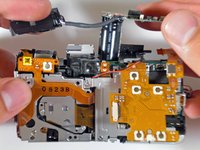
    7. Canon PowerShot S80 Flash Replacement: step 13, image 1 of 2 Canon PowerShot S80 Flash Replacement: step 13, image 2 of 2
      • Lift the entire three-part flash assembly from the camera.

      Ask FixBot

      Add Comment

Conclusion

To reassemble your device, follow these instructions in reverse order.

Cancel: I did not complete this guide.

BrettH

Member since: 10/28/09

219 Reputation

5 Guides authored

Team

Cal Poly, Team 19-5, Maness SU 2012 Member of Cal Poly, Team 19-5, Maness SU 2012

CPSU-MANESS-SU12S19G5

1 Member

60 Guides authored

0 Guide Comments

Add Comment

View Statistics:

Past 24 Hours: 0

Past 7 Days: 4

Past 30 Days: 22

All Time: 4,149