Free Shipping on Domestic Orders $75+

Canon PowerShot S50 Right Motherboard Replacement

What you need

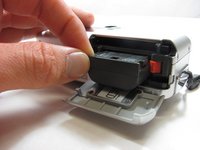
  1. Canon PowerShot S50 Right Motherboard Replacement, Battery: step 1, image 1 of 2 Canon PowerShot S50 Right Motherboard Replacement, Battery: step 1, image 2 of 2
    • Place camera LCD side up and press up on the battery door.

    • Let it swing open until you can see the battery inside.

    Ask FixBot
  2. Canon PowerShot S50 Right Motherboard Replacement: step 2, image 1 of 1
    • Press down on the orange plastic.

    • This will gently eject the battery from its compartment.

    Ask FixBot
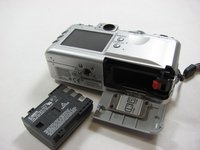
  3. Canon PowerShot S50 Right Motherboard Replacement: step 3, image 1 of 2 Canon PowerShot S50 Right Motherboard Replacement: step 3, image 2 of 2
    • Holding the edges, slide out the battery.

    Ask FixBot
  4. Canon PowerShot S50 Right Motherboard Replacement, Front Panel/Battery Door: step 4, image 1 of 1
    • Look at the camera from the side with the lanyard and 4 screws.

    • Remove the two 3.4 mm screws on the metallic colored part.

    Ask FixBot
  5. Canon PowerShot S50 Right Motherboard Replacement: step 5, image 1 of 1
    • Remove the 3mm screw on the top left.

    • NOTE: When reassembling, it is helpful to put the top screw back in before placing the front cover back on the camera.

    • Now remove the 5.3mm screw on the bottom.

    Ask FixBot
  6. Canon PowerShot S50 Right Motherboard Replacement: step 6, image 1 of 1
    • Place the camera LCD side down.

    • Remove the two 5.3mm screws by the battery door.

    Ask FixBot
  7. Canon PowerShot S50 Right Motherboard Replacement: step 7, image 1 of 1
    • Remove the four 3.4mm screws on the bottom of the camera around the tripod mount.

    • Make sure to keep these screws separate from the previous 5.3 mm screws.

    Ask FixBot
  8. Canon PowerShot S50 Right Motherboard Replacement: step 8, image 1 of 1
    • Stand the camera back up.

    • Remove the two 3.6mm screws on the side with the A/V Out port.

    Ask FixBot
  9. Canon PowerShot S50 Right Motherboard Replacement: step 9, image 1 of 1
    • Lift open the rubber flap covering the A/V Out port.

    • Remove the 3.4mm screw in the center.

    • During reassembly, put the A/V out rubber door on before replacing the front panel of the camera

    Ask FixBot
  10. Canon PowerShot S50 Right Motherboard Replacement: step 10, image 1 of 1
    • Use a spudger and gently open up the front panel of the camera.

    • A thin plastic ribbon will stay connected by a brown piece to front panel of the camera.

    Ask FixBot
  11. Canon PowerShot S50 Right Motherboard Replacement: step 11, image 1 of 1
    • There will be a brown plastic piece keeping the thin plastic ribbon in place.

    • Use the spudger to pull out the brown plastic piece attached to the orange plastic.

    Ask FixBot
  12. Canon PowerShot S50 Right Motherboard Replacement: step 12, image 1 of 1
    Tool used on this step:
    Tweezers
    $4.99
    Buy
    • Use a pair of tweezers and remove the metal piece inside the camera.

    Ask FixBot
  13. Canon PowerShot S50 Right Motherboard Replacement: step 13, image 1 of 1
    • Remove the battery door

    • NOTE: Putting this back on requires aligning the spring on the back of the door with the hole on the camera

    Ask FixBot
  14. Canon PowerShot S50 Right Motherboard Replacement, Right Motherboard: step 14, image 1 of 1
    • Disconnect the two plastic ribbons on the lower half of the right motherboard.

    • NOTE: You will have to lift up the brown plastic piece in order to pull out the second ribbon wire.

    Ask FixBot
  15. Canon PowerShot S50 Right Motherboard Replacement: step 15, image 1 of 1
    • Remove the two 3.4mm screws on the right motherboard.

    Ask FixBot
  16. Canon PowerShot S50 Right Motherboard Replacement: step 16, image 1 of 1
    • Disconnect the two wired plugs below the flash.

    Ask FixBot
  17. Canon PowerShot S50 Right Motherboard Replacement: step 17, image 1 of 1
    • Disconnect the wired plug at the bottom of the right motherboard.

    Ask FixBot
  18. Canon PowerShot S50 Right Motherboard Replacement: step 18, image 1 of 1
    Tool used on this step:
    Tweezers
    $4.99
    Buy
    • Use a pair of tweezers to pull the right motherboard away from the main body of the camera.

    Ask FixBot
Conclusion

To reassemble your device, follow these instructions in reverse order.

2 other people completed this guide.

Jacob

Member since: 03/29/12

16 Reputation

3 Guides authored

Team

Cal Poly, Team 7-34, Maness Spring 2012 Member of Cal Poly, Team 7-34, Maness Spring 2012

CPSU-MANESS-S12S7G34

5 Members

6 Guides authored

0 Guide Comments

Add Comment

View Statistics:

Past 24 Hours: 0

Past 7 Days: 17

Past 30 Days: 76

All Time: 1,559