
Canon PowerShot S110 Lens Replacement

Pierre and 3 other contributors
Last updated on May 30, 2019
Views: 17K
View statistics:
- Past 24 Hours:
- 11
- Past 7 Days:
- 59
- Past 30 Days:
- 233
- All Time:
- 17,165
Comments: 11
2 comments on steps, 9 guide comments.
Go to guide commentsCompleted: 11 12
11 people have marked this guide "completed." Will you be next?
12 people have marked this guide "completed." Including you — great job!
Favorites: 1 2
1 person has favorited (and subscribed to) this guide. Will you be next?
2 people have favorited (and subscribed to) this guide — including you!
Needs More Images
A few more images would make this guide's procedures crystal clear.
Introduction
Go to step 1 ↓Remove all accessories connected to the camera prior to lens removal out of precaution.
What you need
Tools

-
-
-
Remove the battery by sliding open the cover on the bottom of the camera.
 Ask FixBot
-
-
-
Removing the following 6 Phillips screws will allow access to the inside of the camera:
-
Remove two screws on the right-side of the camera, near the HDMI port.
-
Remove two screws on the opposite side of the camera.
-
Remove the last two screws on the underside of the camera, near the tripod mounting hole.
-
-
-
Remove the Phillips screw near the display holding the bracket in place.
-
Remove the second Phillips screw in the bottom corner, making it easier to remove the bracket.
-
-
-
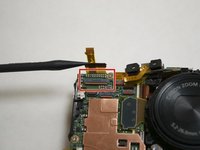
Using a plastic spudger, slowly pull out the ribbon using the hole shown in the image. The first of three logic connectors connecting the display to the camera is now removed.
-
The display should now be partially disconnected from the back side of the camera.
-
-
-
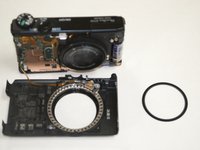
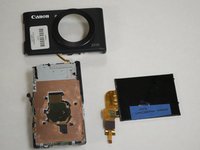
In order to remove the other two connectors, the front of the case must be removed. Slowly pry around the edges using a plastic prying tool to free the case. A lens-ring piece will fall out from the inside of the camera; set this aside.
-
-
-
Remove the two screws that hold the top piece of the plastic case in. One is short, one is long.
-
With a spudger remove the two rubber pads from the top of the camera to prevent pulling on the flex cable.
-
-
-
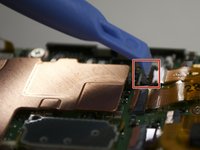
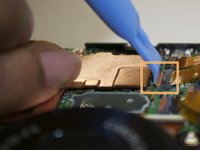
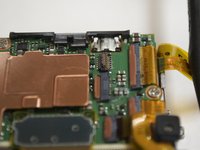
Flip up the tab holding down this logic ribbon.
-
Flip up a second tab holding down this other ribbon; both the cables should be easily removable following this.
-
-
-
Flip up the tab and remove the last ribbon.
-
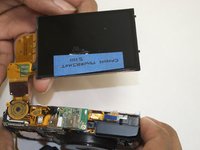
The display can now be lifted off the camera and the logic ribbons attached in the front can slide out.
-
-
-
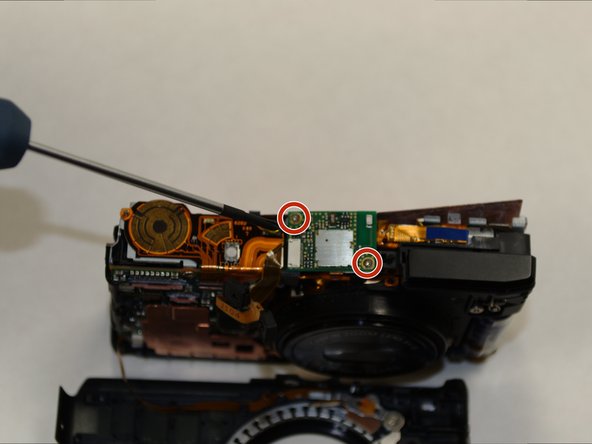
Using a Phillips screwdriver, remove the screws on the small circuit board at the top of the camera.
-
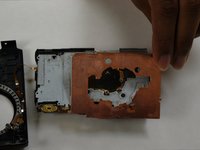
This will allow you to finish removing the copper panel with either your hands or a prying tool.
-
-
-
Using a Phillips screwdriver, remove the 8 screws attaching the metal panel to the camera.
-
-
-
-
To remove the flash assembly, disconnect the flex cable connection, then move the flash unit out of the way.
-
-
-
Remove the Phillips screw holding the copper plate in place.
-
Use a prying tool to lift off the copper plate.
-
-
-
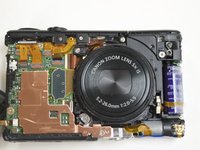
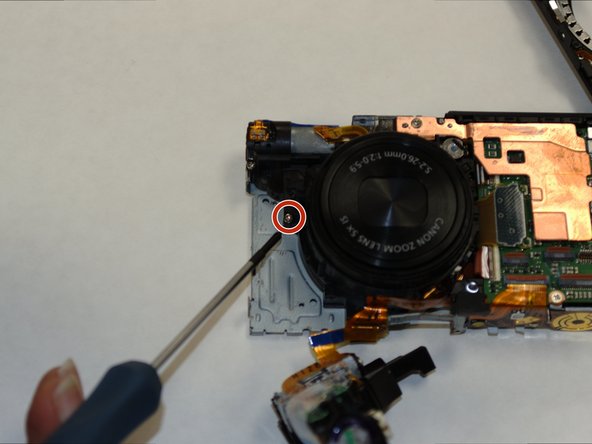
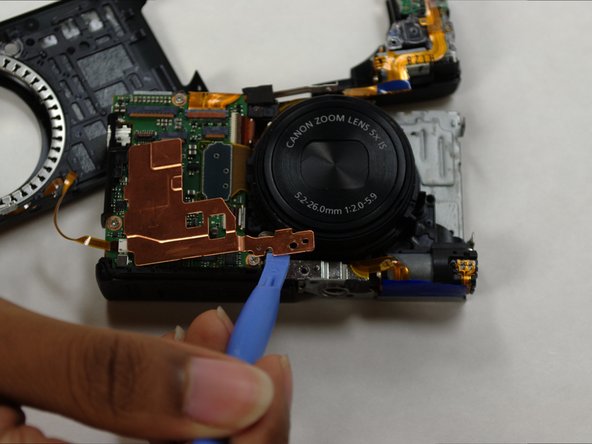
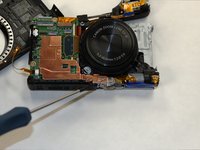
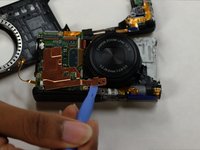
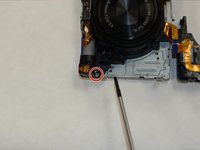
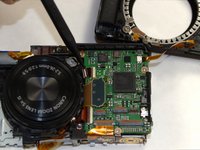
Remove the indicated screw on the front facing side of the lens using a Philips screwdriver.
-
Next, remove the small attached ribbon by lifting up the clip and gently pulling the ribbon out.
-
-
-
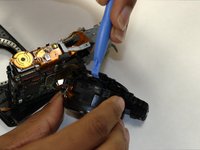
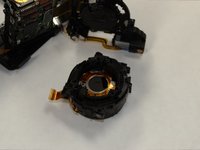
Lift the lens up to reveal the screws underneath.
-
Remove the 4 Phillips screws connecting the lens to the lens bracket.
-
-


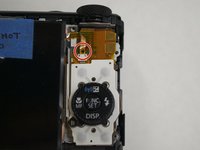
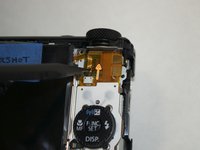
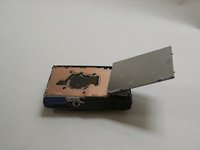


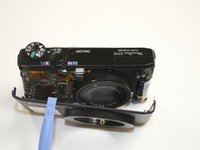











To reassemble your device, follow these instructions in reverse order.
Cancel: I did not complete this guide.
11 other people completed this guide.

Team

UW Tacoma, Team 1-2, Liner SU 2015 Member of UW Tacoma, Team 1-2, Liner SU 2015
UWT-LINER-SU15S1G2
4 Members
36 Guides authored
9 Guide Comments
There is a step missing, on removing the flash, one side screw and one front, above the lens, otherwise perfect. thank you so much, just as above I had a lens error and ordered a replacement for 14£ from ebay. all works now. thanks.
Is there no other 'fix' without replacing the lens assembly on this particular "Lens error "issue?
@profeduards: try to reseat the flexes from the aperture and IS. You can disassemble the lens to reset the position and/or remove sand but make lots of pictures of the process, and mark (with pencil) a line over the rings (from the front) to know what ring goes where when reassembling. It's possible to reassemble without (as I did, lens was extended so i couldnt) but the process is long, arduous and takes a lot of patience.
Thanks, my Lens was bricked, and with a new Lens kit @15$ from china, it was fixed.
