Introduction
If the Canon PowerShot G9 displays a card error "write locked", it could be simply the switch in the SD-card slot not working.
- Good eyesight and a steady hand is necessary to complete this.
- Be especially careful not to rupture any of the flex cables.
- Work slowly
- Keep the screws sorted, they have different sizes
*
What you need
-
-
Remove screws as marked. 2 for strap holder, 5 for back cover
-
Remove Back cover and strap holder
 Ask FixBot
-
-
-
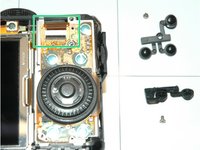
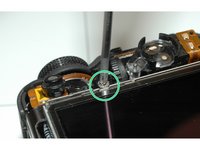
Remove the two screws circled green.
-
Remove the buttons.
-
-
-
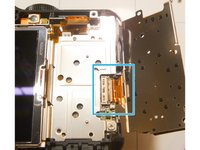
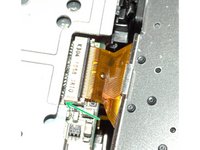
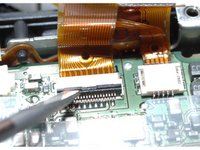
Disconnect ribbon cable by lifting up flap.
-
Disconnect other cable (another flap)
-
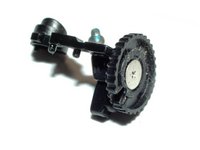
Remove jog dial unit
-
-
-
-
Remove the one screw circled green.
-
Remove the finder dial
-
-
-
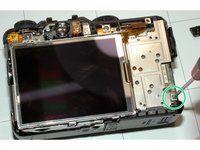
Remove screw and lift LCD upwards very carefully. Do not put any strain on cables.
-
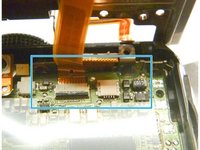
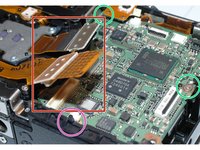
Carefully remove flex cables. The left has a flap that needs to be opened (up), the right just needs to be pulled out. Be careful when re-inserting the right one, you can easily damage the fragile cable.
-
Remove the LCD
-
-
-
Remove screws.
-
Disconnect connectors for Lens assembly
-
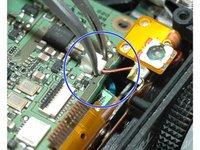
Carefully disconnect the tiny cable
-
Next step is removing the PCB. I made the mistake not to take care about the battery compartment switch. If you are not careful, the black lever will break off. Not a problem though, because then the camera will work also with opened battery compartmen
-
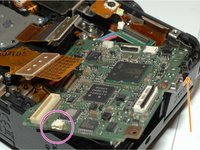
Remove main PCB by slightly bending outward the cover for the jack with fingernail. Now lift the PCB slightly upwards.
-
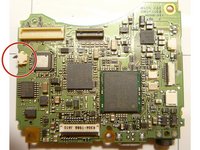
Look under the PCB, there is a connector that needs to be separated by means of a small screwdriver or spudger.
-
Re-attaching the connector is not easy. I used a small screwdriver to carefully press the connector back in place.
-
-
-
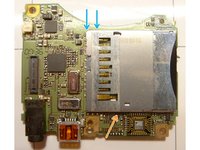
Measure continuity with a multimeter on SD-card slot write protect switch.
-
If it is not working, short the two points with a bodge wire, so write lock is disabled
-
Another possible fault is a broken soldering joint holding the case of the SD-card reader in place.
-












Repeat the steps in order to reassemble your device.
Cancel: I did not complete this guide.
One other person completed this guide.
Special thanks to these translators:
100%


These translators are helping us fix the world! Want to contribute?
Start translating ›

Team

