
Canon PowerShot A80 LCD Screen Replacement

konrad and 15 other contributors
Last updated on Jan 9, 2025
Views: 5.3K
View statistics:
- Past 24 Hours:
- 2
- Past 7 Days:
- 20
- Past 30 Days:
- 109
- All Time:
- 5,314
Comments: 2
2 guide comments.
Go to guide commentsCompleted: 4 5
4 people have marked this guide "completed." Will you be next?
5 people have marked this guide "completed." Including you — great job!
Favorites: 0 1
No one has favorited (and subscribed to) this guide. Will you be the first?
1 person has favorited (and subscribed to) this guide — and that's you!
Action Shots
Be an action hero! This guide needs images that better demonstrate how to perform specific actions.
Introduction
Go to step 1 ↓Is your Canon PowerShot A80’s LCD screen blurry, cracked, or failing to display images? This guide walks you through replacing the faulty screen so your camera can function like new. A broken LCD makes it tough to focus on your subjects or navigate settings.
Important: Before starting, turn off the camera and remove the battery to avoid electric shock or damage. If you're unsure whether the screen is the issue, visit our troubleshooting page for more help.
What you need
Tools

-
-
-
Using a Phillips #00 screwdriver, remove the two 2.9 mm screws on the side of the LCD screen.
 Ask FixBot
-
-
-
Using a Phillips #00 screwdriver, remove the 2.9 mm screws on the other side of the screen to separate the front and back covers.
-
-
-
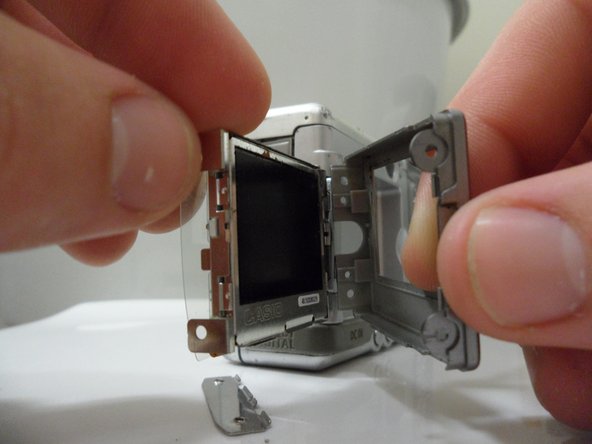
Gently remove the front and back covers from the screen.
-
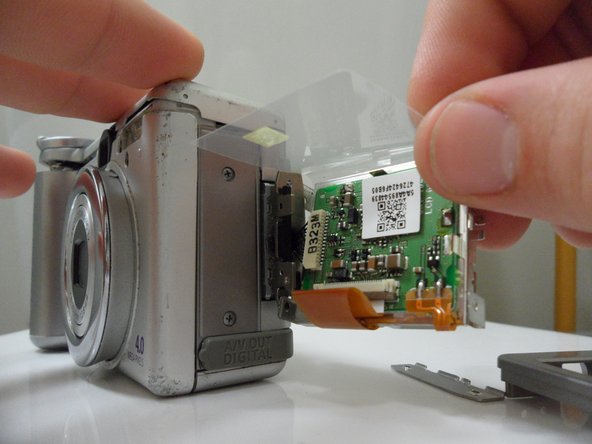
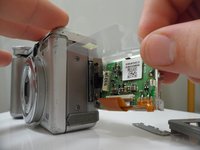
Peel back the plastic circuit cover.
-
-
-




To reassemble your device, follow these instructions in reverse order. Take your e-waste to an R2 or e-Stewards certified recycler.
Cancel: I did not complete this guide.
4 other people completed this guide.

Team

Cal Poly, Team 7-31, Regan Winter 2011 Member of Cal Poly, Team 7-31, Regan Winter 2011
CPSU-REGAN-W11S7G31
6 Members
72 Guides authored
