
Canon PowerShot A550 SD Card Reader

Shaelyn Thomas and 6 other contributors
Last updated on May 7, 2024
Views: 4.9K
View statistics:
- Past 24 Hours:
- 4
- Past 7 Days:
- 20
- Past 30 Days:
- 95
- All Time:
- 4,937
Comments: 0
No one has left comments on this guide. Will you be first?
Go to guide commentsCompleted: 1 2
1 person has marked this guide "completed." Will you be next?
2 people have marked this guide "completed." Including you — great job!
Favorites: 1 2
1 person has favorited (and subscribed to) this guide. Will you be next?
2 people have favorited (and subscribed to) this guide — including you!
Featured Guide
This guide has been found to be exceptionally cool by the iFixit staff.
Introduction
Go to step 1 ↓This guide will give a step by step procedure of how to access and replace the SD card reader in the Canon PowerShot A550
What you need
Tools


-
-
-
Unscrew a total of 6 4.45 mm phillips head screws using a #00 phillips head screwdriver.
-
There are 2 screws on the left side (when looking at the front of the camera).
-
There are 3 screws on the bottom
-
There is 1 screw on the right side
 Ask FixBot
-
-
-
Turn to the bottom of the camera.
-
Open the memory card cover by sliding the "CARD/BATT." button up, and then pulling the cover to the left.
-
-
-
This is what the SD card/battery compartment looks like when opened.
-
Remove one 4.45mm phillips head screw from the SD card/battery compartment using a #00 phillips head screwdriver.
-
-
-
Tool used on this step:Tweezers$4.99
-
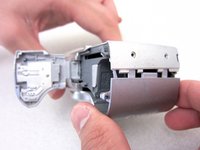
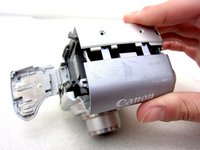
Start from the battery compartment and remove the back cover.
-
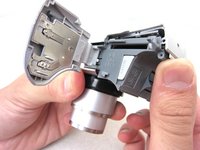
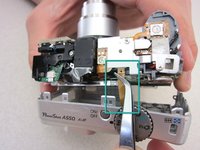
Remove the connecting ribbon from the body of the camera using a pair of tweezers.
-
-
-
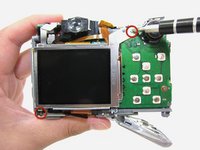
Once the ribbon connecting the back cover is removed, the back of the camera body should look like this.
-
-
-
-
-
Remove two 4.35mm phillips head screws from around the LCD screen using a #00 phillips head screwdriver.
-
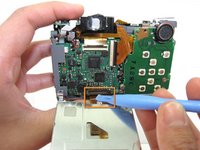
Loosen the black ribbon clamp using an iPod opening tool
-
Release the LCD screen by removing the ribbon from the body of the camera.
-
-
-
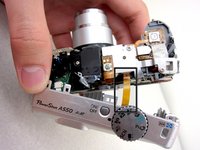
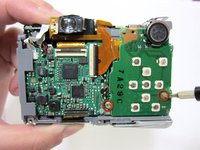
Unscrew 2 3.35mm phillips head screws from the face of the green circuit board using a #00 phillips head screwdriver.
-
-
Tool used on this step:Tweezers$4.99
-
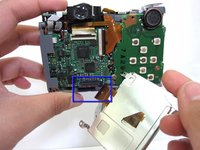
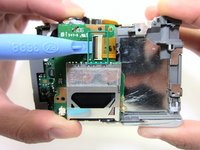
Release the black ribbon clamp using an iPod opening tool to lift it.
-
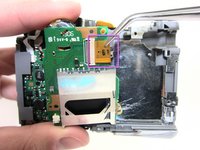
Remove the ribbon connecting the circuit board from the body of the camera using tweezers.
-
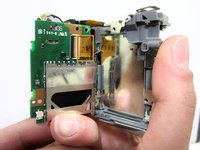
The SD card reader is attached to the back of the circuit board. The circuit board and SD card combination should be replaced.
-
-










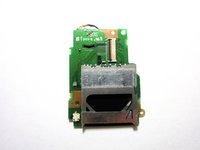
To reassemble your device, follow these instructions in reverse order.
Cancel: I did not complete this guide.
One other person completed this guide.

Team

Cal Poly, Team 8-6, Regan Spring 2011 Member of Cal Poly, Team 8-6, Regan Spring 2011
CPSU-REGAN-S11S8G6
4 Members
96 Guides authored
