Free Shipping on Domestic Orders $75+

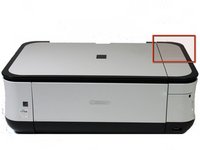
Canon Pixma MP480 Data Port Replacement

What you need

  1. Canon Pixma MP480 Data Port Replacement, Rear and Side Panel: step 1, image 1 of 2 Canon Pixma MP480 Data Port Replacement, Rear and Side Panel: step 1, image 2 of 2
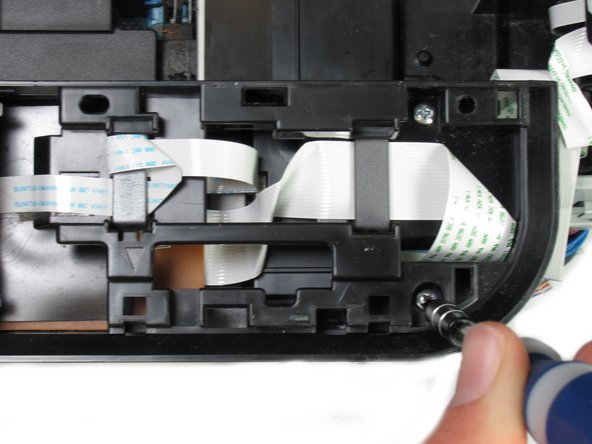
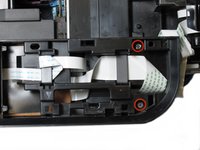
    • Remove the two 7.9 mm screws using a Phillips #1 screwdriver.

    Ask FixBot

    Add Comment

  2. Canon Pixma MP480 Data Port Replacement: step 2, image 1 of 1
    • Lift up the back cover to remove it.

    • You may need to lift firmly as it requires quite a bit of force.

    Ask FixBot

    Add Comment

  3. Canon Pixma MP480 Data Port Replacement: step 3, image 1 of 1
    • Open the front tray.

    Ask FixBot

    Add Comment

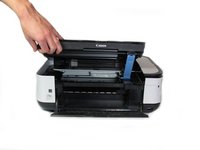
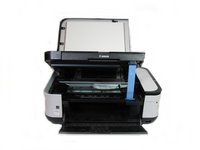
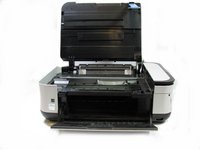
  4. Canon Pixma MP480 Data Port Replacement: step 4, image 1 of 2 Canon Pixma MP480 Data Port Replacement: step 4, image 2 of 2
    • Open the scanner compartment.

    • Make sure the blue lever locks into place to keep the compartment open.

    Ask FixBot

    Add Comment

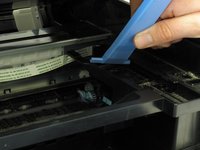
  5. Canon Pixma MP480 Data Port Replacement: step 5, image 1 of 2 Canon Pixma MP480 Data Port Replacement: step 5, image 2 of 2
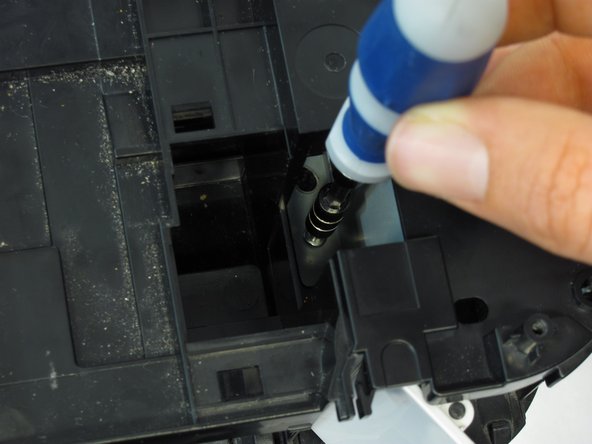
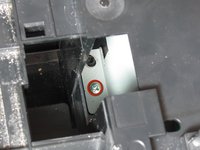
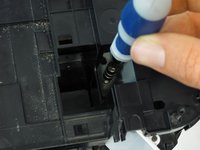
    • Remove the blue lever from its slot by pushing it back and twisting clockwise.

    • Close the scanner compartment and cover.

    Ask FixBot

    Add Comment

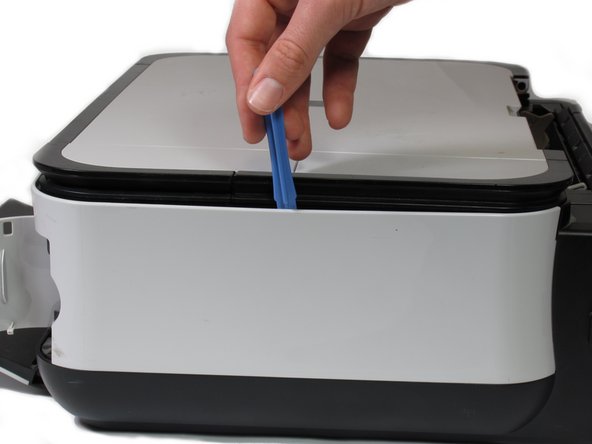
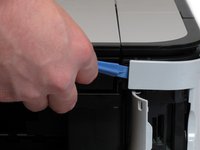
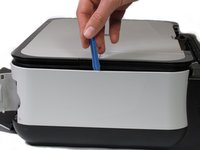
  6. Canon Pixma MP480 Data Port Replacement: step 6, image 1 of 2 Canon Pixma MP480 Data Port Replacement: step 6, image 2 of 2
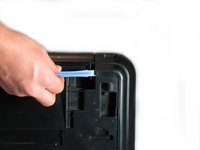
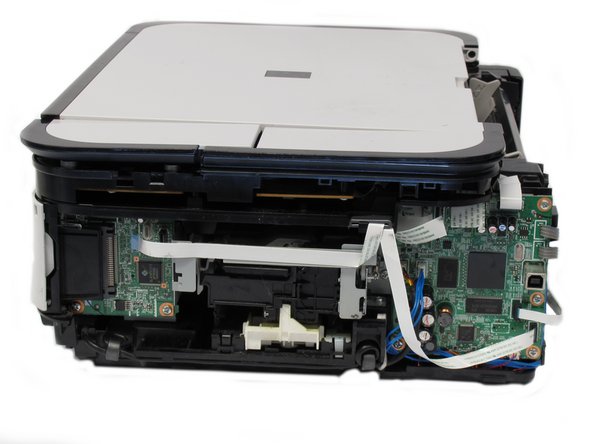
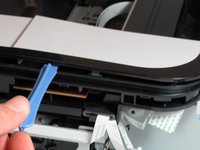
    • Pry open the side cover with the plastic opening tool.

    Ask FixBot

    Add Comment

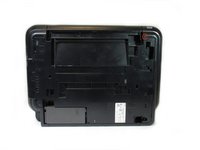
  7. Canon Pixma MP480 Data Port Replacement: step 7, image 1 of 2 Canon Pixma MP480 Data Port Replacement: step 7, image 2 of 2
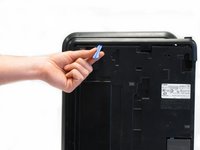
    • Flip the printer over so that the bottom of the printer is facing you.

    • Use the plastic opening tool to remove the corner of the side panel from the plastic pin.

    Ask FixBot

    Add Comment

  8. Canon Pixma MP480 Data Port Replacement: step 8, image 1 of 2 Canon Pixma MP480 Data Port Replacement: step 8, image 2 of 2
    • Use the plastic opening tool to loosen the side panel from the bottom of the printer.

    Ask FixBot

    Add Comment

  9. Canon Pixma MP480 Data Port Replacement, LCD: step 9, image 1 of 2 Canon Pixma MP480 Data Port Replacement, LCD: step 9, image 2 of 2
    • Using the plastic opening tool, pry off the top cover of the LCD assembly.

    • Pry around the front and side edges for the easiest removal.

    Ask FixBot

    Add Comment

  10. Canon Pixma MP480 Data Port Replacement: step 10, image 1 of 1
    • After removing the top cover of the LCD assembly, remove the LCD using the plastic opening tool.

    Ask FixBot

    Add Comment

  11. Canon Pixma MP480 Data Port Replacement: step 11, image 1 of 1
    • Gently pull the ribbon cable to remove the LCD completely.

    Ask FixBot

    Add Comment

  12. Canon Pixma MP480 Data Port Replacement, Buttons: step 12, image 1 of 1
    • Locate the buttons on the top of the printer.

    Ask FixBot

    Add Comment

  13. Canon Pixma MP480 Data Port Replacement: step 13, image 1 of 1
    • Using the plastic opening tool, gently pry under the button cover to remove it from its fixture.

    Ask FixBot

    Add Comment

  14. Canon Pixma MP480 Data Port Replacement: step 14, image 1 of 2 Canon Pixma MP480 Data Port Replacement: step 14, image 2 of 2
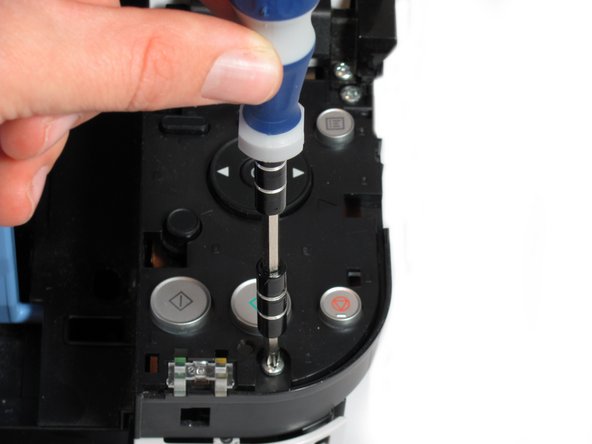
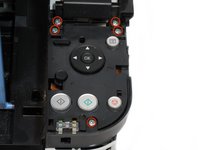
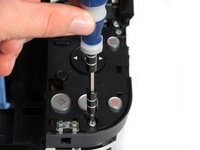
    • Remove the five 7.7 mm screws using a Phillips #1 screwdriver.

    Ask FixBot

    Add Comment

  15. Canon Pixma MP480 Data Port Replacement: step 15, image 1 of 2 Canon Pixma MP480 Data Port Replacement: step 15, image 2 of 2
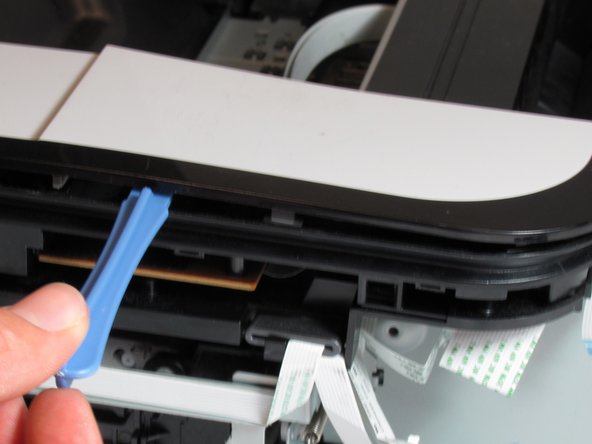
    • Using the plastic opening tool, gently pry around the cover behind the LCD screen to remove it from its fixture.

    Ask FixBot

    Add Comment

  16. Canon Pixma MP480 Data Port Replacement: step 16, image 1 of 2 Canon Pixma MP480 Data Port Replacement: step 16, image 2 of 2
    • Remove the two 7.8 mm screws using a Phillips #1 screwdriver.

    Ask FixBot

    Add Comment

  17. Canon Pixma MP480 Data Port Replacement: step 17, image 1 of 1
    • Gently pull the LCD screen up to remove it from its fixture.

    Ask FixBot

    Add Comment

  18. Canon Pixma MP480 Data Port Replacement: step 18, image 1 of 1
    • Use the plastic opening tool to pry off the plastic button assembly.

    Ask FixBot

    Add Comment

  19. Canon Pixma MP480 Data Port Replacement: step 19, image 1 of 1
    • Gently pull the plastic button assembly up to remove it.

    • The plastic button assembly has a ribbon cable connected on the bottom, so be careful pulling it.

    Ask FixBot

    Add Comment

  20. Canon Pixma MP480 Data Port Replacement: step 20, image 1 of 1
    • Remove the ribbon cable connected to the backside of the plastic button assembly.

    Ask FixBot

    Add Comment

  21. Canon Pixma MP480 Data Port Replacement: step 21, image 1 of 2 Canon Pixma MP480 Data Port Replacement: step 21, image 2 of 2
    • Remove the seven 8.7 mm screws using the Phillips #1 screwdriver.

    Ask FixBot

    Add Comment

  22. Canon Pixma MP480 Data Port Replacement: step 22, image 1 of 3 Canon Pixma MP480 Data Port Replacement: step 22, image 2 of 3 Canon Pixma MP480 Data Port Replacement: step 22, image 3 of 3
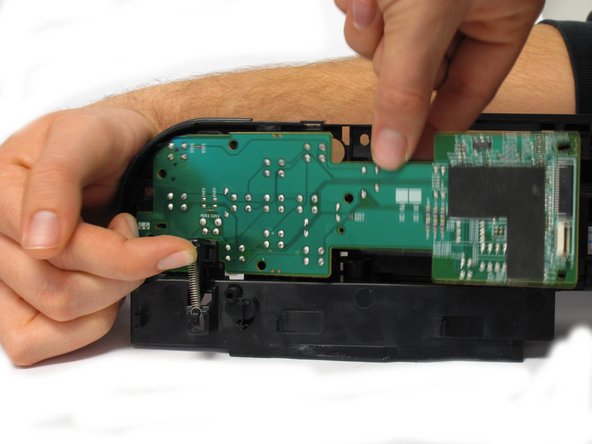
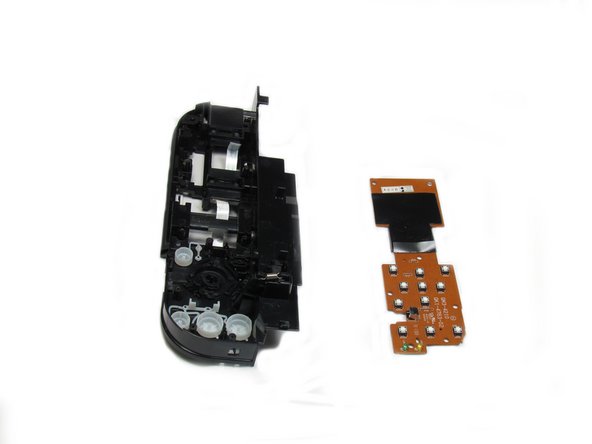
    • Locate the spring that holds the PCB in place on the bottom left of the plastic button assembly.

    • Gently lift the spring and pull the board out of its plastic button assembly.

    Ask FixBot

    Add Comment

  23. Canon Pixma MP480 Data Port Replacement: step 23, image 1 of 1
    • Remove the buttons from the plastic button assembly.

    Ask FixBot

    Add Comment

  24. Canon Pixma MP480 Data Port Replacement, Data Port: step 24, image 1 of 2 Canon Pixma MP480 Data Port Replacement, Data Port: step 24, image 2 of 2
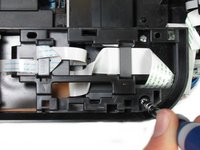
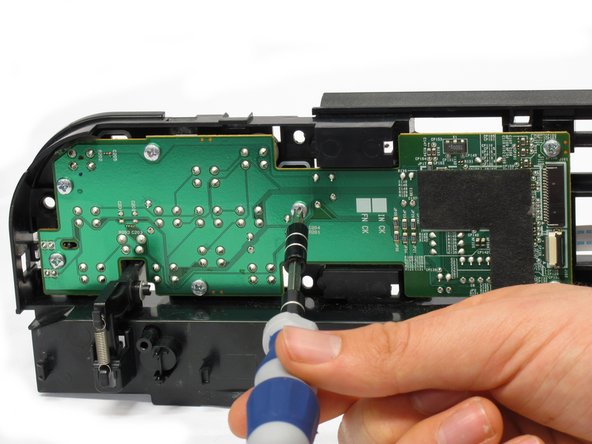
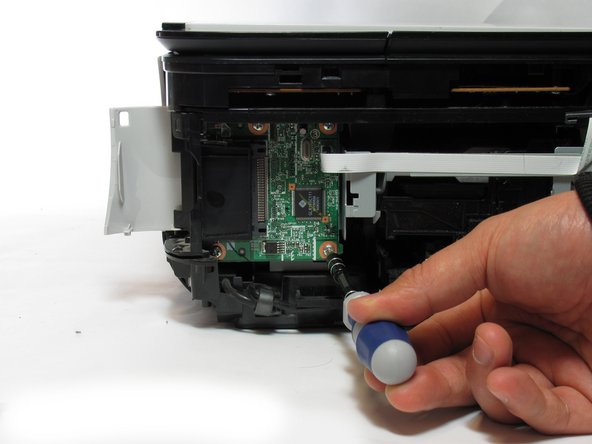
    • Remove the 7.5 mm screw using the Phillips #1 screwdriver.

    Ask FixBot

    Add Comment

  25. Canon Pixma MP480 Data Port Replacement: step 25, image 1 of 2 Canon Pixma MP480 Data Port Replacement: step 25, image 2 of 2
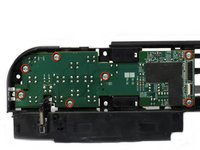
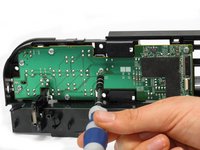
    • Remove the five 3.5 mm screws using the Phillips #1 screwdriver.

    Ask FixBot

    Add Comment

  26. Canon Pixma MP480 Data Port Replacement: step 26, image 1 of 1
    • Remove the small plastic clip using the spudger.

    Ask FixBot

    Add Comment

  27. Canon Pixma MP480 Data Port Replacement: step 27, image 1 of 1
    • Pull the plastic inserts out of the holes in the top and bottom.

    Ask FixBot

    Add Comment

  28. Canon Pixma MP480 Data Port Replacement: step 28, image 1 of 1
    • Remove the board from the printer by pulling the board towards the back of the printer.

    • This requires effort and time as the board comes out slowly.

    Ask FixBot

    Add Comment

Conclusion

To reassemble your device, follow these instructions in reverse order.

Cancel: I did not complete this guide.

Steven MacLean

Member since: 01/14/13

86 Reputation

2 Guides authored

Team

Cal Poly, Team 19-41, Regan Winter 2013 Member of Cal Poly, Team 19-41, Regan Winter 2013

CPSU-REGAN-W13S19G41

4 Members

6 Guides authored

0 Guide Comments

Add Comment

View Statistics:

Past 24 Hours: 1

Past 7 Days: 7

Past 30 Days: 50

All Time: 2,694