
Brother PT-1290 LCD Screen Replacement

Yadira Jones and 4 other contributors
Last updated on Jun 14, 2024
Views: 2.8K
View statistics:
- Past 24 Hours:
- 2
- Past 7 Days:
- 19
- Past 30 Days:
- 95
- All Time:
- 2,750
Comments: 1
1 comment on steps.
Completed: 1 2
1 person has marked this guide "completed." Will you be next?
2 people have marked this guide "completed." Including you — great job!
Favorites: 0 1
No one has favorited (and subscribed to) this guide. Will you be the first?
1 person has favorited (and subscribed to) this guide — and that's you!
Introduction
Go to step 1 ↓You will learn how to have access to the LCD screen, which is one of the parts that requires various steps to get to. Using the guide of how to replace batteries as a starting point, would help because the screen is located behind the plate that covers the area where the batteries, cartridge and cutting blade are located. You will review also, how to remove the keyboard as well as the face screen and finally how to replace the LCD screen. This is one of the repairs that requires prerequisites of knowledge of some basics repairs to be able to replace the LCD screen.
What you need
Tools
-
Spudger4.9


-
-
-
There is a plastic tab located on the back of the label maker near the top. The tab has ridges on it to help you identify where to press. Push on this tab to release the back of the label maker.
-
Gently pull the label maker apart - it will split in half.
 Ask FixBot
-
-
-
Remove the AAA batteries before you proceed on to replacing the tape cassette.
-
-
-
Align and insert a new tape cassette. Make sure the center of the cassette snaps into place. The tape must feed between the tape guides.
-
-
-
To test the new cassette, make a new label. Press "Shift" and "Print" to feed the tape, then use the cutting lever on the upper-right corner of the machine.
-
-
-
-
-
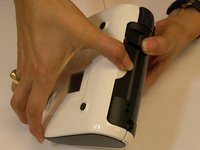
Turn the device to its side toward the bottom of the keyboard. Then pop open the case and remove the batteries.
-
-
-
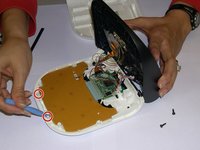
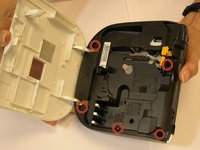
Remove all 1/4 inch screws(6 total) with a (+PH00) screwdriver. Open slowly not to damage the display data cable.
-
-
-
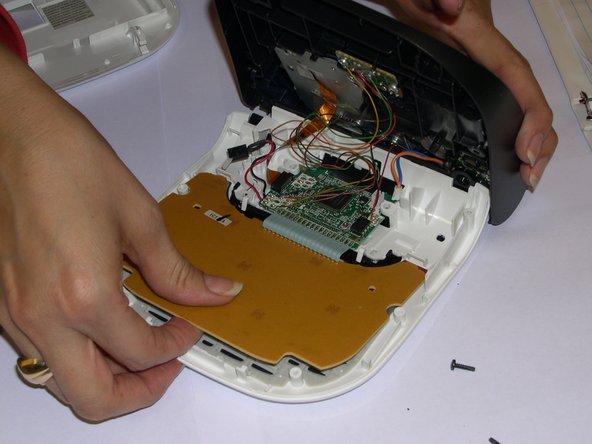
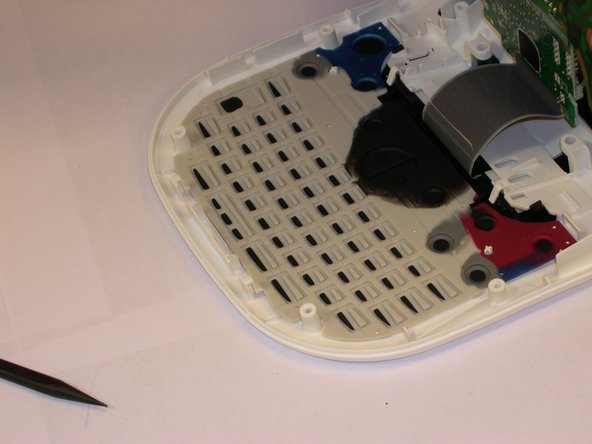
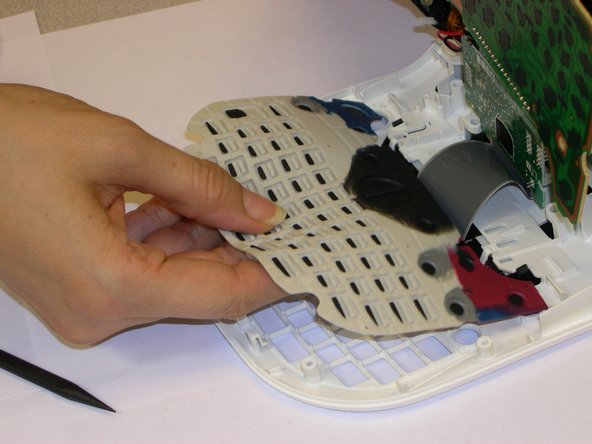
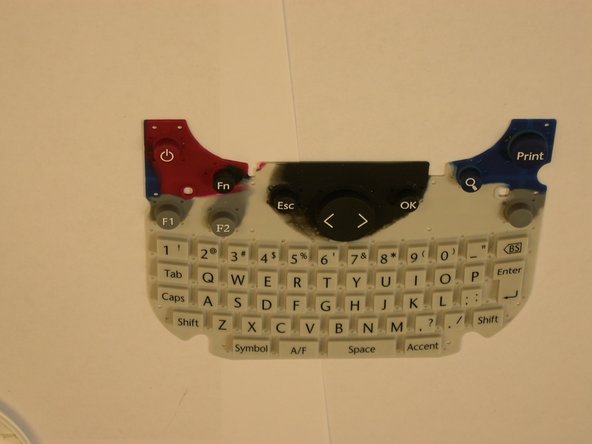
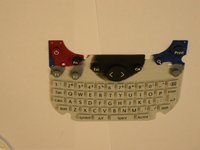
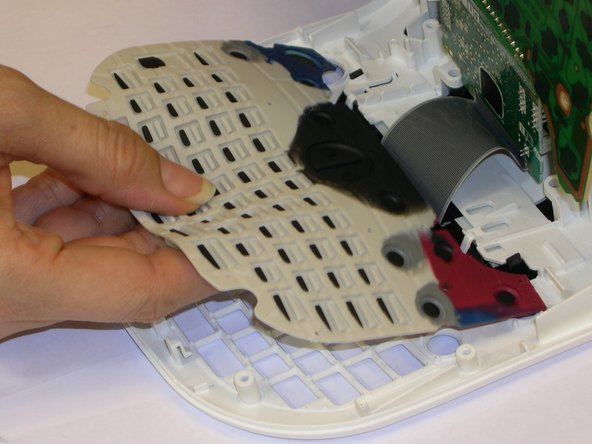
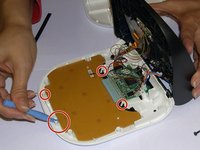
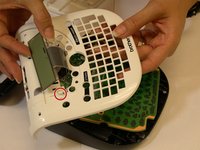
Use a plastic opening tool to remove the flat-panel membrane keyboard. Lift up and set aside.
-
-
-
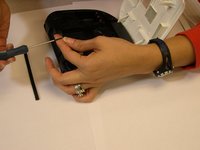
Use a spudger to aid in removing the keyboard.
-
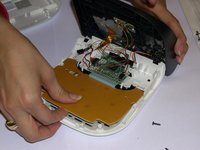
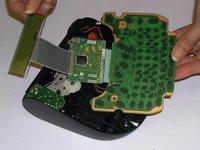
Gently lift out while removing the LCD screen that is connected to the data cable and finishing removing.
-
-
-
-
-
-
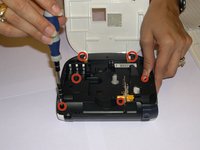
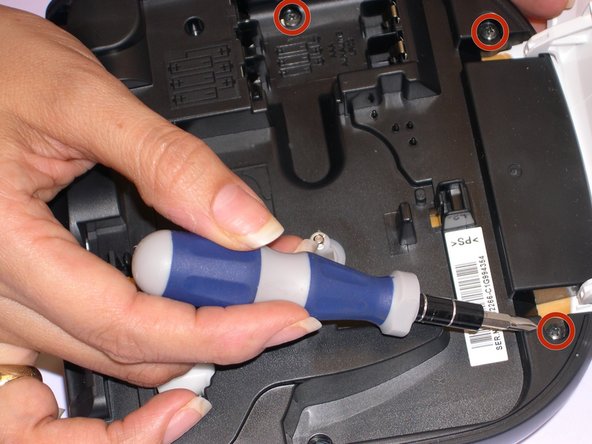
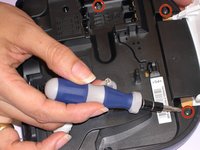
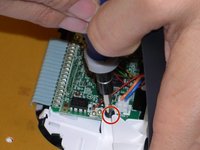
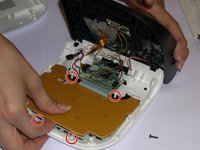
Remove the five screws that secure the plate using a Phillips #00 screwdriver.
-
-
-
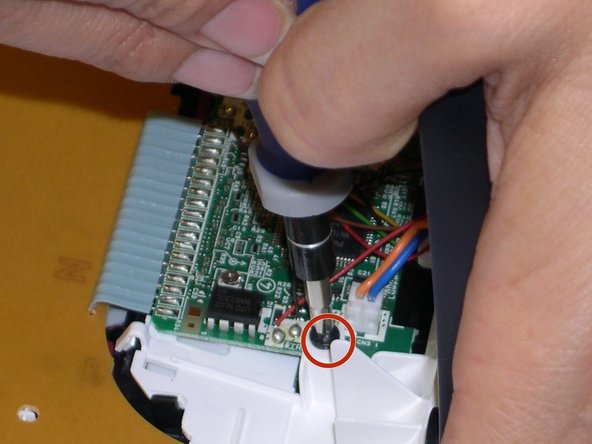
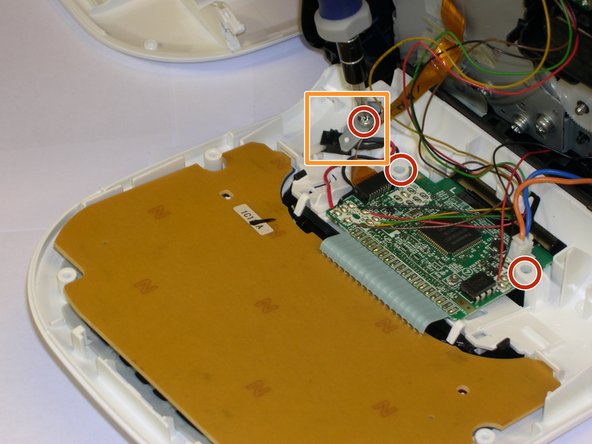
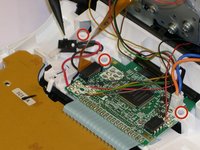
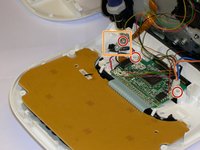
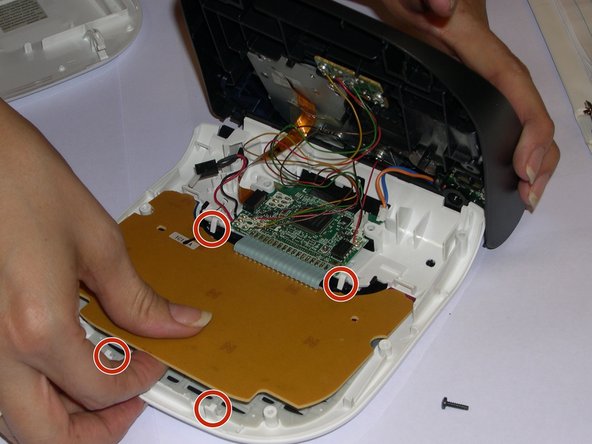
Remove three screws to be able to lift the keyboard.
-
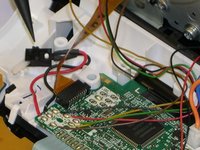
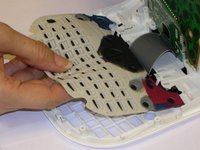
Remove the small metal plate on top of the black connector with the red and black cables.
-
-
-
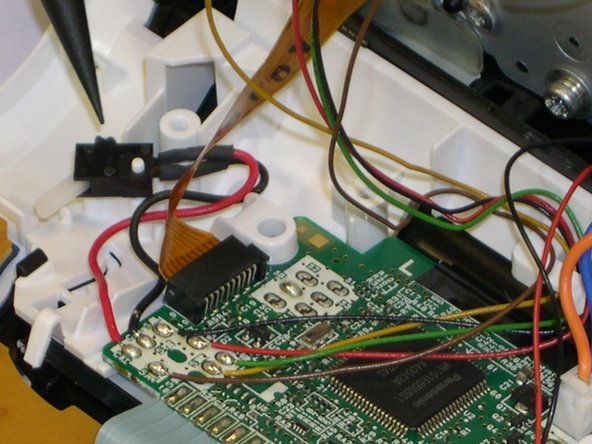
Unhook the connector with the orange and blue wire.
-
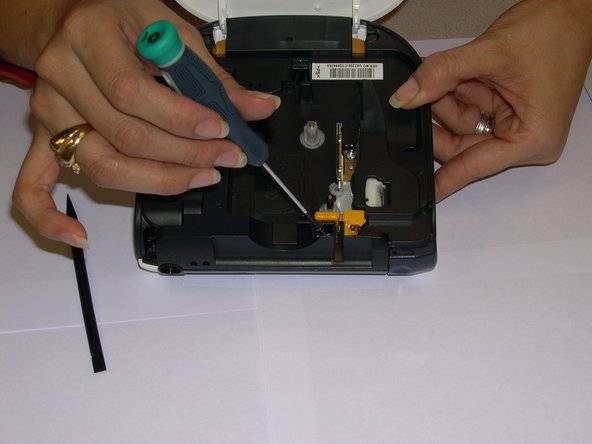
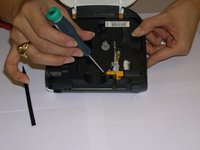
There is also a hook that holds the yellow, red, orange and green cables; the spudger will be all you need to slide them out to unhook them.
-
The black connector with the red and black cables has to be removed as well.
-
-
-
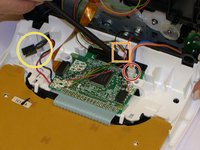
Hold the keyboard, making sure the four hooks are properly loose to avoid breaking them.
-
Pull it out gently but firmly.
-
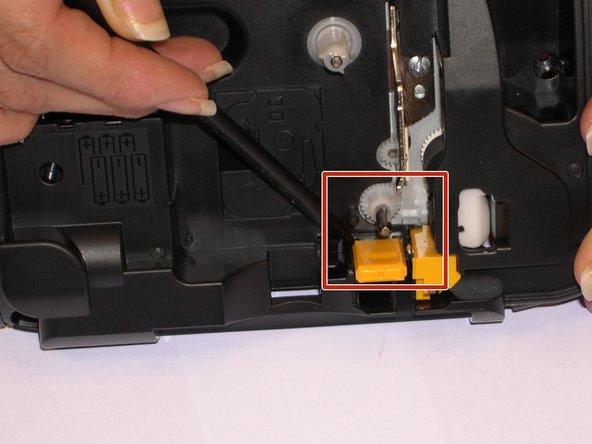
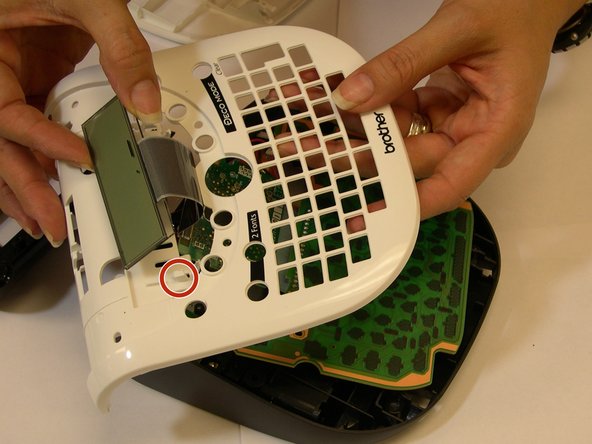
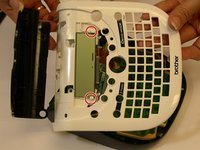
Make sure once it becomes loose, you can proceed to remove the LCD which is being held by two more hooks marked with orange circles. You will need the Spudger to hold them back while pulling the screen with your other hand.
-
-
-
If the face plate doesn't get removed, it will be close to impossible to remove the LCD or you'll find yourself breaking some of the hooks that are holding it on place.
-
Remove and replace the LCD screen making sure the display data cable doesn't get damaged in the process.
-
Follow the steps backwards in the order they were removed, to be able to put the parts together and remain your printing job.
-
-














To reassemble your device, follow these instructions in reverse order.
Cancel: I did not complete this guide.
One other person completed this guide.

Team

Gateway, Team 1-4, Johnson Fall 2014 Member of Gateway, Team 1-4, Johnson Fall 2014
GCC-JOHNSON-F14S1G4
3 Members
72 Guides authored
