Free Shipping on Domestic Orders $75+

Brother MFC-J4420DW Power supply replacement

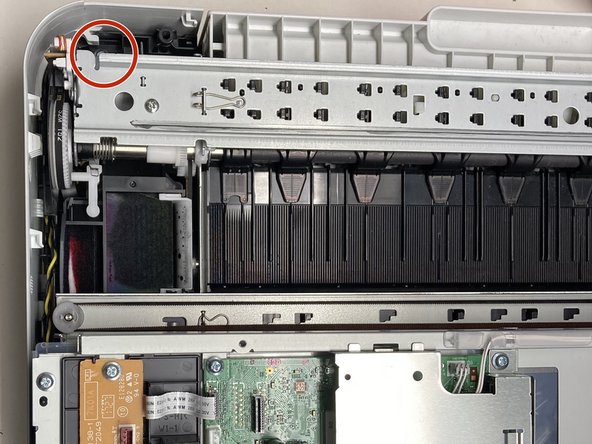
  1. Brother MFC-J4420DW Power supply replacement, Removing hood holder: step 1, image 1 of 3 Brother MFC-J4420DW Power supply replacement, Removing hood holder: step 1, image 2 of 3 Brother MFC-J4420DW Power supply replacement, Removing hood holder: step 1, image 3 of 3
    • Disconnect the power cord of the printer

    • Open the printer as you would to access the USB port.

    • Pull out the rear end of the hood holder (see picture two). After that you can remove the top part of the hood holder.

    • Now remove the hood holder completely.

    • It is quite useful to put the printer near something so that you can lean the top against something, for example a wall.

  2. Brother MFC-J4420DW Power supply replacement, Removing cables connected to the top part of the printer: step 2, image 1 of 3 Brother MFC-J4420DW Power supply replacement, Removing cables connected to the top part of the printer: step 2, image 2 of 3 Brother MFC-J4420DW Power supply replacement, Removing cables connected to the top part of the printer: step 2, image 3 of 3
    • Next remove the cover on the left side of the printer (lift the right side of the cover first).

    • Unplug the black ribbon cable, the blue and the white plugs from its sockets and unscrew the cable which is attached with a screw (see second image)

    • Remove the red and white plugs from its sockets as shown in picture three.

  3. Brother MFC-J4420DW Power supply replacement, Remove the top part of the printer: step 3, image 1 of 3 Brother MFC-J4420DW Power supply replacement, Remove the top part of the printer: step 3, image 2 of 3 Brother MFC-J4420DW Power supply replacement, Remove the top part of the printer: step 3, image 3 of 3
    • Flip the plastic part shown in picture one up to the top part of the printer

    • Now you can easily remove the top of the printer by pushing it away from the printer (not up).

  4. Brother MFC-J4420DW Power supply replacement, Remove cover: step 4, image 1 of 2 Brother MFC-J4420DW Power supply replacement, Remove cover: step 4, image 2 of 2
    • Remove the screws connecting the black plastic cover to the printer (see image)

    • Remove the cover

    • The following steps are based on the Brother Inkjet DCP/MFC Service Manual MODELS: DCP-J4120DW MFC-J4320DW/J4420DW MFC-J4520DW MFC-J4620DW/J4625DW. In particular, step 9.29 “Power Supply PCB ASSY”.

  5. Brother MFC-J4420DW Power supply replacement, Disconnect the cable: step 6, image 1 of 1
    • Remove the connector with the many red cables. (Already removed in the picture. The other plugs do not need to be removed.)

  6. Brother MFC-J4420DW Power supply replacement, Remove screws: step 7, image 1 of 2 Brother MFC-J4420DW Power supply replacement, Remove screws: step 7, image 2 of 2
    • There are two screws that need to be removed.

  7. Brother MFC-J4420DW Power supply replacement, Remove the power supply unit: step 8, image 1 of 1
    • Release the clip so that the power supply unit can be removed downwards.

  8. Brother MFC-J4420DW Power supply replacement, Power supply: step 9, image 1 of 1
    • This is what the power supply looks like.

    • It is labeled B57U152-2 LF1

    • A possible starting point here is the soldered fuse F1. According to the circuit board, “250V T2.5AH”.

    • However, the fuse may only be a symptom and not the cause. See for example the article https://www.mikrocontroller.net/topic/50...

Conclusion

Follow the steps in reverse order to reassemble your device.

2 other people completed this guide.

Special thanks to these translators:

de en

100%

oldturkey03 is helping us fix the world! Want to contribute?
Start translating ›

FeLa

Member since: 09/26/24

175 Reputation

1 Guide authored

1 Guide Comment

Hi,

Top Anleitung , bei mir ist der Mosfet durchgebrannt , mal schauen was ich jetzt mache

Wilhelm - Reply Share

Add Comment

View Statistics:

Past 24 Hours: 3

Past 7 Days: 32

Past 30 Days: 144

All Time: 3,538