Free Shipping on Domestic Orders $75+

Brother MFC-490CW Motherboard Replacement

Views: 4.3K

View statistics:

Past 24 Hours:
2
Past 7 Days:
20
Past 30 Days:
108
All Time:
4,263
Comments: 2

2 guide comments.

Go to guide comments
Completed: 2

2 people have marked this guide "completed." Will you be next?

Favorites: 1

1 person has favorited (and subscribed to) this guide. Will you be next?

Time Required: 30 minutes
Difficulty: Moderate
Brother MFC-490CW Motherboard Replacement

Introduction

Go to step 1 ↓

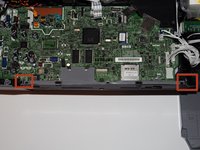
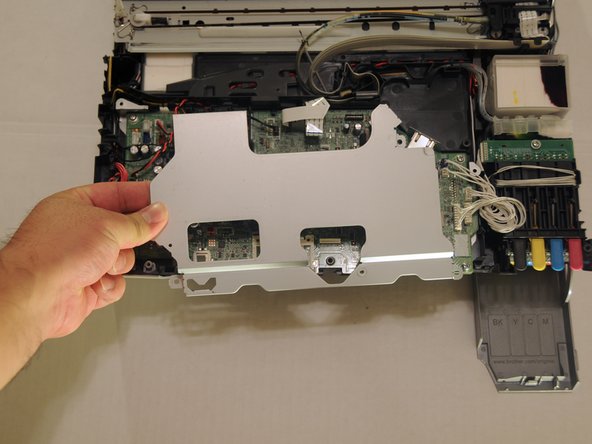
The Brother MFC-490CW is an all-in-one inkjet printer that includes features like printing, scanning, copying, and faxing. In terms of its internal components, the motherboard (also referred to as the mainboard) is a crucial part of the printer. The motherboard serves as the central circuit board that houses the primary processing unit and connects various components, such as the CPU, memory, input/output ports, and other essential elements. Issues with the motherboard in a Brother MFC-490CW, such as power failures, display dysfunction, communication errors, and persistent print quality problems, may suggest various malfunctions.

What you need

Tools

    1. Brother MFC-490CW Motherboard Replacement, Remove screws holding the front panel: step 1, image 1 of 1
      • Use a Phillips #2 screwdriver to remove the three 12.1 mm screws holding the control panel in place.

      Ask FixBot

      Add Comment

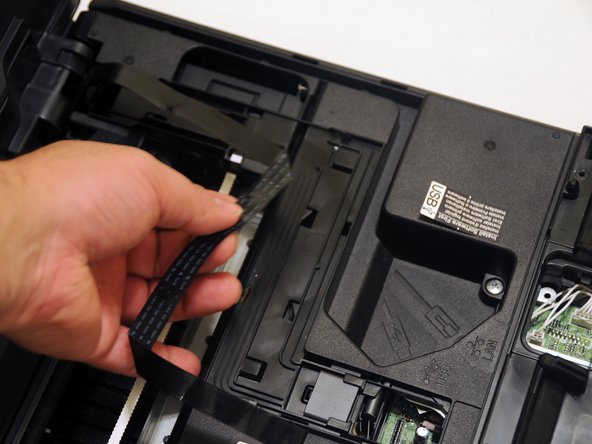
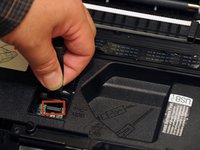
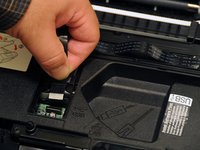
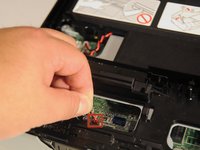
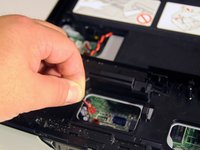
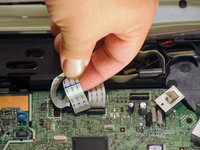
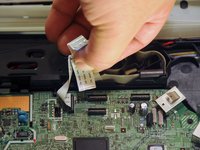
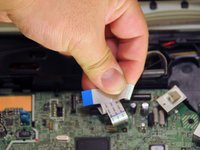
    2. Brother MFC-490CW Motherboard Replacement, Unplug the panel from the rest of the printer: step 2, image 1 of 3 Brother MFC-490CW Motherboard Replacement, Unplug the panel from the rest of the printer: step 2, image 2 of 3 Brother MFC-490CW Motherboard Replacement, Unplug the panel from the rest of the printer: step 2, image 3 of 3
      • Lift up the front panel from the device.

      • Gently lift up and disconnect the data cables that attach the panel to the printer.

      Ask FixBot

      Add Comment

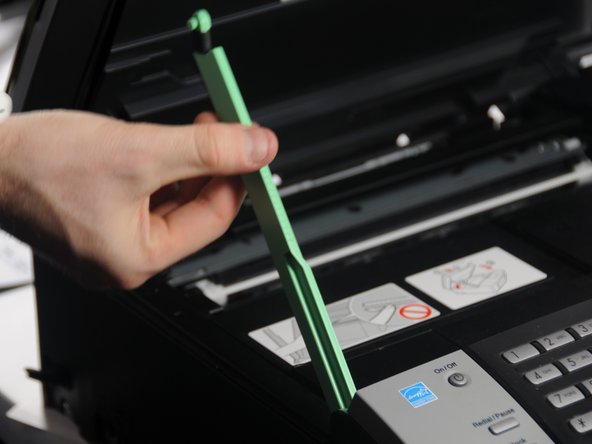
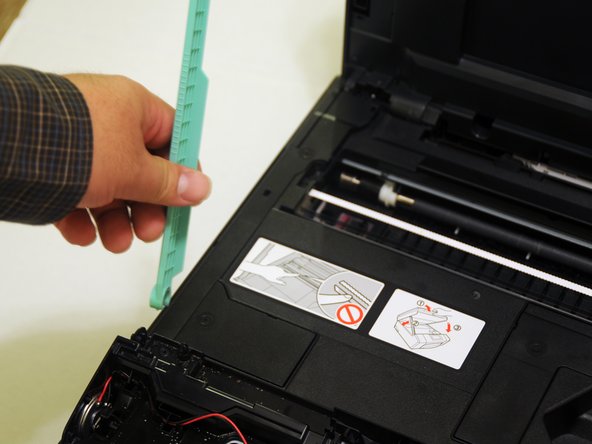
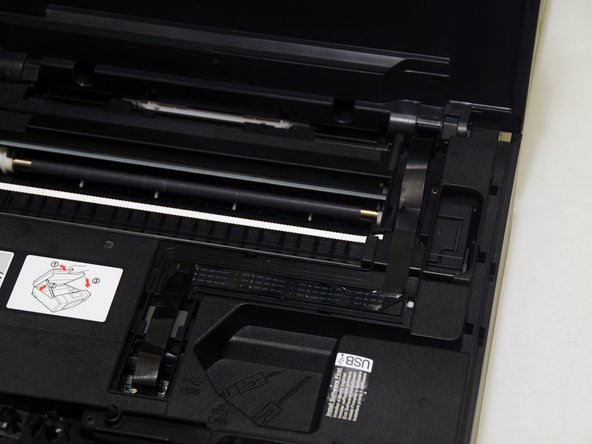
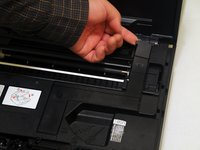
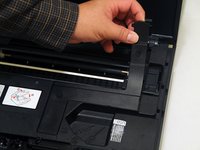
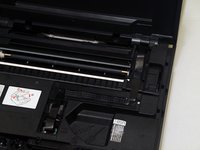
    1. Brother MFC-490CW Motherboard Replacement, Motherboard: step 3, image 1 of 3 Brother MFC-490CW Motherboard Replacement, Motherboard: step 3, image 2 of 3 Brother MFC-490CW Motherboard Replacement, Motherboard: step 3, image 3 of 3
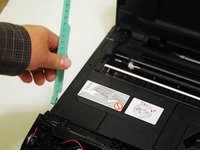
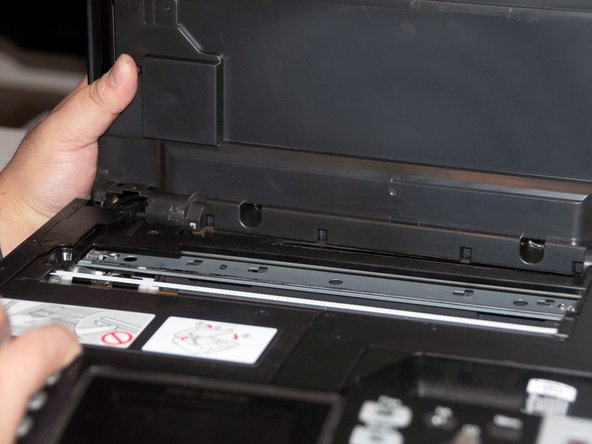
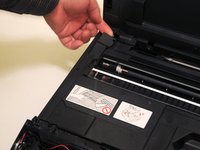
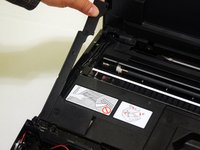
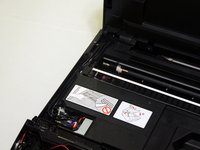
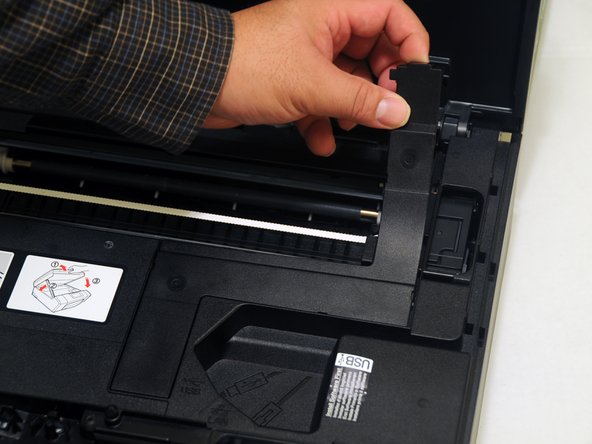
      • Lift the scanner unit lid.

      • Gently twist the top portion of the arm. The top portion should release from the scanner unit.

      • Rotate the arm approximately 45 degrees to remove the bottom portion from the device.

      • Before removing the unit, apply 2-3 pieces of tape to secure the top and bottom of the unit.

      Ask FixBot

      Add Comment

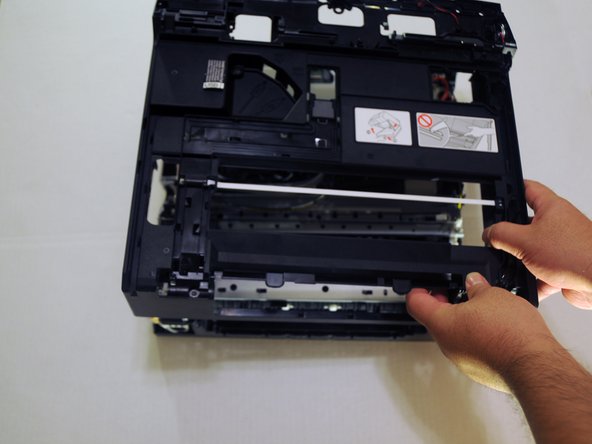
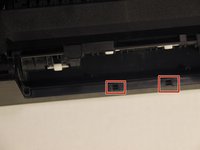
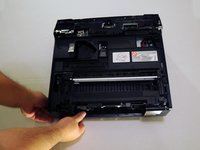
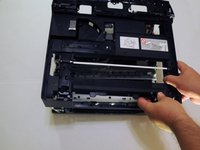
    2. Brother MFC-490CW Motherboard Replacement: step 4, image 1 of 3 Brother MFC-490CW Motherboard Replacement: step 4, image 2 of 3 Brother MFC-490CW Motherboard Replacement: step 4, image 3 of 3
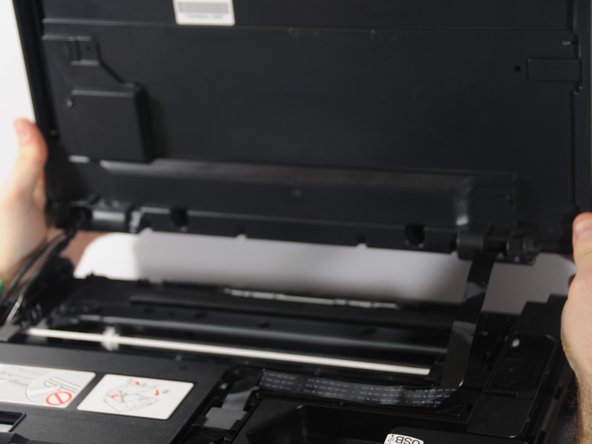
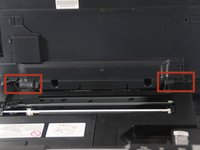
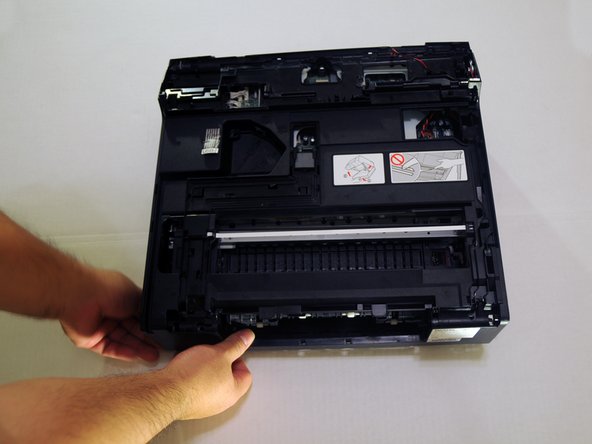
      • Slide the unit either to the left or right and push it away from the device.

      • Once one hinge is separated from the device, begin to remove the other hinge.

      • Gently place the unit on the work surface.

      • Be careful not to pull too hard. The wires connecting the unit to the device must be removed.

      Ask FixBot

      Add Comment

    3. Brother MFC-490CW Motherboard Replacement: step 5, image 1 of 3 Brother MFC-490CW Motherboard Replacement: step 5, image 2 of 3 Brother MFC-490CW Motherboard Replacement: step 5, image 3 of 3
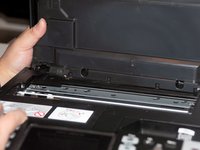
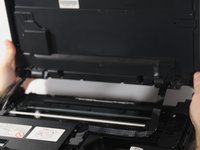
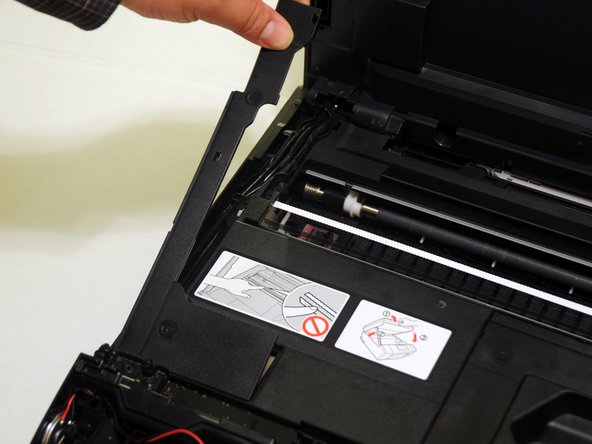
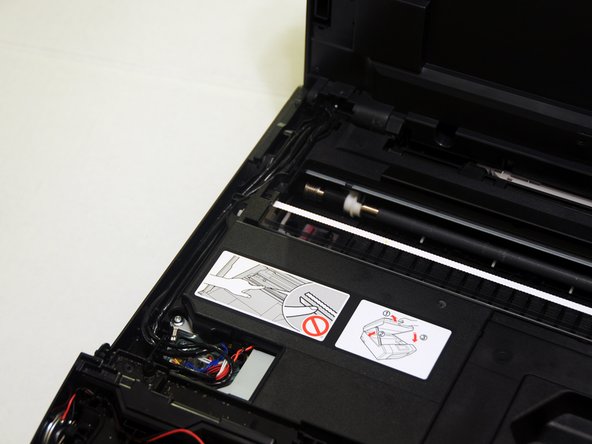
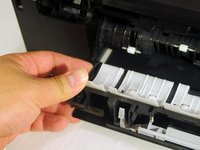
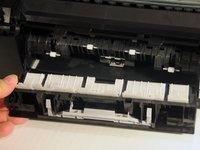
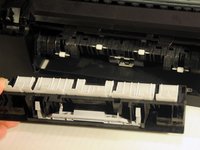
      • From the back of the device, use the exposed portion of the panel and gently begin to remove the panel away from the device.

      • While it is not necessary to use a prying tool, a thin prying tool can help lift the panels.

      Ask FixBot

      Add Comment

    4. Brother MFC-490CW Motherboard Replacement: step 6, image 1 of 3 Brother MFC-490CW Motherboard Replacement: step 6, image 2 of 3 Brother MFC-490CW Motherboard Replacement: step 6, image 3 of 3
      • Use the exposed portion of the panel to begin to lift the panel away from the back of the device.

      Ask FixBot

      Add Comment

    5. Brother MFC-490CW Motherboard Replacement: step 7, image 1 of 3 Brother MFC-490CW Motherboard Replacement: step 7, image 2 of 3 Brother MFC-490CW Motherboard Replacement: step 7, image 3 of 3
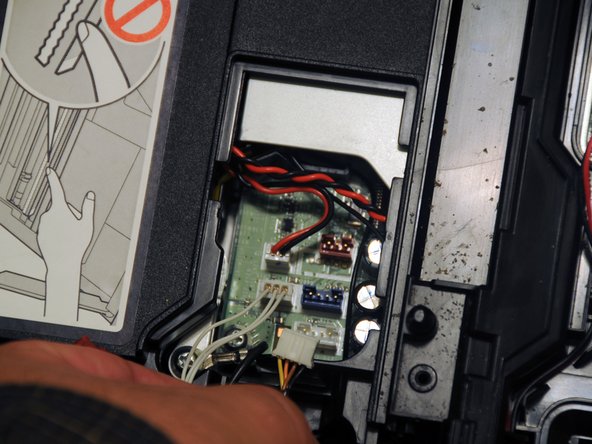
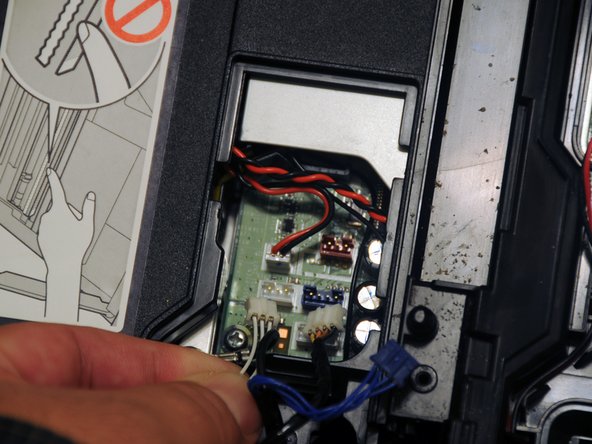
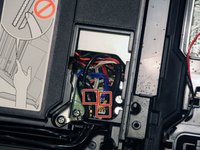
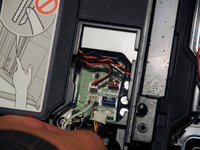
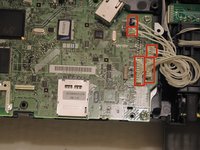
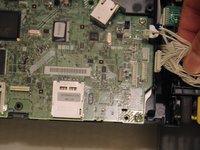
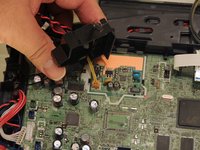
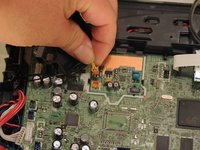
      • Remove the three power cables that connect the scanner to the motherboard on the left side.

      • Before removing the cables, create a diagram of their locations. Label the cables with some tape or post-its.

      Ask FixBot

      Add Comment

    6. Brother MFC-490CW Motherboard Replacement: step 8, image 1 of 2 Brother MFC-490CW Motherboard Replacement: step 8, image 2 of 2
      • Unscrew the 12.1mm screw to remove the ground wire.

      Ask FixBot

      Add Comment

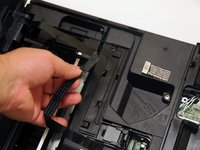
    7. Brother MFC-490CW Motherboard Replacement: step 9, image 1 of 3 Brother MFC-490CW Motherboard Replacement: step 9, image 2 of 3 Brother MFC-490CW Motherboard Replacement: step 9, image 3 of 3
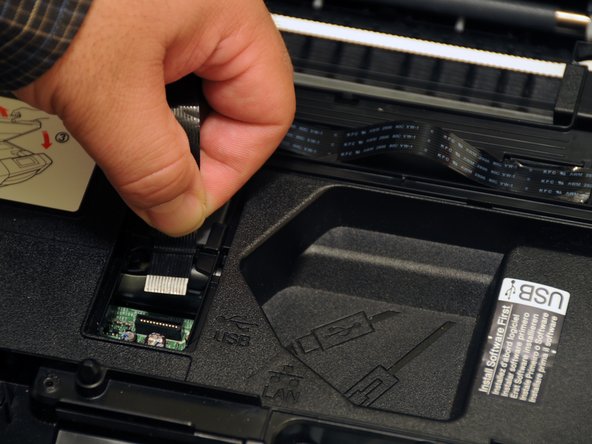
      • Gently pull the data cable out of the motherboard.

      • Slide the cable out of the slots to remove it from the device.

      • Once separated, place the unit and ground screw in a safe area of the workspace until they are needed for re-assembly.

      Ask FixBot

      Add Comment

    8. Brother MFC-490CW Motherboard Replacement: step 10, image 1 of 1
      • Unscrew the three 14.1mm screws.

      • Unscrew the 12.1mm screw.

      Ask FixBot

      Add Comment

    9. Brother MFC-490CW Motherboard Replacement: step 11, image 1 of 1
      • Pull the paper tray away from the device.

      Ask FixBot

      Add Comment

    10. Brother MFC-490CW Motherboard Replacement: step 12, image 1 of 2 Brother MFC-490CW Motherboard Replacement: step 12, image 2 of 2
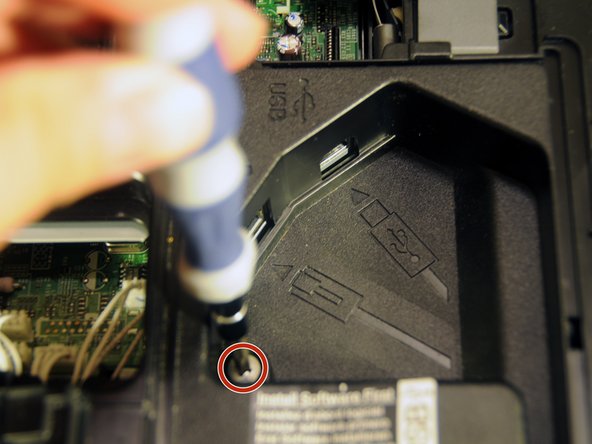
      • Locate and remove the screw near the USB and ethernet ports.

      • Unscrew the 8mm screw at the center of the device.

      Ask FixBot

      Add Comment

    11. Brother MFC-490CW Motherboard Replacement: step 13, image 1 of 1
      • Unscrew the two 14.1mm screws holding the rear panel in place.

      Ask FixBot

      Add Comment

    12. Brother MFC-490CW Motherboard Replacement: step 14, image 1 of 2 Brother MFC-490CW Motherboard Replacement: step 14, image 2 of 2
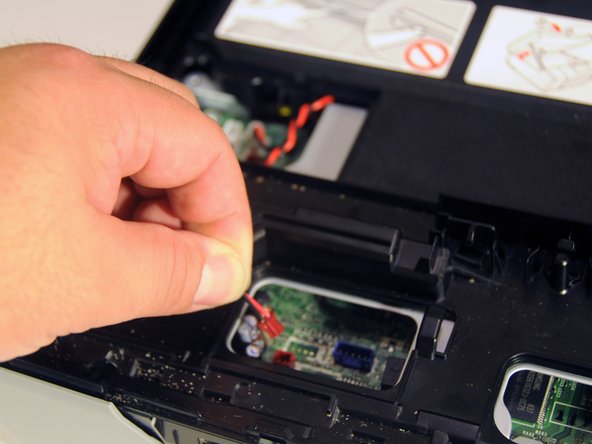
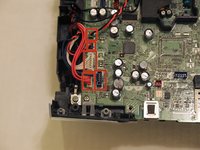
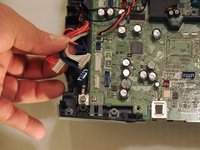
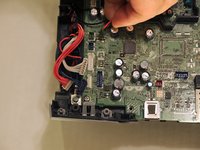
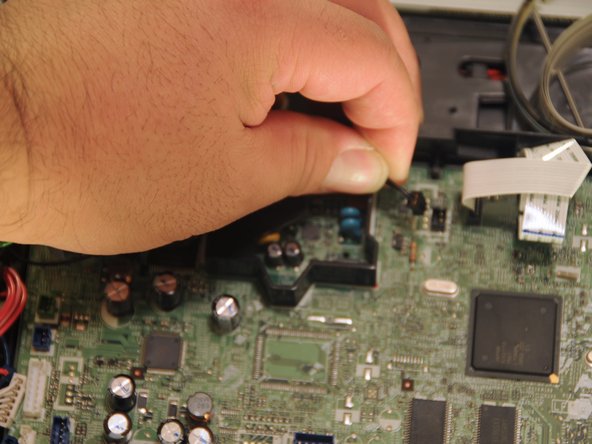
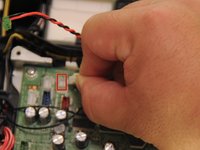
      • Gently remove the red power cable from the motherboard.

      • This cable needs to be taken out to allow the removal of the device cover.

      Ask FixBot

      Add Comment

    13. Brother MFC-490CW Motherboard Replacement: step 15, image 1 of 3 Brother MFC-490CW Motherboard Replacement: step 15, image 2 of 3 Brother MFC-490CW Motherboard Replacement: step 15, image 3 of 3
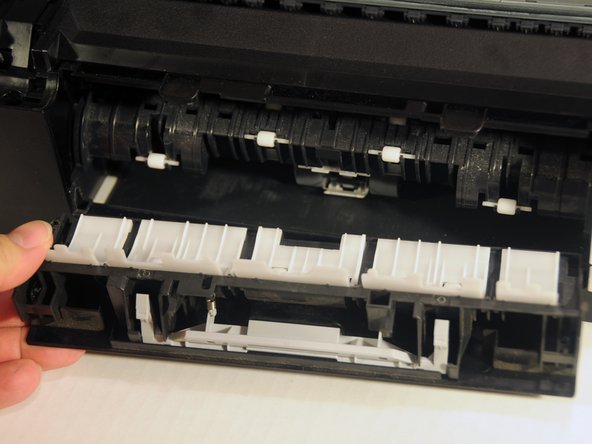
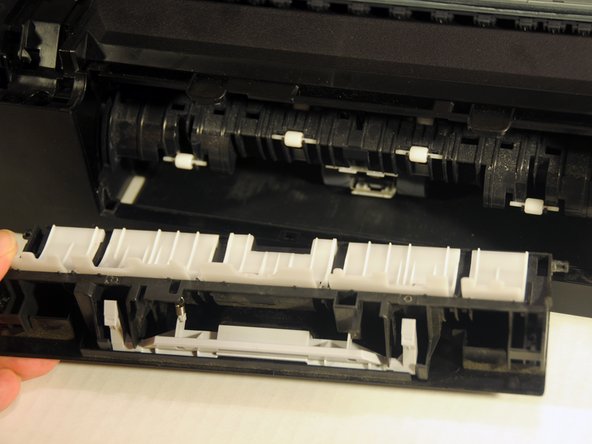
      • Gently push the upper-left tab of the paper jam clear cover and separate the hinged portion of the cover from the rest of the device.

      • Once one side of free, slide the other side away from the device.

      • Pull the cover away from the device.

      Ask FixBot

      Add Comment

    14. Brother MFC-490CW Motherboard Replacement: step 16, image 1 of 3 Brother MFC-490CW Motherboard Replacement: step 16, image 2 of 3 Brother MFC-490CW Motherboard Replacement: step 16, image 3 of 3
      • Using a spudger, loosen the two clipped portions of the cover located at the back-center of the device.

      • Once the clips are free the rest of the cover can be lifted up and away from the device.

      Ask FixBot

      Add Comment

    15. Brother MFC-490CW Motherboard Replacement: step 17, image 1 of 3 Brother MFC-490CW Motherboard Replacement: step 17, image 2 of 3 Brother MFC-490CW Motherboard Replacement: step 17, image 3 of 3
      • Push the left and right clipped portion of the front port cover away from the device.

      • Pull the cover away from the device.

      Ask FixBot

      Add Comment

    16. Brother MFC-490CW Motherboard Replacement: step 18, image 1 of 2 Brother MFC-490CW Motherboard Replacement: step 18, image 2 of 2
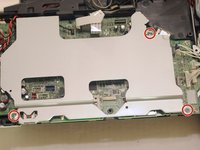
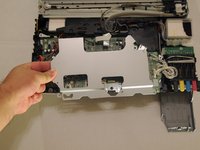
      • Unscrew the three 8.3mm screws from the motherboard cover.

      • Lift the motherboard cover away from the device.

      • Be careful, the motherboard cover may get stuck to the ethernet port. Simply slide the cover until it clears the port.

      Ask FixBot

      Add Comment

    17. Brother MFC-490CW Motherboard Replacement: step 19, image 1 of 3 Brother MFC-490CW Motherboard Replacement: step 19, image 2 of 3 Brother MFC-490CW Motherboard Replacement: step 19, image 3 of 3
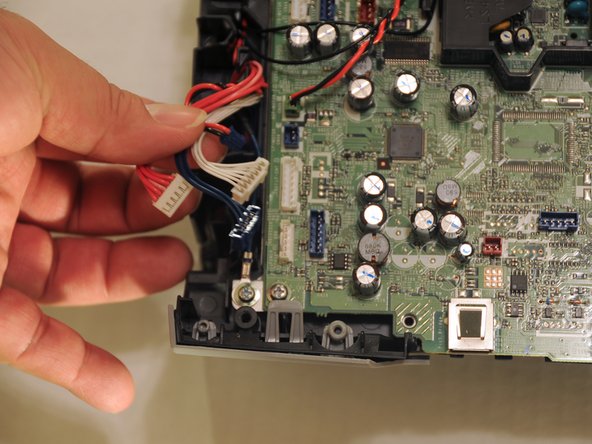
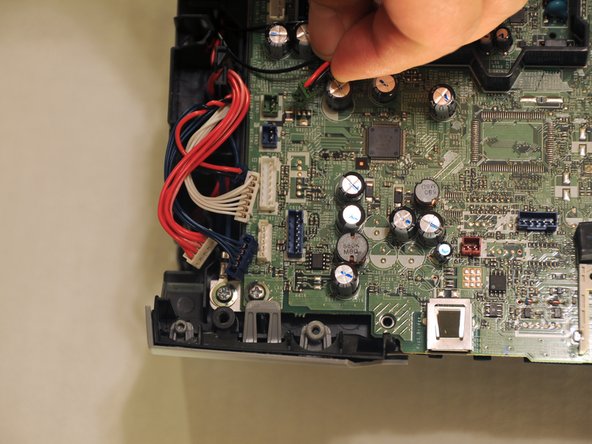
      • Gently pull the five power cables on the left side, away from the motherboard.

      • Label the cables with post-its or tape before removal.

      Ask FixBot

      Add Comment

    18. Brother MFC-490CW Motherboard Replacement: step 20, image 1 of 2 Brother MFC-490CW Motherboard Replacement: step 20, image 2 of 2
      • Gently lift the five power cables on the right side away from the motherboard.

      • Label the cables with posti-its or tape before removing them from the motherboard.

      Ask FixBot

      Add Comment

    19. Brother MFC-490CW Motherboard Replacement: step 21, image 1 of 2 Brother MFC-490CW Motherboard Replacement: step 21, image 2 of 2
      • Lable the white cable before removal.

      • Add a label to the port where the white power cable is inserted.

      • Remove the rear black and white power cables.

      Ask FixBot

      Add Comment

    20. Brother MFC-490CW Motherboard Replacement: step 22, image 1 of 3 Brother MFC-490CW Motherboard Replacement: step 22, image 2 of 3 Brother MFC-490CW Motherboard Replacement: step 22, image 3 of 3
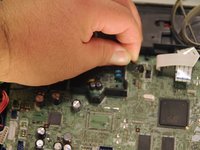
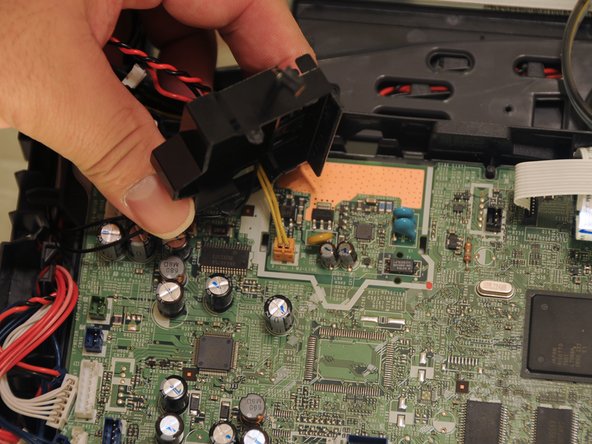
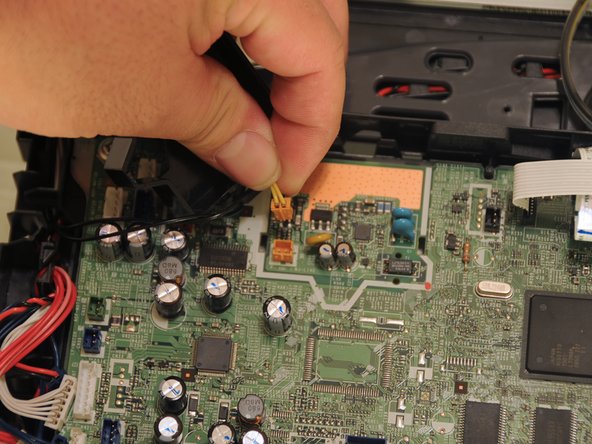
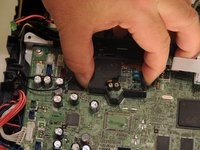
      • Squeeze the clips of the cover protecting the orange power cable.

      • Lift the cover away from the motherboard and set it aside.

      • Gently lift the orange power cable away from the motherboard.

      Ask FixBot

      Add Comment

    21. Brother MFC-490CW Motherboard Replacement: step 23, image 1 of 3 Brother MFC-490CW Motherboard Replacement: step 23, image 2 of 3 Brother MFC-490CW Motherboard Replacement: step 23, image 3 of 3
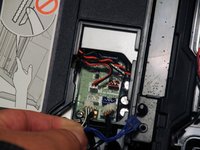
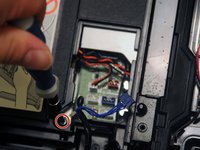
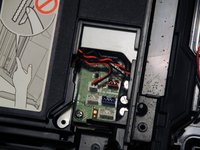
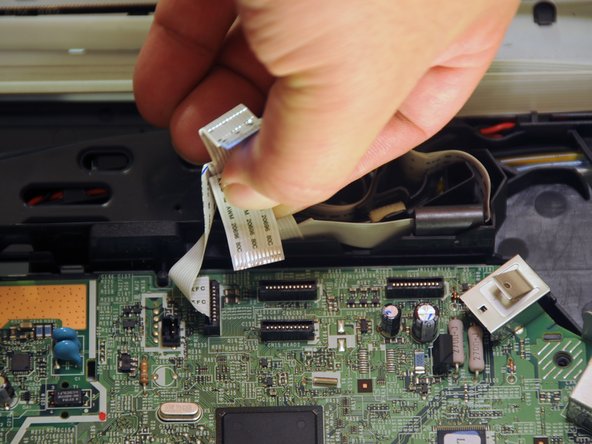
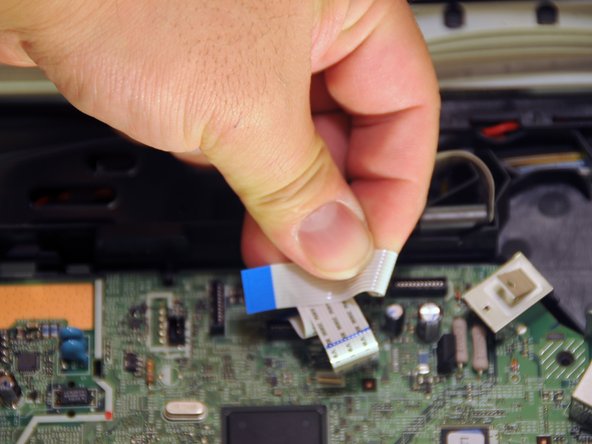
      • Gently, lift the data cables away from the motherboard.

      • To avoid any confusion, create a diagram of the location of the data cables and label the them.

      Ask FixBot

      Add Comment

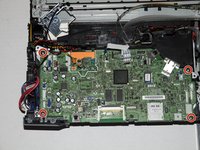
    22. Brother MFC-490CW Motherboard Replacement: step 24, image 1 of 3 Brother MFC-490CW Motherboard Replacement: step 24, image 2 of 3 Brother MFC-490CW Motherboard Replacement: step 24, image 3 of 3
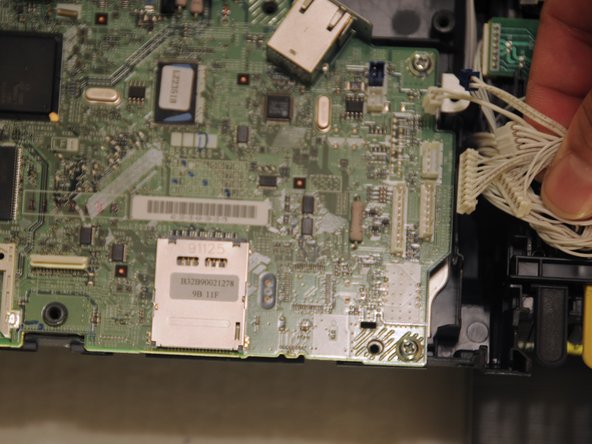
      • Using a screwdriver, remove the four 12.1 mm screws.

      • Lift the motherboard away from the rest of the device.

      Ask FixBot

      Add Comment

Conclusion

To reassemble your device, follow these instructions in reverse order.

Cancel: I did not complete this guide.

2 other people completed this guide.

Henry Cho

Member since: 10/29/14

1,052 Reputation

2 Guides authored

Team

UMass Dartmouth, Team 4-4, Miles Fall 2014 Member of UMass Dartmouth, Team 4-4, Miles Fall 2014

UMASSD-MILES-F14S4G4

3 Members

60 Guides authored

2 Guide Comments

How Did you program the new mainboard with serial # and other info???

Dj Damir (Dj Damir) - Reply Share

Also works for DCP J715W and probably others since they all look alike.

(Don’t try to pry open the front panels on the DCP J715W. It’s just for decorative purpose, and I broke the one-way plastic clips trying to remove them. The rule seems to be “If you don’t see a screw to remove a part, it’s that you didn’t find it yet” (All meaningful “one-way plastic clips” I found were easily accessible))

El Amri Léo - Reply Share

Add Comment

View Statistics:

Past 24 Hours: 2

Past 7 Days: 20

Past 30 Days: 108

All Time: 4,263