Free Shipping on Domestic Orders $75+

BlackBerry 7100g Screen Replacement

What you need

  1. BlackBerry 7100g Screen Replacement, Battery: step 1, image 1 of 1
    • Turn over your BalckBerry 7100g so that the back cover is facing up.

    • Locate the battery cover release button near the bottom of the back panel.

    Ask FixBot

    Add Comment

  2. BlackBerry 7100g Screen Replacement: step 2, image 1 of 3 BlackBerry 7100g Screen Replacement: step 2, image 2 of 3 BlackBerry 7100g Screen Replacement: step 2, image 3 of 3
    • Push down on the release button with one thumb.

    • Slide the battery cover off with the other thumb.

    Ask FixBot

    Add Comment

  3. BlackBerry 7100g Screen Replacement: step 3, image 1 of 1
    • Remove the battery from the battery housing by flipping up the top of the battery.

    Ask FixBot

    Add Comment

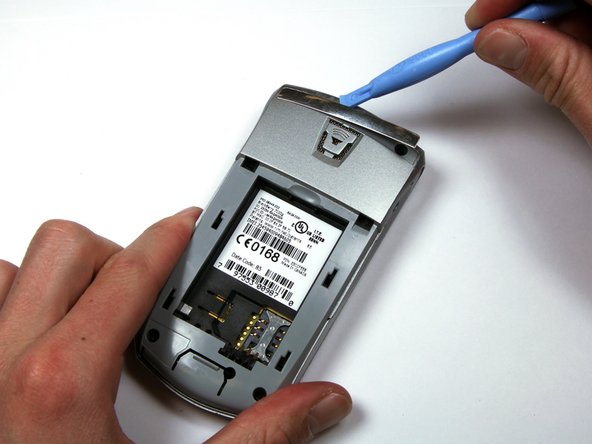
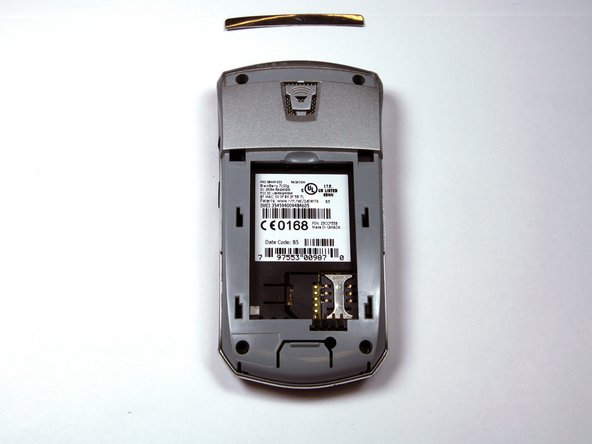
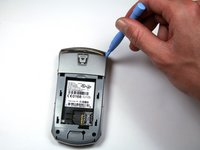
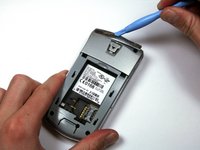
  4. BlackBerry 7100g Screen Replacement, Housing: step 4, image 1 of 3 BlackBerry 7100g Screen Replacement, Housing: step 4, image 2 of 3 BlackBerry 7100g Screen Replacement, Housing: step 4, image 3 of 3
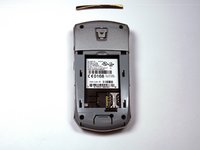
    • Locate the silver strip near the top of your BlackBerry.

    • Use a plastic opening tool to pry off the edge of the silver lining.

    • Slide the tool along the length of the silver strip to completely remove it.

    Ask FixBot

    Add Comment

  5. BlackBerry 7100g Screen Replacement: step 5, image 1 of 2 BlackBerry 7100g Screen Replacement: step 5, image 2 of 2
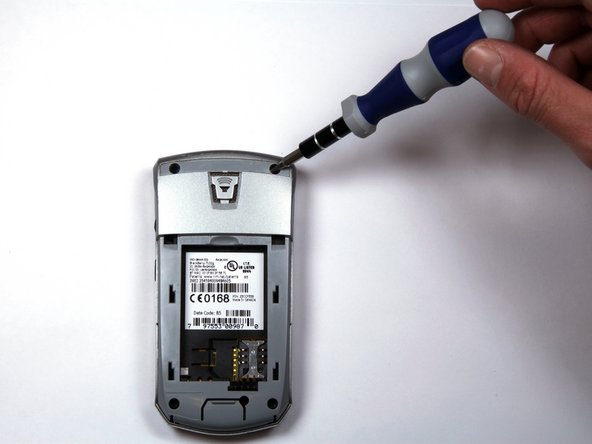
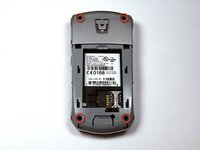
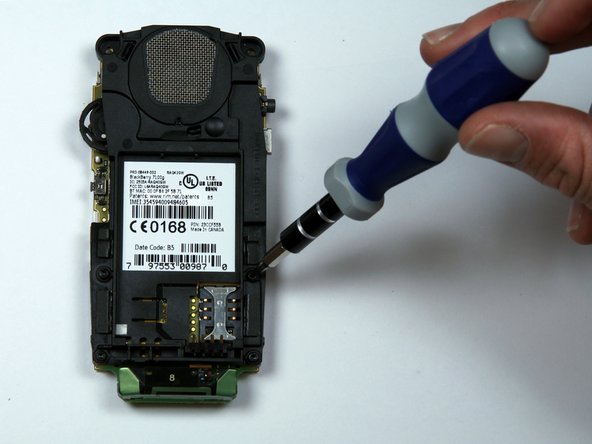
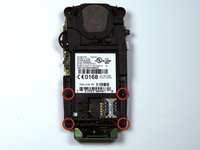
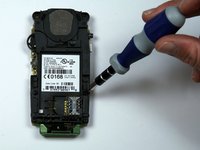
    • Do not lose the screws. They are quite small and can easily be misplaced.

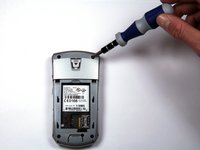
    • Locate and unscrew the four (4) screws using a T6 screwdriver.

    Ask FixBot

    Add Comment

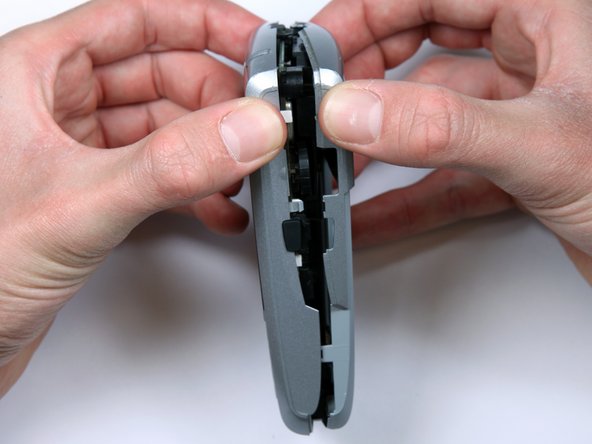
  6. BlackBerry 7100g Screen Replacement: step 6, image 1 of 3 BlackBerry 7100g Screen Replacement: step 6, image 2 of 3 BlackBerry 7100g Screen Replacement: step 6, image 3 of 3
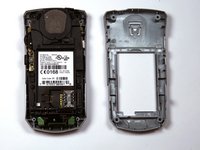
    • The keypad cover may fall out of the housing when prying the housing apart.

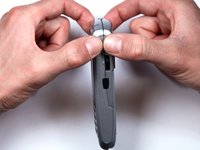
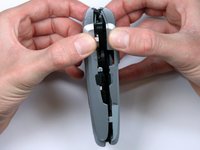
    • Tightly pinch the top of the front and back halves of the housing.

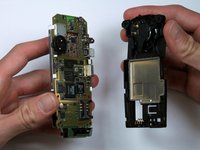
    • Carefully pry the two halves of the housing apart.

    Ask FixBot

    Add Comment

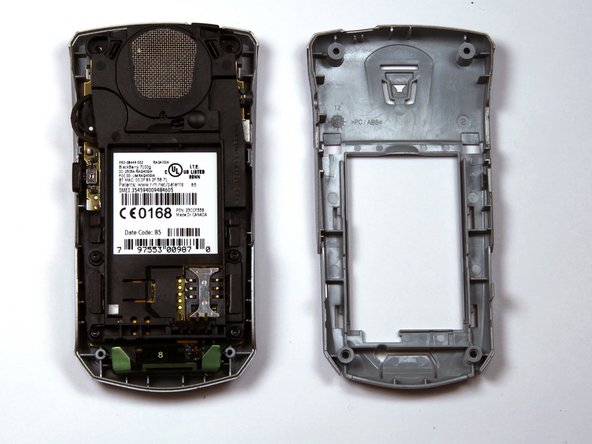
  7. BlackBerry 7100g Screen Replacement: step 7, image 1 of 1
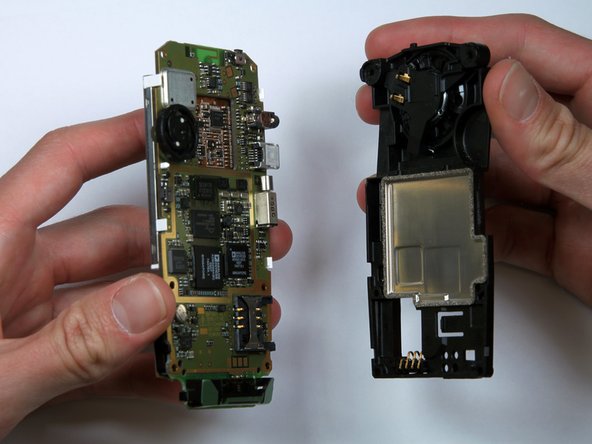
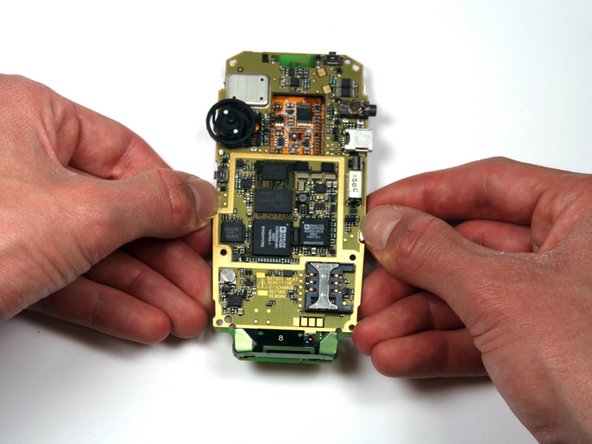
    • You can now easily remove the "guts" of the phone from the housing.

    Ask FixBot

    Add Comment

  8. BlackBerry 7100g Screen Replacement, Keypad: step 8, image 1 of 3 BlackBerry 7100g Screen Replacement, Keypad: step 8, image 2 of 3 BlackBerry 7100g Screen Replacement, Keypad: step 8, image 3 of 3
    • Turn the "guts" over so the speaker is facing up.

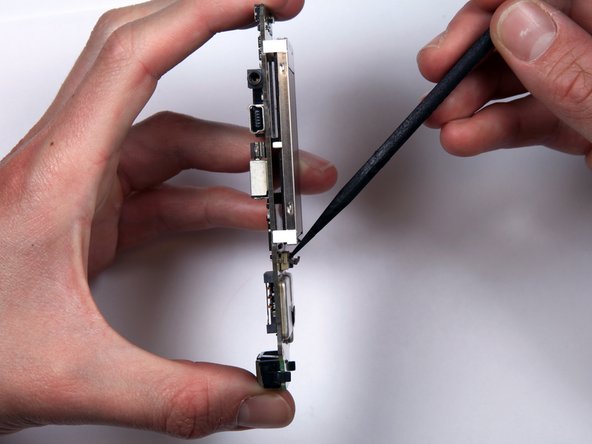
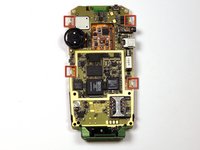
    • Locate and unscrew the four (4) screws near the bottom of the motherboard, using a T6 screwdriver.

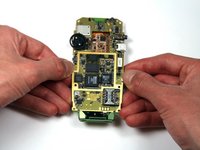
    • Separate the battery housing from the motherboard.

    Ask FixBot

    Add Comment

  9. BlackBerry 7100g Screen Replacement: step 9, image 1 of 1
    • Pull the keypad off of the motherboard.

    • It should come off with little effort. If not, there are several tabs that can be released on either side of the keypad.

    Ask FixBot

    Add Comment

  10. BlackBerry 7100g Screen Replacement, Screen: step 10, image 1 of 2 BlackBerry 7100g Screen Replacement, Screen: step 10, image 2 of 2
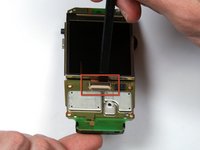
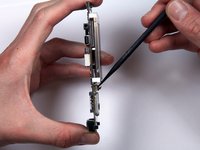
    • Locate the ribbon connector below the bottom of the screen.

    • Use a spudger to flip up the connector.

    Ask FixBot

    Add Comment

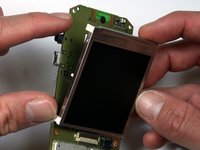
  11. BlackBerry 7100g Screen Replacement: step 11, image 1 of 3 BlackBerry 7100g Screen Replacement: step 11, image 2 of 3 BlackBerry 7100g Screen Replacement: step 11, image 3 of 3
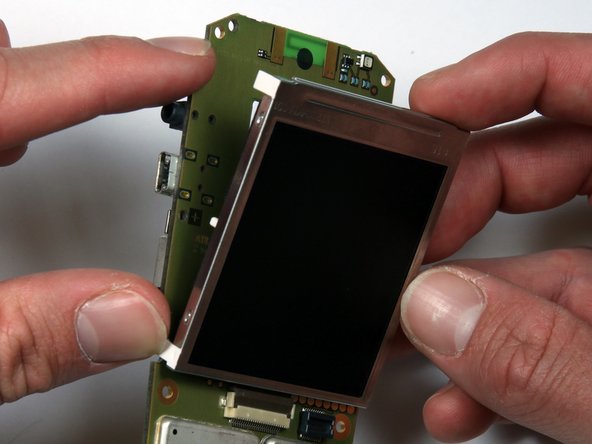
    • Locate the four (4) white tabs that attach the screen to the motherboard.

    • Carefully detach the tabs from the motherboard.

    • The screen can now be removed from the motherboard.

    Ask FixBot

    Add Comment

Conclusion

To reassemble your device, follow these instructions in reverse order.

Cancel: I did not complete this guide.

One other person completed this guide.

Adriel Salinas

Member since: 04/11/10

42 Reputation

2 Guides authored

Team

Cal Poly, Team 25-87, Amido Spring 2010 Member of Cal Poly, Team 25-87, Amido Spring 2010

CPSU-AMIDO-S10S25G87

4 Members

25 Guides authored

1 Guide Comment

just a heads up don't do this with a iPhone it does not work at All!

Jaxson HUTCHINSON - Reply Share
Add Comment

View Statistics:

Past 24 Hours: 1

Past 7 Days: 8

Past 30 Days: 36

All Time: 2,316