15% Off Selected iFixit Tools — Limited Time
Free Shipping on Domestic Orders $75+

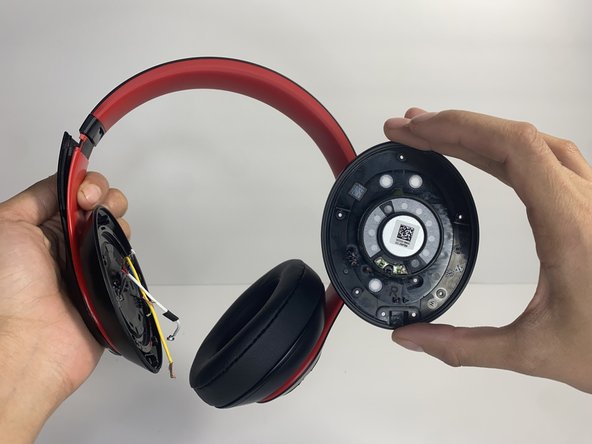
Beats Studio3 Wireless Hinge Replacement

What you need

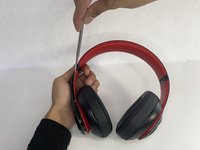
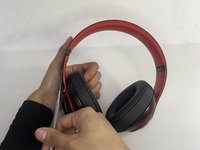
  1. Beats Studio3 Wireless Hinge Replacement, Ear Pad: step 1, image 1 of 2 Beats Studio3 Wireless Hinge Replacement, Ear Pad: step 1, image 2 of 2
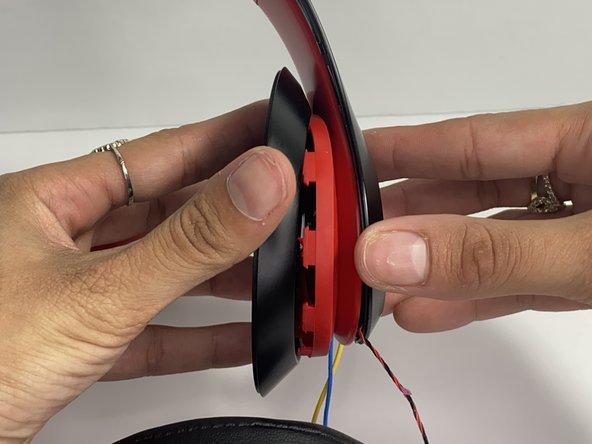
    • Find the separation between the headset and ear cushion.

    • Use an opening tool to go underneath the separation site and split the pieces apart.

    Ask FixBot

    Add Comment

  2. Beats Studio3 Wireless Hinge Replacement: step 2, image 1 of 3 Beats Studio3 Wireless Hinge Replacement: step 2, image 2 of 3 Beats Studio3 Wireless Hinge Replacement: step 2, image 3 of 3
    • You can also use your hands to remove it completely.

    • Pulling it off can be challenging; make sure to apply enough pressure.

    Ask FixBot

    Add Comment

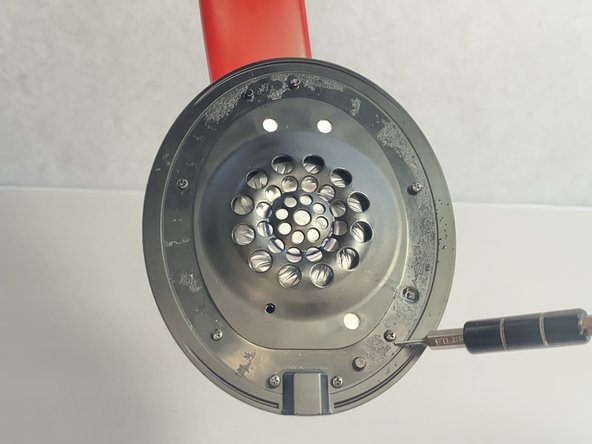
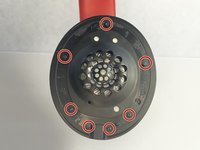
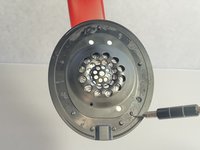
  3. Beats Studio3 Wireless Hinge Replacement, Left Driver Assembly: step 3, image 1 of 2 Beats Studio3 Wireless Hinge Replacement, Left Driver Assembly: step 3, image 2 of 2
    • Remove seven 3.6 mm screws holding the speaker assembly in place using a Phillips #0 screwdriver.

    • Make sure the screws aren't close to the speaker; due to it being a magnet, the screws could get stuck and damage the speaker.

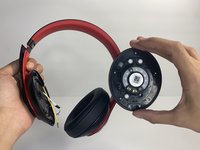
    • Open the speaker by pulling the top layer of the speaker.

    Ask FixBot

    Add Comment

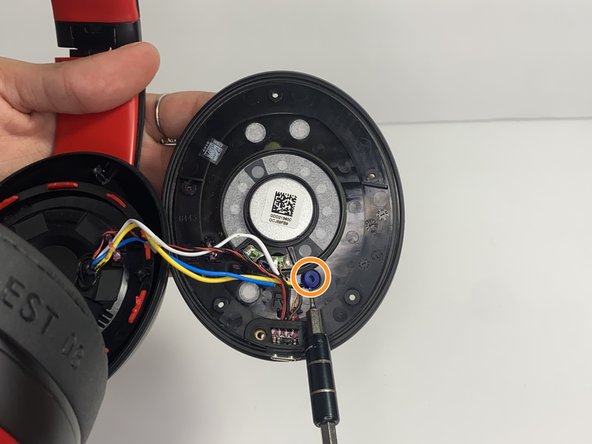
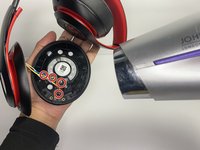
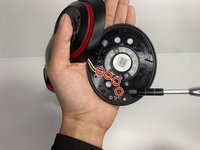
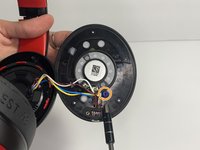
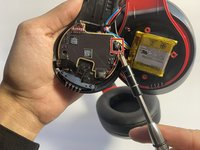
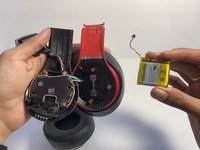
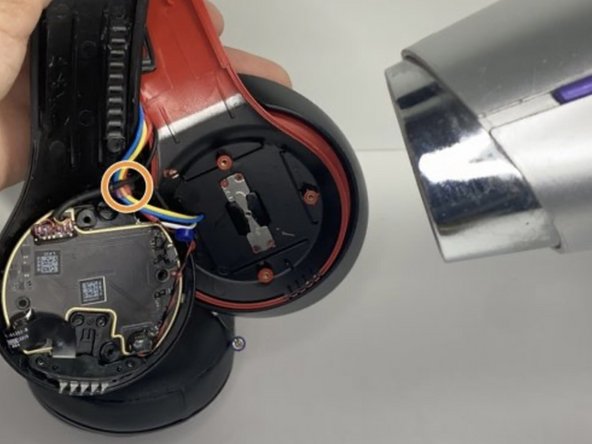
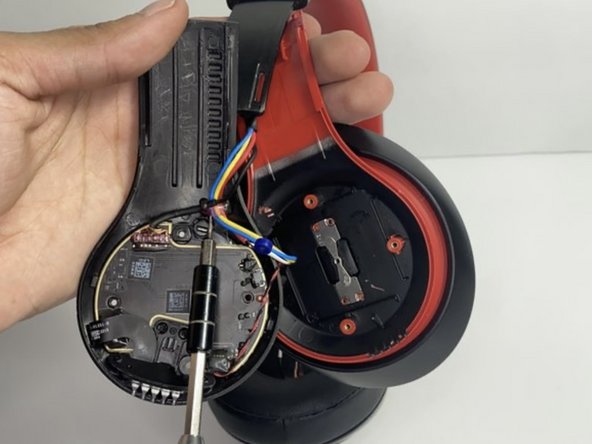
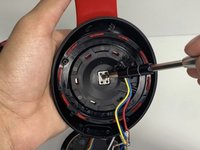
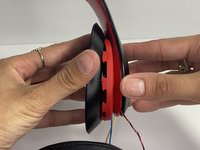
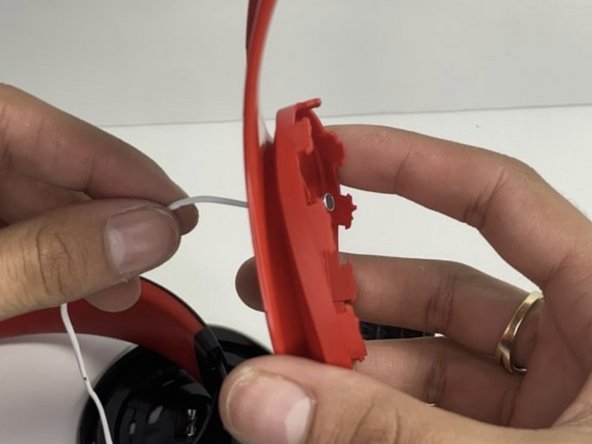
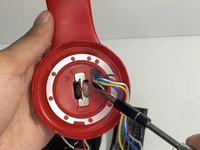
  4. Beats Studio3 Wireless Hinge Replacement: step 4, image 1 of 3 Beats Studio3 Wireless Hinge Replacement: step 4, image 2 of 3 Beats Studio3 Wireless Hinge Replacement: step 4, image 3 of 3
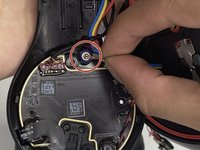
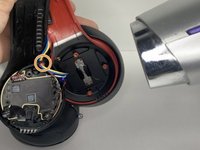
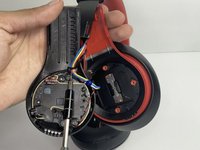
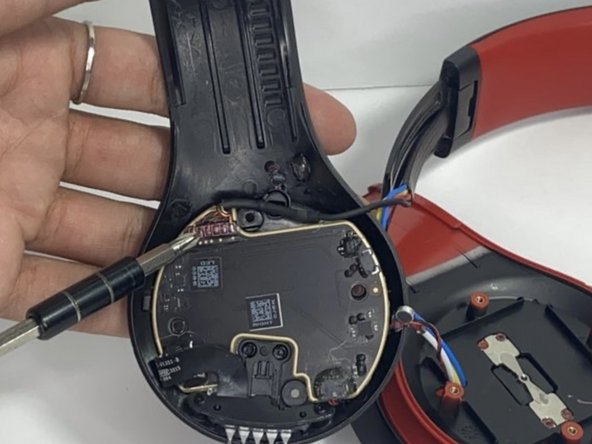
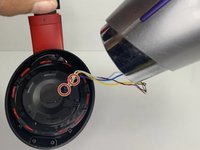
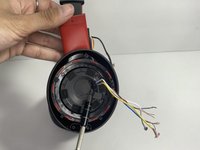
    • With a heat gun or hair dryer, heat the glue that is sticking the wires down until the glue softens.

    • Use a nylon spudger to remove the glue.

    • Pull on the wire to remove it while also removing the blue rubber band.

    Ask FixBot

    Add Comment

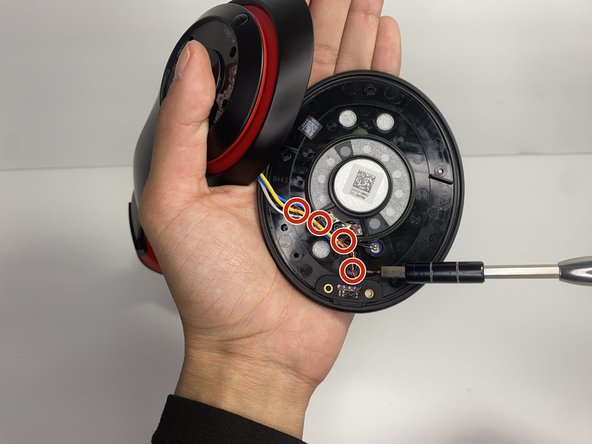
  5. Beats Studio3 Wireless Hinge Replacement: step 5, image 1 of 3 Beats Studio3 Wireless Hinge Replacement: step 5, image 2 of 3 Beats Studio3 Wireless Hinge Replacement: step 5, image 3 of 3
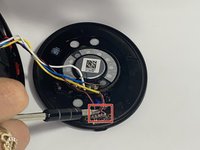
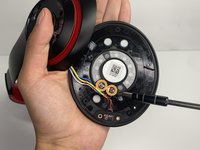
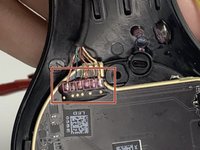
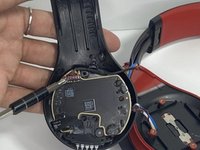
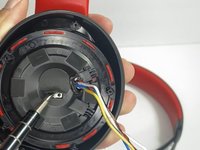
    • Using a soldering iron to remove the cables on the charger port.

    • For help with soldering, check out the How to Solder and Desolder Connections guide.

    • Remove the two wires connected in the middle of the speaker using a soldering iron.

    • Remove the speaker from the headset.

    Ask FixBot

    Add Comment

  6. Beats Studio3 Wireless Hinge Replacement, Battery: step 6, image 1 of 2 Beats Studio3 Wireless Hinge Replacement, Battery: step 6, image 2 of 2
    • Use a pointed nylon spudger to remove the center circular panel on the right side of your device.

    • Be gentle while removing this piece as it is glued on with adhesive.

    Ask FixBot

    Add Comment

  7. Beats Studio3 Wireless Hinge Replacement: step 7, image 1 of 2 Beats Studio3 Wireless Hinge Replacement: step 7, image 2 of 2
    • Remove the four 3.5 mm screws using a Phillips #0 screwdriver.

    Ask FixBot

    Add Comment

  8. Beats Studio3 Wireless Hinge Replacement: step 8, image 1 of 3 Beats Studio3 Wireless Hinge Replacement: step 8, image 2 of 3 Beats Studio3 Wireless Hinge Replacement: step 8, image 3 of 3
    • Using a pointed nylon spudger, remove the tab located on the inner part of the headband labeled "R."

    • Place the nylon spudger in between the side panels and push inward going from bottom to top to separate both sides of the panel.

    • The panel will pop open after separating.

    Ask FixBot

    Add Comment

  9. Beats Studio3 Wireless Hinge Replacement: step 9, image 1 of 1
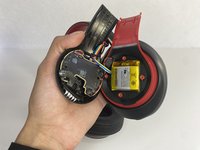
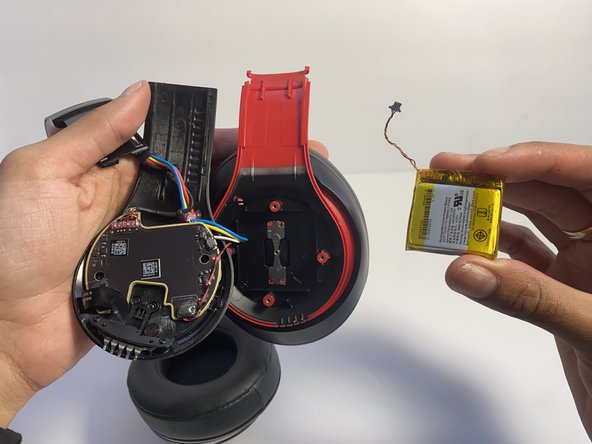
    • Place the nylon spudger underneath the battery, push inward and separate the battery from the inside.

    • Never use sharp tools to pry batteries. Metal spudgers can puncture an unprotected battery, potentially causing a fire.

    Ask FixBot

    Add Comment

  10. Beats Studio3 Wireless Hinge Replacement: step 10, image 1 of 2 Beats Studio3 Wireless Hinge Replacement: step 10, image 2 of 2
    • Use a nylon spudger to lift up the glue sticking the wires down.

    • Use a nylon spudger to lift the connector to disconnect the battery.

    Ask FixBot

    Add Comment

  11. Beats Studio3 Wireless Hinge Replacement, Hinge: step 11, image 1 of 3 Beats Studio3 Wireless Hinge Replacement, Hinge: step 11, image 2 of 3 Beats Studio3 Wireless Hinge Replacement, Hinge: step 11, image 3 of 3
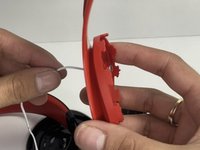
    • Pull the wire making sure that the blue rubber band is off.

    • Heat the glue holding the wires down with a hair dryer or heat gun until the glue softens.

    • Make sure not to overheat any device part, which could cause damage to the sound.

    • With a pointed nylon spudger, remove the glue.

    Ask FixBot

    Add Comment

  12. Beats Studio3 Wireless Hinge Replacement: step 12, image 1 of 2 Beats Studio3 Wireless Hinge Replacement: step 12, image 2 of 2
    Ask FixBot

    Add Comment

  13. Beats Studio3 Wireless Hinge Replacement: step 13, image 1 of 3 Beats Studio3 Wireless Hinge Replacement: step 13, image 2 of 3 Beats Studio3 Wireless Hinge Replacement: step 13, image 3 of 3
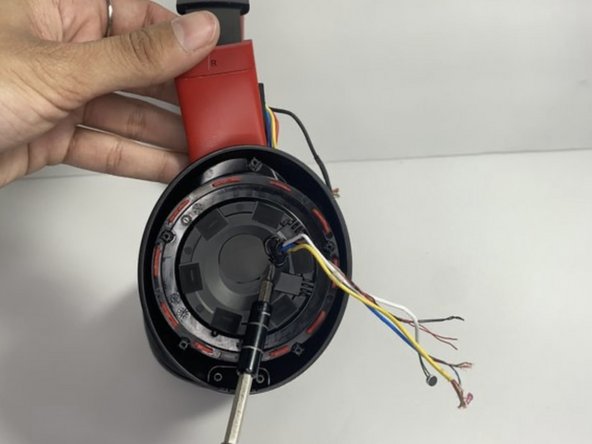
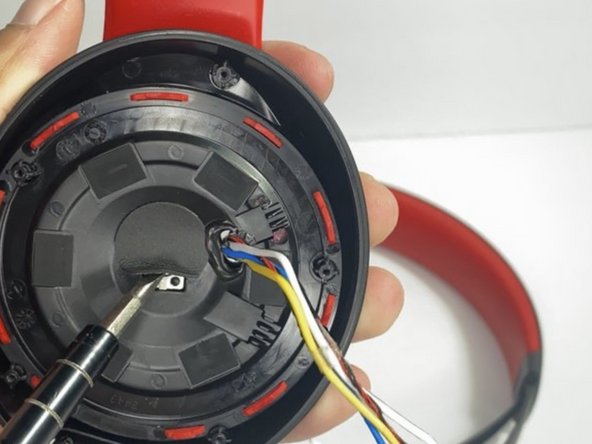
    • With a hair dryer or heating gun, heat the glue that is sticking the wires down.

    • Use a nylon spudger to remove the softened glue.

    • Remove the circular tape inside of the ear pad.

    Ask FixBot

    Add Comment

  14. Beats Studio3 Wireless Hinge Replacement: step 14, image 1 of 2 Beats Studio3 Wireless Hinge Replacement: step 14, image 2 of 2
    • Remove the single 3.5 mm screw with a Phillips #0 screwdriver.

    • Pull apart the top layer of the earpiece.

    Ask FixBot

    Add Comment

  15. Beats Studio3 Wireless Hinge Replacement: step 15, image 1 of 2 Beats Studio3 Wireless Hinge Replacement: step 15, image 2 of 2
    • Remove the tape holding the wires in place.

    • Pull the wires through the hole with your hand.

    Ask FixBot

    Add Comment

  16. Beats Studio3 Wireless Hinge Replacement: step 16, image 1 of 1
    • Bend the hinge and remove the two 3.5 mm screws with a Phillips #0 screwdriver.

    Ask FixBot

    Add Comment

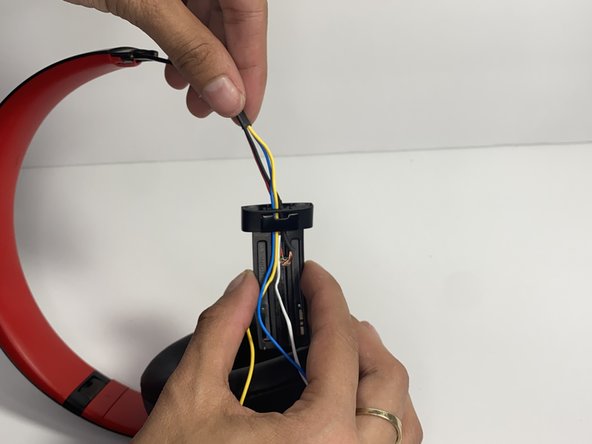
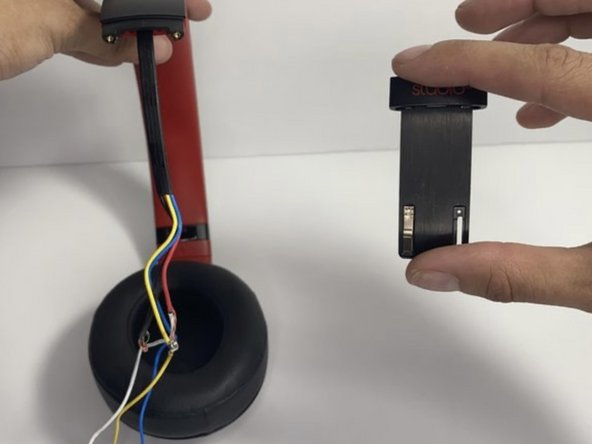
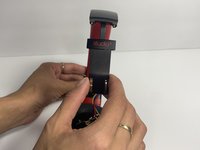
  17. Beats Studio3 Wireless Hinge Replacement: step 17, image 1 of 3 Beats Studio3 Wireless Hinge Replacement: step 17, image 2 of 3 Beats Studio3 Wireless Hinge Replacement: step 17, image 3 of 3
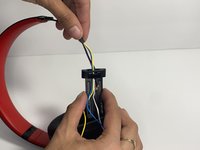
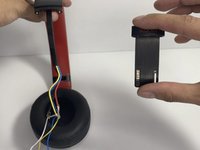
    • Pull the hinge down.

    • Pull on the wires one at a time making sure you don't damage them.

    Ask FixBot

    Add Comment

  18. Beats Studio3 Wireless Hinge Replacement: step 18, image 1 of 2 Beats Studio3 Wireless Hinge Replacement: step 18, image 2 of 2
    Tool used on this step:
    Tweezers
    $4.99
    Buy
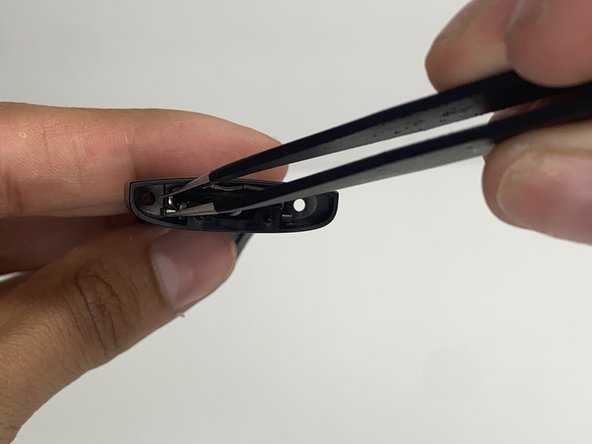
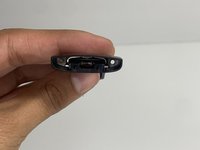
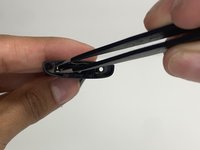
    • With tweezers, remove the pin located inside of the hinge.

    Ask FixBot

    Add Comment

Conclusion

To reassemble your device, follow these instructions in reverse order.

Cancel: I did not complete this guide.

One other person completed this guide.

Nayeli watts

Member since: 03/16/23

543 Reputation

3 Guides authored

Team

0 Guide Comments

Add Comment

View Statistics:

Past 24 Hours: 6

Past 7 Days: 44

Past 30 Days: 262

All Time: 10,565