
BUSY Bar Disassembly

Flipper Devices and 2 other contributors
Last updated on Jul 27, 2026
Views: 988
View statistics:
- Past 24 Hours:
- 4
- Past 7 Days:
- 19
- Past 30 Days:
- 119
- All Time:
- 988
Comments: 0
No one has left comments on this guide. Will you be first?
Go to guide commentsCompleted: 3 4
3 people have marked this guide "completed." Will you be next?
4 people have marked this guide "completed." Including you — great job!
Favorites: 3 4
3 people have favorited (and subscribed to) this guide. Will you be next?
4 people have favorited (and subscribed to) this guide — including you!
Community-Contributed Guide
An awesome member of our community made this guide. It was not created by iFixit staff.
Introduction
Go to step 1 ↓BUSY Bar is a customizable productivity and attention-management device featuring a large main display (LED, 72×16), a small monochrome rear display (OLED, 160×80), and physical controls. It integrates with mobile and desktop apps, supports third-party services, and has an open HTTP API.
The device supports Wi-Fi 6, Bluetooth Low Energy, and USB Virtual LAN. It also integrates with smart-home systems via Matter and runs on battery for fully autonomous use.
What you need
Tools


-
-
-
Use a plastic card to release one of the clips near the center at the bottom of the back cover.
-
Gently release the remaining clips until the back cover comes off completely.
 Ask FixBot
-
-
-
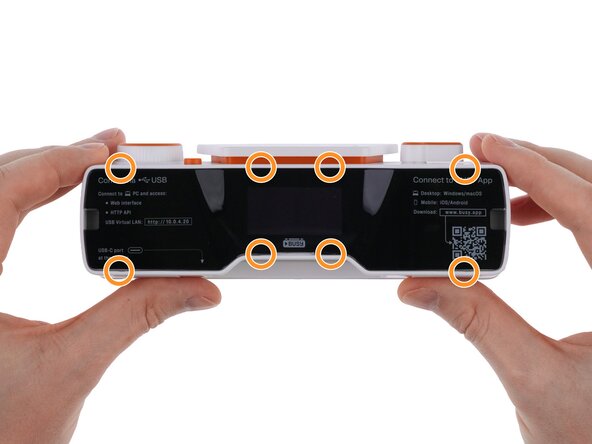
Use a PH1 Phillips screwdriver to remove 1 screw from the bottom and 4 screws from the back of the device.
-
-
-
Use a plastic card to release the 2 latches on top of the front display.
-
Gently pull the front display unit out toward the right.
-
-
-
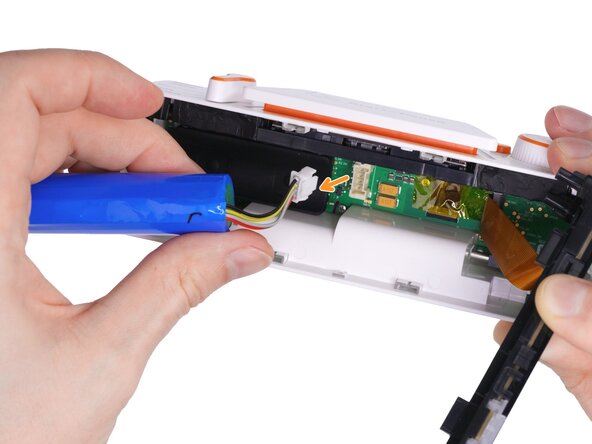
Gently move the battery to the left so you can access the connector.
-
Use tweezers or your fingertip to press the connector latch.
-
Pull the battery connector to disconnect it from the PCB.
-
-
-
Use a spudger to release the display cable connector latch.
-
Pull the cable in the direction indicated by the arrow.
-
Remove the front display unit.
-
-
-
Use your fingers to lift and remove the silicone battery pad.
-
-
-
Use tweezers to remove the yellow tape from the connector on the main PCB.
-
Use a halberd spudger to release the connector latch.
-
Use tweezers to disconnect the cable from the connector.
-
-
-
Use a halberd spudger to release the latch on the display connector.
-
Gently press the flex cable with your finger and slide it out of the connector.
-
-
-
Use a spudger to pry up the speaker connector and disconnect it.
-
Use tweezers to remove the speaker from the device housing.
-
-
-
Use a spudger or an opening tool to remove the scroll wheel, holding it with your other hand to prevent bending.
-
Using both hands, lift up the Start/Pause button knob to remove it.
-
Use a spudger or an opening tool to remove the mode selector cover.
-
-
-
Use a PH1 screwdriver to remove the 3 screws securing the PCB.
-
Carefully lift the PCB out of the device housing.
-
-
-
Peel off the 2 black stickers from the control unit.
-
Use a spudger to release the 2 clips on the sides of the unit.
-
Use a halberd spudger to release the 2 clips closer to the center.
-
Remove the control unit from the device housing.
-
-
-
Remove the 2 white status indicator light guides by lifting them from the edge with your finger.
-
Use a spudger to release the latch securing the Back button cover.
-
Remove the Back button cover.
-
-
-
Remove the 3 screws from the bottom of the control unit.
-
Remove the stabilizer holder.
-
-
-
-
Gently pull the PCB away from the plastic housing. You can pull by the scroll wheel or the mode selector.
-
Release the latches by bending them outward from the PCB using your finger, a spudger, or an opening tool.
-
Once all latches are released, remove the PCB from the housing.
-
-
-
Use a spudger to carefully release the connector latch.
-
Remove the flex cable.
-
-
-
Use a spudger or a plastic card to carefully release the latches around the front display.
-
Remove the back cover of the front display unit.
-
-
-
Remove the display PCB from the front display unit.
-
Remove the light separator.
-
Remove the light-diffusing film.
-
-
-
Tilt the ambient light sensor light guide forward to disconnect it from the display PCB.
-
Use a spudger to release the flex cable connector latch.
-
Pull the flex cable in the direction indicated by the arrow to remove it.
-
-
-
Use a spudger to slide the 2 friction elements toward the center of the device. They move together with the short metal shafts and can then be removed from the housing.
-
Press the mount leg downward toward the center of the device (following the orange arrow).
-
At the same time push the mount leg sideways (following the red arrow) to release it from the slot.
-
Repeat these steps for the opposite side of the leg to remove it.
-
-




To reassemble the device, follow these steps in reverse order.
Cancel: I did not complete this guide.
3 other people completed this guide.

