Introduction
Use this guide to replace the fan on your Auking M8-F projector.
The fan is the part of the projector that helps reduce the excess heat that comes while using the projector. If the fan is not properly managed, the projector might resort to overheating. There are some cases where the projector will create loud noises from the fan, which is an indication of overheating. The fan will likely need a replacement if your projector is showing any of the symptoms.
Before continuing with this guide, please take a look at the troubleshooting page to see if the cause of overheating is coming from the fan. The problem could sometimes be high environmental temperatures.
Before beginning, be sure to turn off your projector completely.
What you need
-
-
Flip the projector on its opposite side.
-
Remove all six of the 11 mm screws on the base of the projector using a Phillips #1 screwdriver.
-
Remove the two 14 mm screws using a Phillips #1 screwdriver.
 Ask FixBot
-
-
-
Carefully prop open the top of the projector.
-
To remove the cord that is attached to the top, carefully wiggle the cord out.
-
Remove the top lid.
-
-
-
-
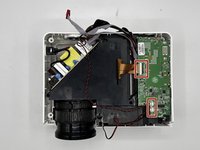
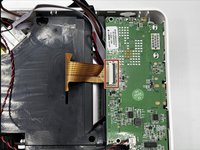
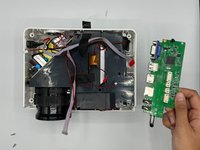
Carefully disconnect the wires that are attached to the motherboard.
-
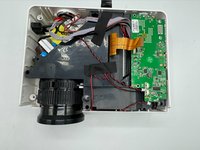
Remove the motherboard.
-
-
-
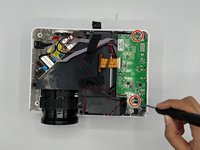
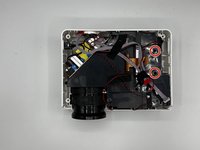
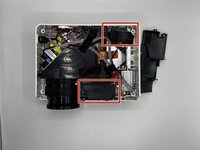
Remove the two 9 mm screws using a Phillips #0 screwdriver to detach the small black panel.
-




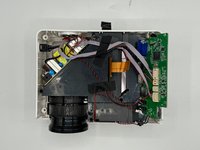


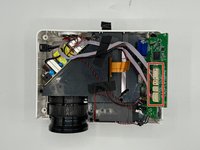


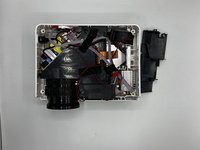

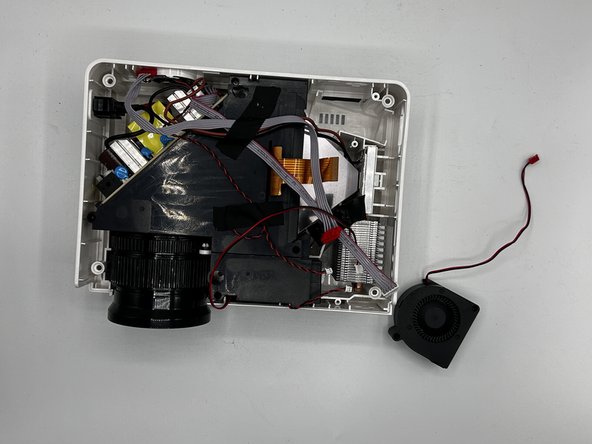
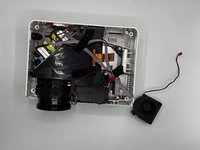
To reassemble your device, follow these instructions in reverse order.

