Free Shipping on Domestic Orders $75+

Asus ZenBook UX330U Wi-Fi Adapter Replacement

What you need

    1. Asus ZenBook UX330U Wi-Fi Adapter Replacement, Battery: step 1, image 1 of 3 Asus ZenBook UX330U Wi-Fi Adapter Replacement, Battery: step 1, image 2 of 3 Asus ZenBook UX330U Wi-Fi Adapter Replacement, Battery: step 1, image 3 of 3
      • Before starting any device dissasembly, please put on the anti-static bracelet provided by iFixit. Make sure the metal part of the bracelet is touching your skin.

      • Remove the alligator clip at the end of the bracelet by simply pulling it off, to reveal the bullet connector.

      • Insert the bullet connector into the ground port of an outlet.

      • Make sure to keep the bracelet on at all times while disassembling your device, to prevent ESD to the components.

      Ask FixBot

      Add Comment

    2. Asus ZenBook UX330U Wi-Fi Adapter Replacement: step 2, image 1 of 2 Asus ZenBook UX330U Wi-Fi Adapter Replacement: step 2, image 2 of 2
      • Power off the device and make sure it is physically unplugged before starting any disassembly procedures.

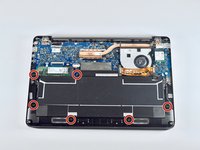
      • Remove the eight 3.1 mm screws using the T5 Torx screwdriver.

      • Remove the longer 5.1 mm screw using the T5 Torx screwdriver.

      Ask FixBot

      Add Comment

    3. Asus ZenBook UX330U Wi-Fi Adapter Replacement: step 3, image 1 of 3 Asus ZenBook UX330U Wi-Fi Adapter Replacement: step 3, image 2 of 3 Asus ZenBook UX330U Wi-Fi Adapter Replacement: step 3, image 3 of 3
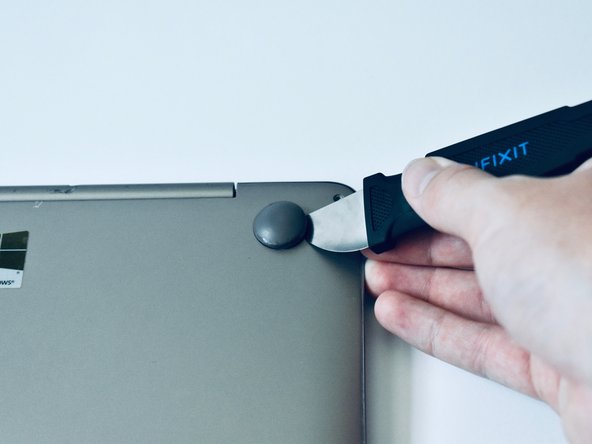
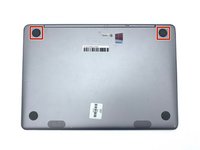
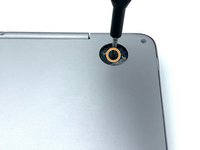
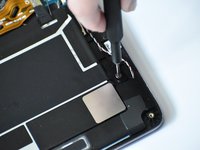
      • Use a Jimmy or a spudger to pry off the two rubber feet that are closest to the hinge.

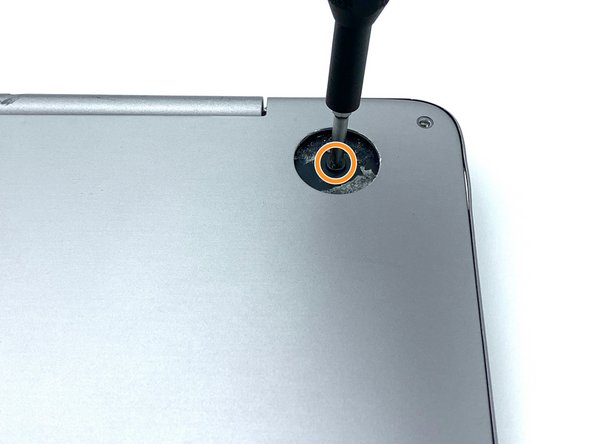
      • Unscrew the two 5.6mm screws that were underneath the rubber feet using the Philips #0 screwdriver bit.

      • The rubber feet may be difficult to remove. Do not hesitate to use more force to remove the feet, if necessary.

      Ask FixBot

      Add Comment

    4. Asus ZenBook UX330U Wi-Fi Adapter Replacement: step 4, image 1 of 2 Asus ZenBook UX330U Wi-Fi Adapter Replacement: step 4, image 2 of 2
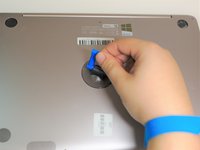
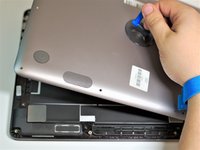
      • Press the suction handle on the center of the back cover, and gently lift up.

      • You may need to wiggle the back cover as you lift it in order to take it off easily.

      Ask FixBot

      Add Comment

    5. Asus ZenBook UX330U Wi-Fi Adapter Replacement: step 5, image 1 of 2 Asus ZenBook UX330U Wi-Fi Adapter Replacement: step 5, image 2 of 2
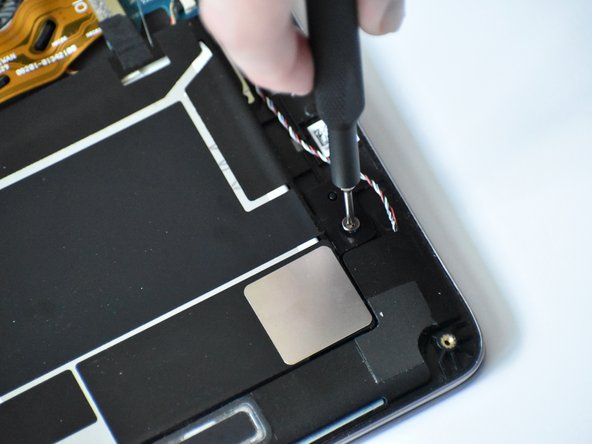
      • Unscrew the six 3.7mm screws using the Philips #0 screwdriver bit.

      • Be extra cautious when handling the battery. If the battery looks swollen or damaged, consult this guide.

      Ask FixBot

      Add Comment

    6. Asus ZenBook UX330U Wi-Fi Adapter Replacement: step 6, image 1 of 3 Asus ZenBook UX330U Wi-Fi Adapter Replacement: step 6, image 2 of 3 Asus ZenBook UX330U Wi-Fi Adapter Replacement: step 6, image 3 of 3
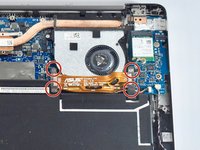
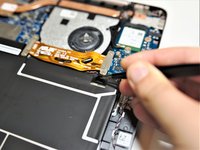
      • Remove the four 2.8mm screws from the motherboard ribbon connector using the Philips #0 screwdriver bit.

      • You may have to pull back the black tape located on the bottom right motherboard connector screw. This tape is not necessary for the functionality of the device and can be discarded if necessary.

      Ask FixBot

      Add Comment

    7. Asus ZenBook UX330U Wi-Fi Adapter Replacement: step 7, image 1 of 3 Asus ZenBook UX330U Wi-Fi Adapter Replacement: step 7, image 2 of 3 Asus ZenBook UX330U Wi-Fi Adapter Replacement: step 7, image 3 of 3
      Tool used on this step:
      Tweezers
      $4.99
      Buy
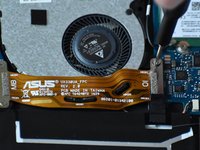
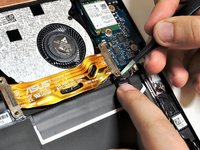
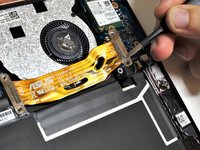
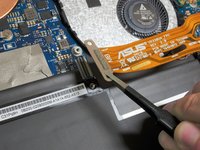
      • Remove the motherboard ribbon connector by pulling up on the metal ends with the blunt nose tweezers.

      • You may have to hold down the black tape in order to be able to lift up the connector.

      • To reconnect the motherboard ribbon, simply press the ends of the ribbon on top of the connector. This should require minimal force.

      Ask FixBot

      Add Comment

    8. Asus ZenBook UX330U Wi-Fi Adapter Replacement: step 8, image 1 of 3 Asus ZenBook UX330U Wi-Fi Adapter Replacement: step 8, image 2 of 3 Asus ZenBook UX330U Wi-Fi Adapter Replacement: step 8, image 3 of 3
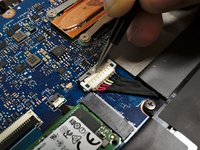
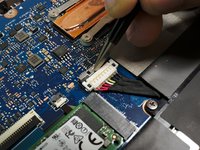
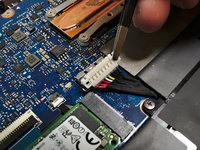
      • Pull back the silver battery connector lock with the blunt nose tweezers. This should slide back and should require minimal force.

      • Lift the battery connector vertically using the blunt nose tweezers to remove it from the socket.

      Ask FixBot

      Add Comment

    9. Asus ZenBook UX330U Wi-Fi Adapter Replacement: step 9, image 1 of 2 Asus ZenBook UX330U Wi-Fi Adapter Replacement: step 9, image 2 of 2
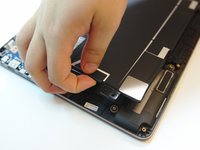
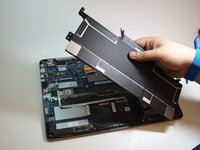
      • Gently lift the battery out of the chassis of the device.

      • Make sure that you do not bend the battery.

      Ask FixBot

      Add Comment

    1. Asus ZenBook UX330U Wi-Fi Adapter Replacement, Wi-Fi Adapter: step 10, image 1 of 3 Asus ZenBook UX330U Wi-Fi Adapter Replacement, Wi-Fi Adapter: step 10, image 2 of 3 Asus ZenBook UX330U Wi-Fi Adapter Replacement, Wi-Fi Adapter: step 10, image 3 of 3
      Tool used on this step:
      Tweezers
      $4.99
      Buy
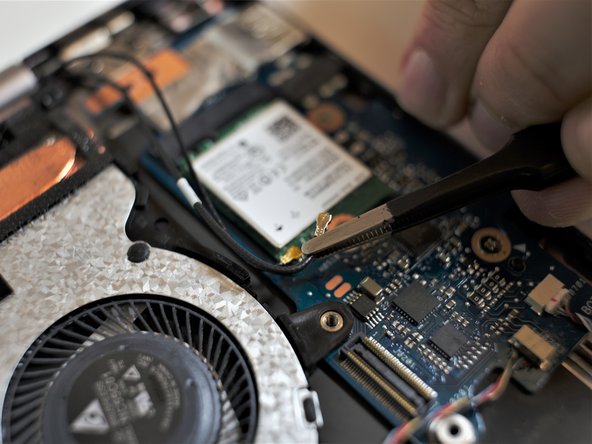
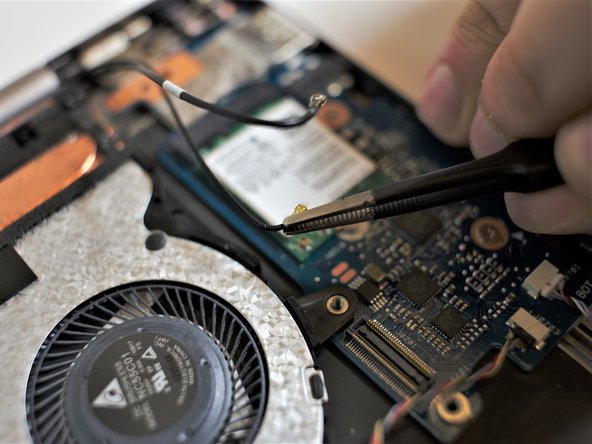
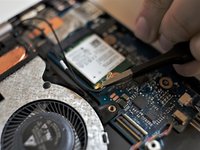
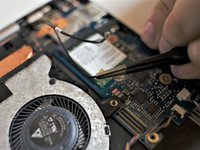
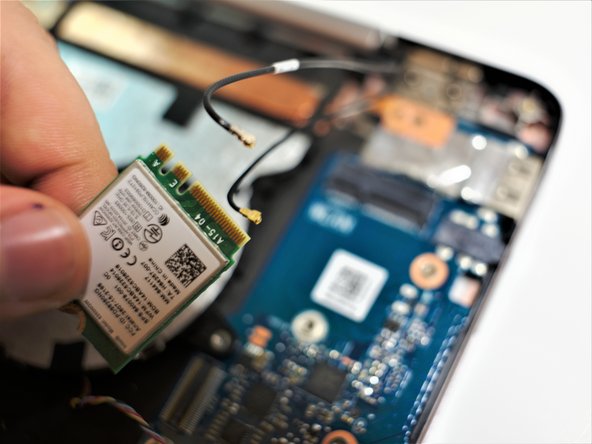
      • Disconnect the two UFL female connector cables by gently prying up with the blunt nose tweezers.

      • Remember which connector was connected to which port. The connector cable with the white strip connects to the port with the white arrow labeled "2".

      Ask FixBot

      Add Comment

    2. Asus ZenBook UX330U Wi-Fi Adapter Replacement: step 11, image 1 of 2 Asus ZenBook UX330U Wi-Fi Adapter Replacement: step 11, image 2 of 2
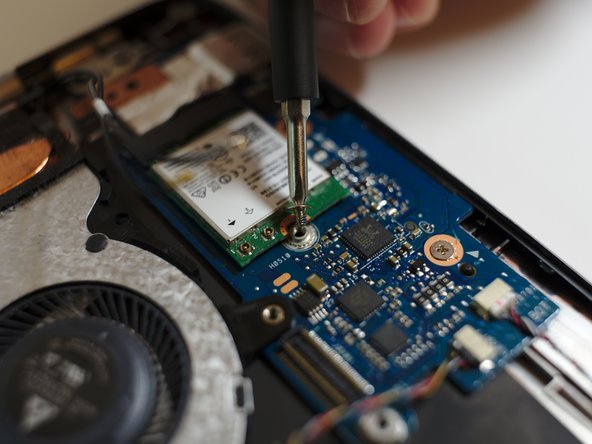
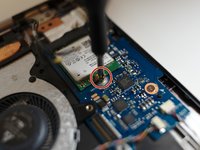
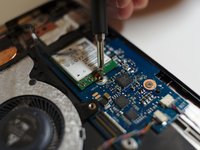
      • Remove the single 2.7 mm screw holding the Wi-Fi adapter using the Philips #0 screwdriver bit.

      Ask FixBot

      Add Comment

    3. Asus ZenBook UX330U Wi-Fi Adapter Replacement: step 12, image 1 of 2 Asus ZenBook UX330U Wi-Fi Adapter Replacement: step 12, image 2 of 2
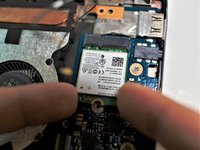
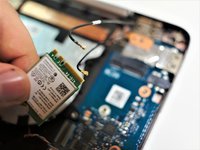
      • Gently grip the Wi-Fi adapter by the sides and pull it out with gentle pressure. You may need to slightly wiggle the adapter to get it to slide out easily.

      Ask FixBot

      Add Comment

Conclusion

To reassemble your device, follow these instructions in reverse order.

Cancel: I did not complete this guide.

1 Guide Comment

Woudldn’t it be better to swap steps 5 and 8?

Jose Ramón García Sevilla - Reply Share

Add Comment

View Statistics:

Past 24 Hours: 2

Past 7 Days: 8

Past 30 Days: 45

All Time: 3,651