
Asus X751MA-DH01TQ Screen Replacement

Collen Bleigh and 2 other contributors
Last updated on Dec 27, 2018
Views: 965
View statistics:
- Past 24 Hours:
- 4
- Past 7 Days:
- 21
- Past 30 Days:
- 71
- All Time:
- 965
Comments: 0
No one has left comments on this guide. Will you be first?
Go to guide commentsCompleted: 0 1
No one has marked this guide "completed." Will you be the first?
1 person has marked this guide "completed." It's you — great job!
Favorites: 1 2
1 person has favorited (and subscribed to) this guide. Will you be next?
2 people have favorited (and subscribed to) this guide — including you!
Better Introduction
Improve this guide by completing or revising its introduction.
What you need
Tools


-
-
-
Turn the laptop upside down.
-
Unscrew the 10 screws on the bottom of the laptop using a PH00 screwdriver bit.
 Ask FixBot
-
-
-
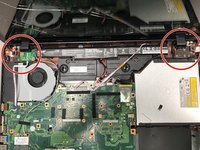
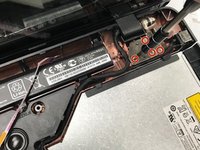
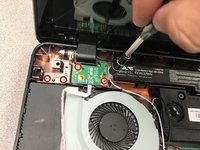
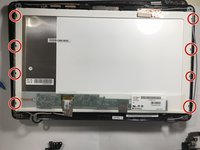
Remove the eight 5.5 Phillips #00 screws located at the top right and left hand side of panel.
-
-
-
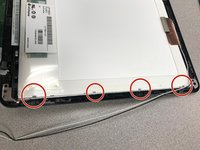
Remove the four 4mm Phillips #00 screws on the bottom left and right of the screen.
-
-
-
-
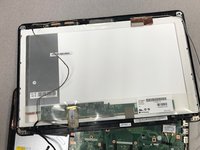
Insert the plastic opening tool on the side of the screen and slide it all the way around to open the screen up.
-
-
-
Remove the eight total screws (4 on each side) that are on the side of the white part on the back of the screen.
-
-
-
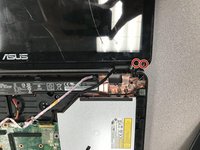
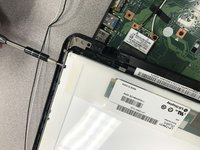
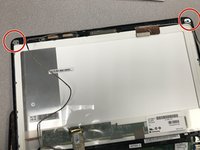
Remove the two 4mm Phillips #00 screws on the top corners of the back of the screen.
-
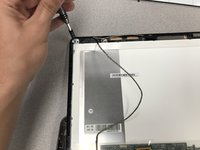
Remove the metal bars that you have just unscrewed.
-
-
-
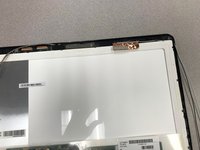
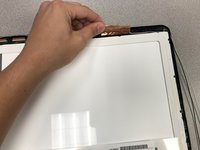
Peel back the bronze sticker that is connecting the white border piece to the outside edge of the screen.
-
-
-
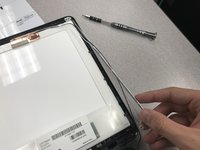
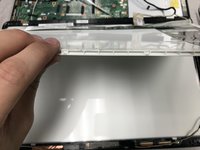
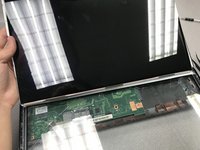
Use the plastic opening tool to pry open the white part away from the screen.
-
-




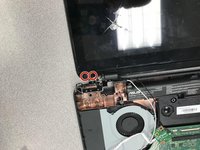
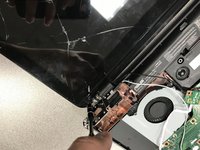


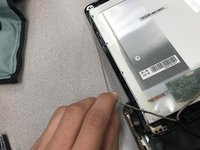
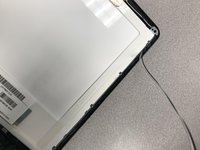








To reassemble your device, follow these instructions in reverse order.

Team

University of North Texas, Team S4-G5, Raign Fall 2018 Member of University of North Texas, Team S4-G5, Raign Fall 2018
UNT-RAIGN-F18S4G5
3 Members
36 Guides authored
