Free Shipping on Domestic Orders $75+

Asus X751MA-DH01TQ Web Cam Replacement

What you need

  1. Asus X751MA-DH01TQ  Web Cam Replacement, Web Cam: step 1, image 1 of 2 Asus X751MA-DH01TQ  Web Cam Replacement, Web Cam: step 1, image 2 of 2
    • Turn the laptop upside down and locate the ten screws that hold the plate cover.

    • Remove all ten screws using a 00 Phillips head screwdriver.

    Ask FixBot

    Add Comment

  2. Asus X751MA-DH01TQ  Web Cam Replacement: step 2, image 1 of 2 Asus X751MA-DH01TQ  Web Cam Replacement: step 2, image 2 of 2
    • Using the plastic opening tool, pry the keyboard off of the base of the laptop.

    • Lift up and remove the keyboard.

    Ask FixBot

    Add Comment

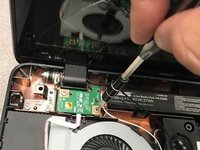
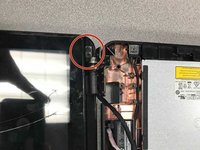
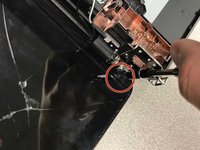
  3. Asus X751MA-DH01TQ  Web Cam Replacement: step 3, image 1 of 3 Asus X751MA-DH01TQ  Web Cam Replacement: step 3, image 2 of 3 Asus X751MA-DH01TQ  Web Cam Replacement: step 3, image 3 of 3
    • Remove eight 4.4 Phillips #00 screws attached to the hinge.

    • Hold the screen so it wont fall over.

    Ask FixBot

    Add Comment

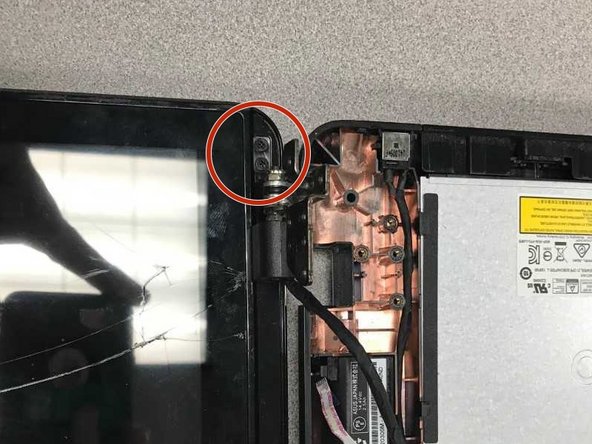
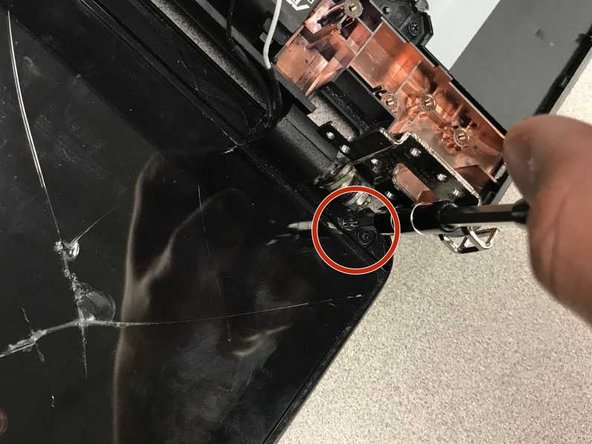
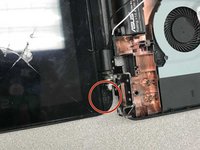
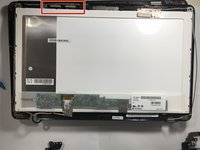
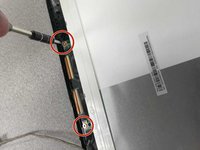
  4. Asus X751MA-DH01TQ  Web Cam Replacement: step 4, image 1 of 3 Asus X751MA-DH01TQ  Web Cam Replacement: step 4, image 2 of 3 Asus X751MA-DH01TQ  Web Cam Replacement: step 4, image 3 of 3
    • Remove the stickers from the bottom left and right corners of the screen.

    • Use a 00 Phillips head screw driver to remove the four screws.

    Ask FixBot

    Add Comment

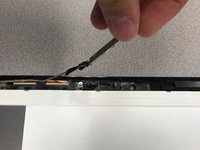
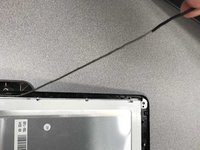
  5. Asus X751MA-DH01TQ  Web Cam Replacement: step 5, image 1 of 1
    • Use the plastic opening tool to take the screen apart.

    Ask FixBot

    Add Comment

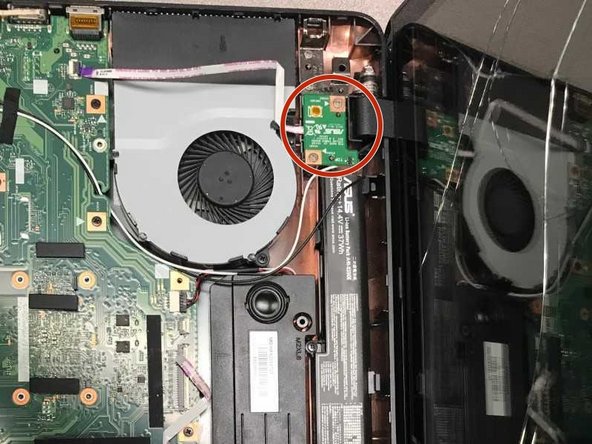
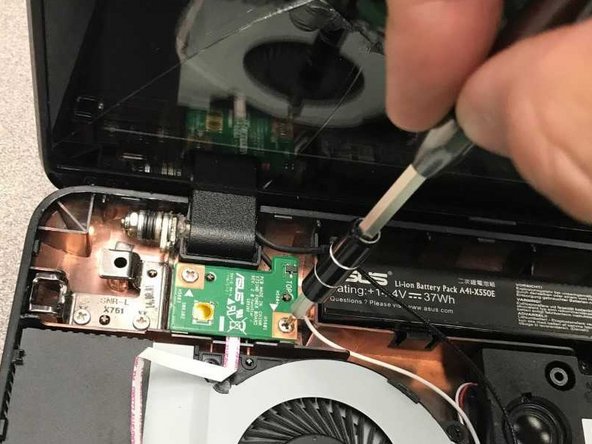
  6. Asus X751MA-DH01TQ  Web Cam Replacement: step 6, image 1 of 2 Asus X751MA-DH01TQ  Web Cam Replacement: step 6, image 2 of 2
    • Remove the two 4mm Phillips #00 screws attached to the webcam.

    Ask FixBot

    Add Comment

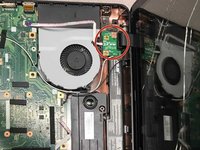
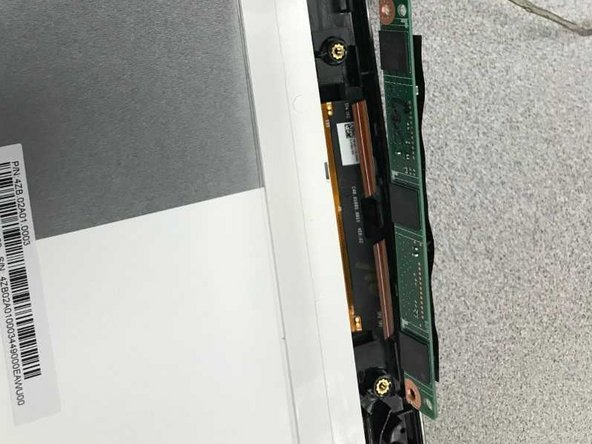
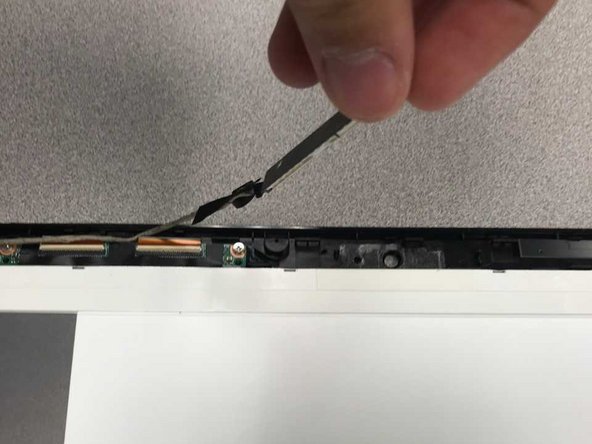
  7. Asus X751MA-DH01TQ  Web Cam Replacement: step 7, image 1 of 3 Asus X751MA-DH01TQ  Web Cam Replacement: step 7, image 2 of 3 Asus X751MA-DH01TQ  Web Cam Replacement: step 7, image 3 of 3
    • Slowly pull up the webcam out of its slot, and begin to remove the wire.

    Ask FixBot

    Add Comment

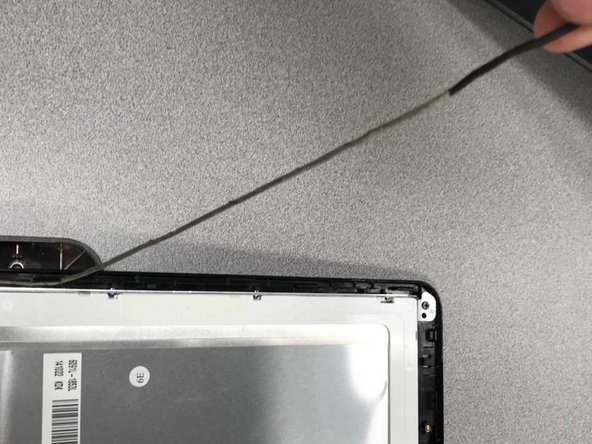
  8. Asus X751MA-DH01TQ  Web Cam Replacement: step 8, image 1 of 2 Asus X751MA-DH01TQ  Web Cam Replacement: step 8, image 2 of 2
    • Continue to unravel the wire and peel the webcam wire sticker off.

    Ask FixBot

    Add Comment

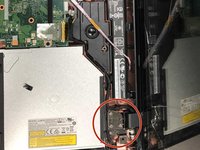
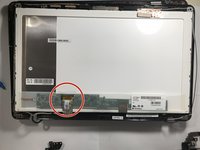
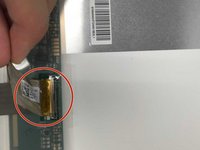
  9. Asus X751MA-DH01TQ  Web Cam Replacement: step 9, image 1 of 2 Asus X751MA-DH01TQ  Web Cam Replacement: step 9, image 2 of 2
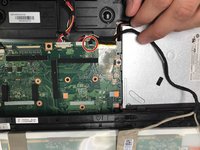
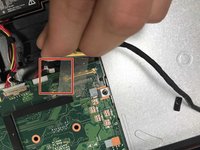
    • Once the sticker is peeled off pull the plug holding the webcam into the circuit board and the webcam is now disconnected.

    Ask FixBot

    Add Comment

Conclusion

To reassemble your device, follow these instructions in reverse order.

Cancel: I did not complete this guide.

Darren Kim

Member since: 09/18/18

657 Reputation

3 Guides authored

0 Guide Comments

Add Comment

View Statistics:

Past 24 Hours: 0

Past 7 Days: 4

Past 30 Days: 27

All Time: 419