Introduction
This guide will assist with the replacement of the LCD panel of the Asus X515EA-BB53-CB provided by a step-by-step walkthrough. This specific model is common to North America, but this procedure can be generally applied to other variations within the Asus Vivobook 15 X515 series, including but not limited to: X515JA, X515MA, X515KA, or X515DA.
The LCD screen is the primary output of a laptop; it renders the system’s graphic interface, photos and videos. The issue of a damaged display from a physical crack or leaking internal liquid crystals is the terrible user experience of an unusable or partially obscured screen.
Troubleshooting: Is Your Screen Broken?
Follow this guide if your laptop exhibits any of the following issues:
- Physical Damage: Visible spider-web-like cracks on the screen or black spots on the display caused by internal leaking LCD.
- Vertical or Horizontal Line: Multicoloured lines on display due to a failed LCD’s internal logic board.
- No Display: The screen remains entirely black, even with the laptop being on, with indications such as fan noise or keyboard lights activating.
- Display Flickering: The screen shows a display of a faint image, this is an issue caused by the laptop's backlight failing (the series of LEDs behind the screen panel).
Safety Warnings & Precaution Tips
- Disconnect & Discharge Residual Power: Always disconnect the battery first to ensure the laptop does not give you electrical shocks. Hold the power button for 15-30 seconds to drain any remaining electricity.
- Swollen Battery: If your laptop’s keyboard feels pushed up or the case is bulging, your battery has a high possibility of being swollen. Follow iFixit’s guide on what to do with a swollen battery.
- Shattered Screen Glass: If the screen is physically cracked, cover the entire display with clear packing tape to avoid cutting your fingers and prevent glass shards during repair.
- Electrostatic Discharge Protection: Static electricity can fry microelectronic components. Always work on a flat, hard surface and use an anti-static wrist strap/ESD-safe mat or frequently touch a grounded metal object to discharge any static. More information on how do I ground myself?
- Screw Management: Reduce confusion and become more effective while disassembling using a magnetic project mat or an ice cube tray.
- Hard Drive Backup: It is a good precaution to back up your data into a cloud service or external drive, such as a USB, as hardware repairs carry a risk of short circuits.
- Proper Disposal: Correctly dispose of batteries and electronic parts, use Call2Recycle Canada.
Helpful Resources
- Asus X515EA Support Page: https://www.asus.com/supportonly/x515ea/...
What you need
-
-
-
Completely power off the laptop by holding down the power button for 5 seconds.
 Ask FixBot
-
-
-
Use precision tweezers to remove the screw covers located at the base of the screen.
-
Remove the black 3mm screws at the base of the screen using the Phillips #1 screwdriver.
-
-
-
Lower and close the lid.
-
Flip the laptop over so that the bottom of the case is facing up to reveal the screws underneath.
-
-
-
Remove four 5mm screws from the bottom of the laptop using a Phillips #1 screwdriver.
-
Remove six 10mm screws from the bottom of the laptop using a Phillips #1 screwdriver.
-
-
Tool used on this step:Prying and Opening Tool Assortment$9.95
-
Insert a plastic pry tool into the space between the base and the inside of the laptop to gently open and remove the cover on the base of the laptop
-
-
-
Push down on the metal clip securing the battery cable.
-
Pull up on the battery cable to disconnect it.
-
-
-
Use tweezers to gently peel back the adhesive tape securing the LCD cable to the motherboard.
-
Pull the LCD cable away from its port to disconnect it.
-
-
-
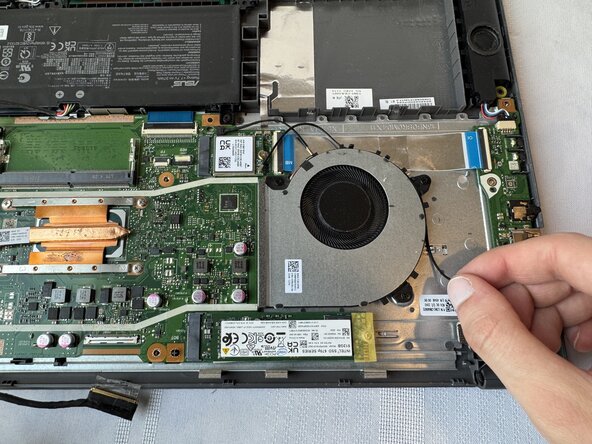
Unroute the Wi-Fi cable from around the cooling fan.
-
Lift up on the Wi-Fi cable to disconnect it from its port.
-
-
-
-
Remove six silver 5mm screws from the hinges using a Phillips #1 screwdriver.
-
One screw has a metal ring surrounding it. This ring is connected to the LCD cable.
-
Pull both hinges away from the motherboard until they are at a 90° angle in relation to the laptop base.
-
-
-
Lift and remove the main laptop base away from the screen assembly, and set the base aside.
-
-
Tool used on this step:Prying and Opening Tool Assortment$9.95
-
Use the plastic pry tool to unclip the surrounding bezel.
-
-
-
Remove two black 2mm screws from the top of the screen assembly using a Phillips #1 screwdriver., these connect the LCD to the back plate.
-
Remove six silver 2mm screws from the bottom of the screen assembly; these connect the hinges to the screen assembly.
-
Two of the silver 2mm screws will be covered by silver tape; use tweezers to lift this tape before unscrewing them.
-
-
-
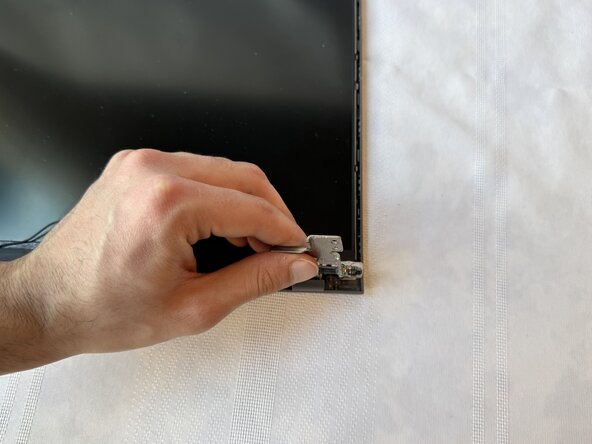
Lift and remove the hinges that were previously unscrewed.
-
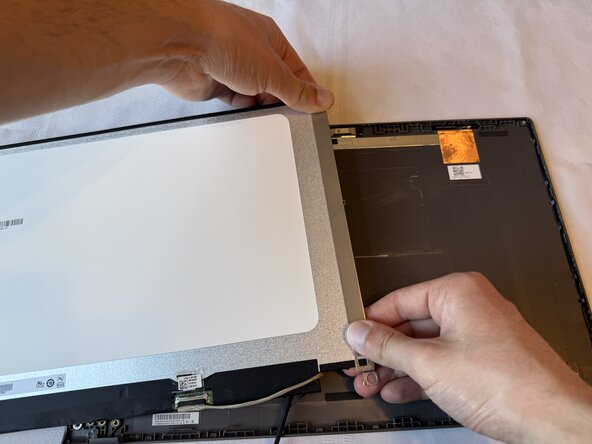
Carefully lift the LCD screen out of the back plate.
-
Flip and lay LCD screen face-down to reveal the LCD cable and its port, the 30-pin connector on the back of the laptop
-
-
-
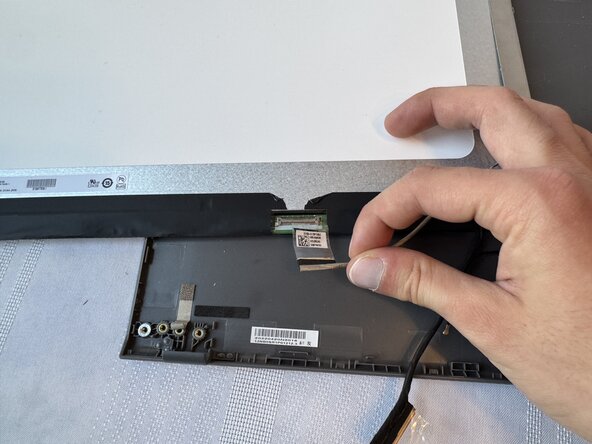
Lift the tape securing the LCD cable to the bracket using tweezers.
-
Disconnect the LCD cable by pulling it away from the panel.
-
-
Tool used on this step:Prying and Opening Tool Assortment$9.95
-
Pry off and remove the LCD brackets located on the back of the LCD using the plastic pry tool.
-
-
-
In order to test the new display, gently connect the tan LCD cable into the new LCD panel's port.
-
Pull the tape taut and press it down to ensure connection.
-
Flip the LCD screen and place it in the screen assembly, so that the display is visible.
-
-
-
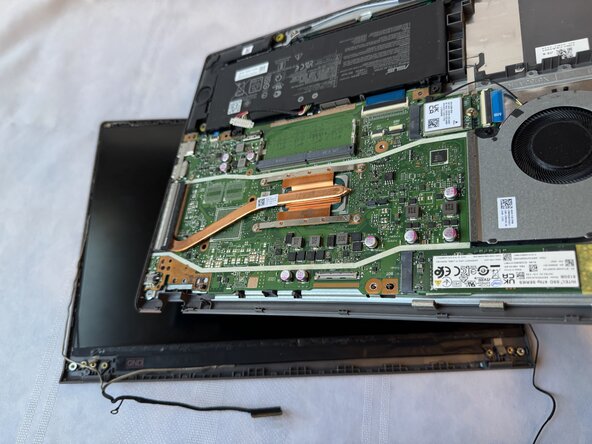
Place the base of the laptop back on top of the screen assembly, ensuring that the hinges align and the internals are facing upwards.
-
Plug the black LCD cable into the motherboard by pressing it gently into its port.
-
Pull the tape on the connector taut and press it down on the motherboard to ensure connection.
-
-
-
Carefully flip the laptop so the keyboard and screen are visible and the internals are facing downwards.
-
-
-
In order to turn on the display, plug the laptop's power adaptor into the charging port.
-
Press the power button located at the top-right hand side of the keyboard; the display should power on if previous steps were completed correctly.
-
-
-
Once the new LCD has been tested, power off the laptop by holding the power button down for 5 seconds.
-
Unplug the power adaptor from the laptop's charging port.
-
-
-
In order to prepare the LCD for reassembly, flip the base of the laptop back on top of the screen assembly, ensuring that the internals are facing upwards.
-
Locate the black LCD cable that was reconnected to the motherboard; it will be removed so that the brackets can be installed on the new LCD.
-
-
-
Use tweezers to lift the tape connecting the black LCD cable to the motherboard.
-
Gently pull the black LCD cable away from the motherboard’s video port in order to disconnect it.
-
-
-
To reisolate the screen assembly, remove the base of the laptop from the top of the screen assembly and put it aside.
-
-
-
Gently flip the LCD screen to reveal its back, ensuring that the tan LCD cable is not unplugged.
-
Retrieve the brackets that were taken off of the old LCD screen, press those on to the back of the new one.
-
-








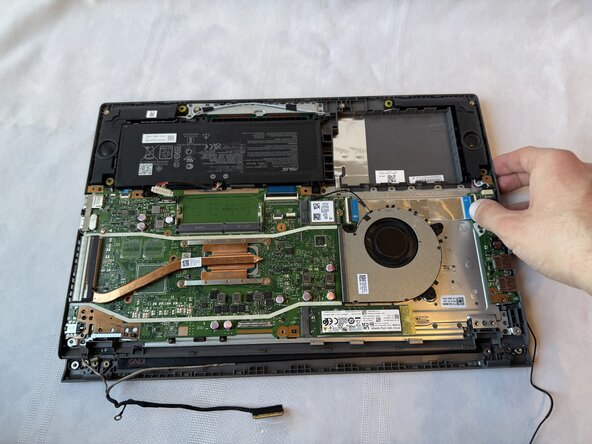
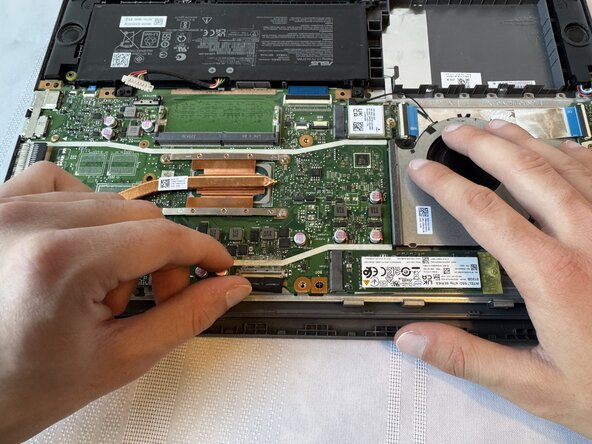


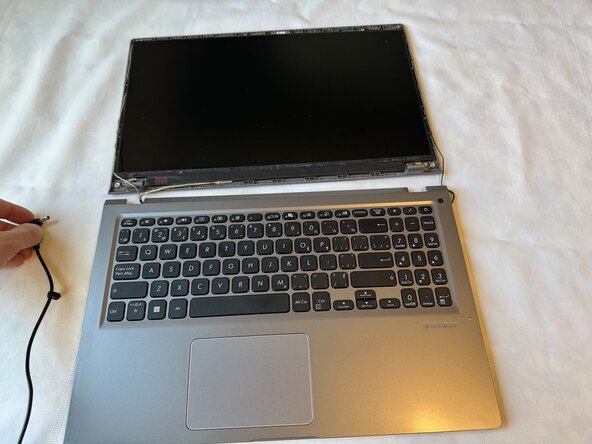


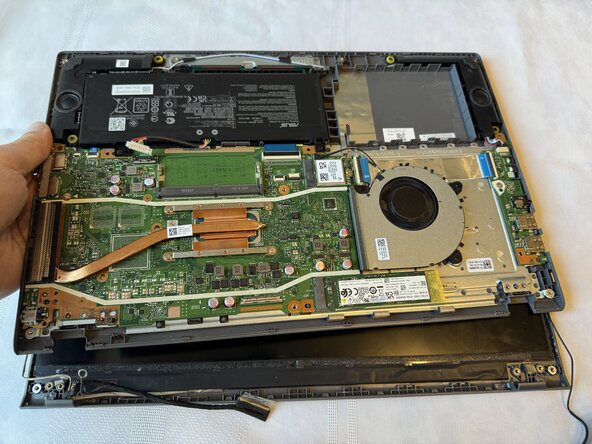




To reassemble your device, follow these instructions in reverse order.
Attached Documents

Team

York University, Team 4-8, Woodhouse Winter 2026 Member of York University, Team 4-8, Woodhouse Winter 2026
YORK-WOODHOUSE-W26S4G8
2 Members
12 Guides authored
