Free Shipping on Domestic Orders $75+

Asus X515 Wifi Card Replacement

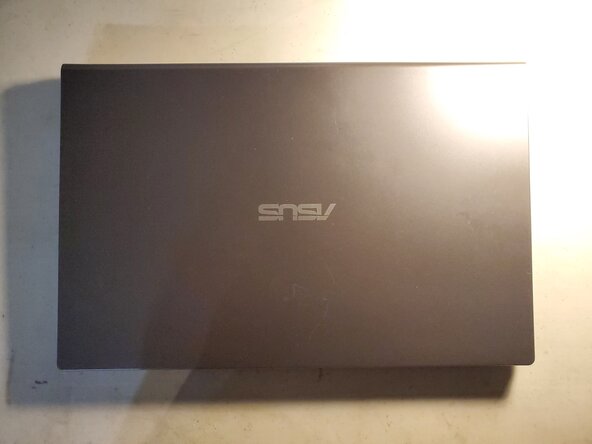
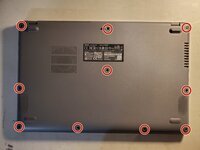
    1. Asus X515 Wifi Card Replacement, Flip over laptop: step 1, image 1 of 2 Asus X515 Wifi Card Replacement, Flip over laptop: step 1, image 2 of 2
      • Power the laptop down and unplug all of the cables.

      • Flip over the laptop.

      Ask FixBot

      Add Comment

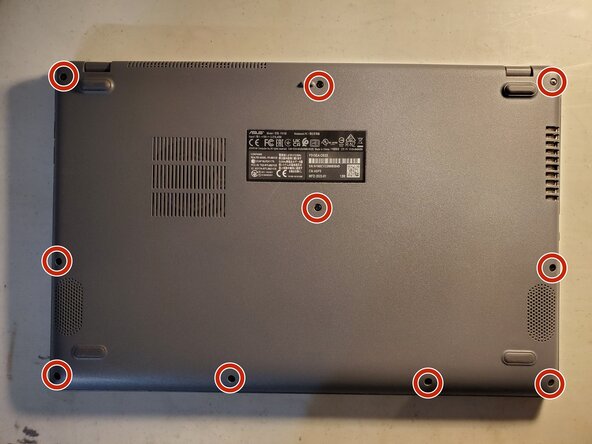
    2. Asus X515 Wifi Card Replacement, Take off bottom cover: step 2, image 1 of 2 Asus X515 Wifi Card Replacement, Take off bottom cover: step 2, image 2 of 2
      • Remove the 10 phillips screws from the bottom of the case.

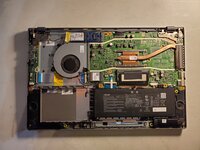
      • Using a prying tool pry the bottom of the case open.

      Ask FixBot

      Add Comment

    3. Asus X515 Wifi Card Replacement, Disconnect battery: step 3, image 1 of 3 Asus X515 Wifi Card Replacement, Disconnect battery: step 3, image 2 of 3 Asus X515 Wifi Card Replacement, Disconnect battery: step 3, image 3 of 3
      • Locate the battery and its connector.

      • Using your fingers or a prying tool pull up on the connector to disconnect it.

      Ask FixBot

      Add Comment

    4. Asus X515 Wifi Card Replacement, Remove Wifi card: step 4, image 1 of 3 Asus X515 Wifi Card Replacement, Remove Wifi card: step 4, image 2 of 3 Asus X515 Wifi Card Replacement, Remove Wifi card: step 4, image 3 of 3
      • Locate the Wifi card.

      • Remove the single screw.

      • Carefully disconnect the cable connected to the Wifi card.

      • The Wifi card will popup.

      • Remove Wifi card by pulling it out.

      Ask FixBot

      Add Comment

Conclusion

To reassemble your device, follow these instructions in reverse order.

Cancel: I did not complete this guide.

Jeremiah C.

Member since: 03/28/22

847 Reputation

6 Guides authored

0 Guide Comments

Add Comment

View Statistics:

Past 24 Hours: 3

Past 7 Days: 28

Past 30 Days: 130

All Time: 1,236