
Asus X502C-RB01 Fan Replacement

Frances Tan and 2 other contributors
Last updated on May 18, 2017
Views: 1.3K
View statistics:
- Past 24 Hours:
- 4
- Past 7 Days:
- 23
- Past 30 Days:
- 88
- All Time:
- 1,258
Comments: 2
1 comment on steps, 1 guide comment.
Go to guide commentsCompleted: 2 3
2 people have marked this guide "completed." Will you be next?
3 people have marked this guide "completed." Including you — great job!
Favorites: 0 1
No one has favorited (and subscribed to) this guide. Will you be the first?
1 person has favorited (and subscribed to) this guide — and that's you!
Featured Student Guide
This guide has been the hard work of our awesome students and is found to be exceptionally cool by the iFixit staff.
Introduction
Go to step 1 ↓If your laptop fan gets clogged with too much dust or is spinning too loud, you might want to clean or replace it. This guide will show you how to get to the fan and remove it to do so.
What you need
Tools
-
Spudger4.9


-
-
-
Turn off the laptop and flip it face down.
-
Using a Phillips #0 screwdriver, remove the seven 9mm screws circled in red.
-
With the same screwdriver, remove the four 5mm screws circled in orange.
 Ask FixBot
-
-
-
Flip the laptop face up and open the lid.
-
Use the plastic opening tool to pry around the entire edge of the keyboard panel to loosen the panel from the base.
-
-
-
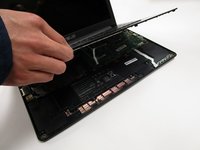
Partially lift the panel up, revealing the two cables connected to the motherboard.
-
-
-
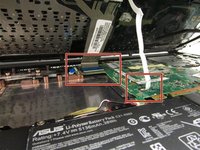
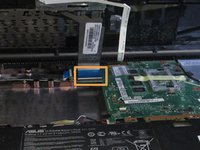
Disconnect the first ZIF cable by lifting the tab using the spuger tool or your fingernail and gently pull the cable out.
-
Disconnect the second ZIF cable by lifting the tab using your fingernail and gently pull the cable out. This one is more difficult to reach with the spudger.
-
-
-
Remove the keyboard panel completely and set it aside. The internal components of the laptop are now exposed.
-
-
-
-
-
-
Remove the four 5mm screws from the hard drive mounting bracket using the Phillips #0 screwdriver.
-
-
-
Slide the hard drive in the direction away from the connector and lift it up to remove it.
-
-
-
-
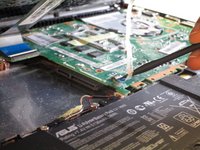
Unplug the battery from the laptop by lifting the connector up with the flat end of the spudger.
-
Unplug the two ZIF cables by lifting the tab using the spudger tool or your fingernail then pulling the cable out gently.
-
-
-
Unplug the bundled cable by pulling it away from the connector with a bit of force.
-
Unplug the display cable connector by lifting the tape and pulling it away from the connector.
-
Unplug the two antenna cables connected to the network interface card by prying it off with the flat end of the spudger.
-
-
-
-
-
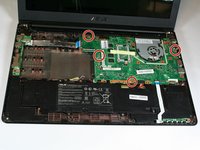
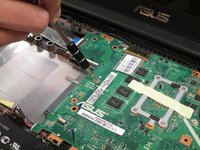
Disconnect the fan from the motherboard by pulling the power cable connector.
-








To reassemble your device, follow these instructions in reverse order.
Cancel: I did not complete this guide.
2 other people completed this guide.

Team

UC Davis, Team 1-5, Rodger Winter 2017 Member of UC Davis, Team 1-5, Rodger Winter 2017
UCD-RODGER-W17S1G5
4 Members
72 Guides authored
