Free Shipping on Domestic Orders $75+

Asus X501A-RH31 Touch Pad Replacement

What you need

    1. Asus X501A-RH31 Touch Pad Replacement, Battery: step 1, image 1 of 1
      • Turn the laptop over so that the back is facing upwards.

      Ask FixBot

      Add Comment

    2. Asus X501A-RH31 Touch Pad Replacement: step 2, image 1 of 1
      • To unlock the left tab, make sure the tab on the left has red showing.

      Ask FixBot

      Add Comment

    3. Asus X501A-RH31 Touch Pad Replacement: step 3, image 1 of 2 Asus X501A-RH31 Touch Pad Replacement: step 3, image 2 of 2
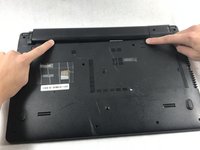
      • To unlock the right tab, push the right slider to the left with one hand.

      • Push the battery out with the other hand.

      Ask FixBot

      Add Comment

    1. Asus X501A-RH31 Touch Pad Replacement, Keyboard: step 4, image 1 of 2 Asus X501A-RH31 Touch Pad Replacement, Keyboard: step 4, image 2 of 2
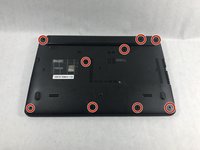
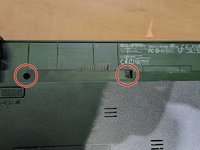
      • Using the Phillips #00 screwdriver unscrew all nine screws from the bottom of the laptop, as well as the additional two screws inside the battery compartment.

      • Nine of the screws are 5 mm long, 4.5 mm in diameter, while two screws closest to the hinges are 7 mm long.

      Ask FixBot

      Add Comment

    2. Asus X501A-RH31 Touch Pad Replacement: step 5, image 1 of 1
      • Turn the laptop over and open the top so the keyboard is facing you.

      Ask FixBot

      Add Comment

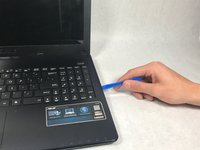
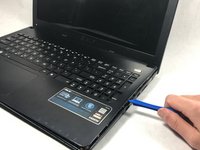
    3. Asus X501A-RH31 Touch Pad Replacement: step 6, image 1 of 2 Asus X501A-RH31 Touch Pad Replacement: step 6, image 2 of 2
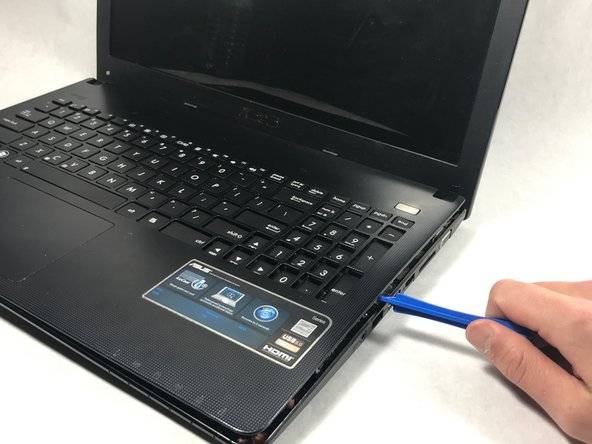
      • Pry off the keyboard cover on the edge using the plastic opening tool.

      • Start from one side. Once it is lose, carry out the same procedure on the front and other side.

      • Only do little sections at a time as the keyboard may break if you attempt to take the whole thing off from a single point.

      Ask FixBot

      Add Comment

    4. Asus X501A-RH31 Touch Pad Replacement: step 7, image 1 of 1
      • Slowly lift the keyboard upward, but do not remove completely.

      • Remove the two data cables that attach the keyboard to the motherboard.

      Ask FixBot

      Add Comment

    5. Asus X501A-RH31 Touch Pad Replacement: step 8, image 1 of 1
      Tool used on this step:
      Tweezers
      $4.99
      Buy
      • Use tweezers to pull the white plastic piece up that is attached to the data cable.

      • Repeat this process for the big black cable as well.

      • Use caution when unlatching the data cables from the motherboard. The cables are extremely delicate and can break.

      Ask FixBot

      Add Comment

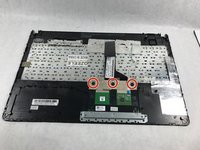
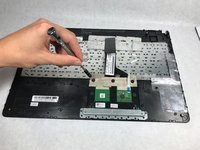
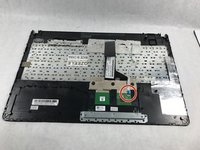
    1. Asus X501A-RH31 Touch Pad Replacement, Touch Pad: step 9, image 1 of 2 Asus X501A-RH31 Touch Pad Replacement, Touch Pad: step 9, image 2 of 2
      • Flip the keyboard over so the side without the keys is facing you.

      • Using the Phillips #00 screwdriver, unscrew the three screws.

      • The three screws are 2mm in length, 6.5mm in diameter.

      Ask FixBot

      Add Comment

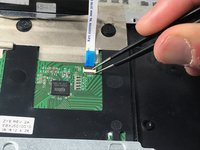
    2. Asus X501A-RH31 Touch Pad Replacement: step 10, image 1 of 2 Asus X501A-RH31 Touch Pad Replacement: step 10, image 2 of 2
      Tool used on this step:
      Tweezers
      $4.99
      Buy
      • Detach the white data cable on the back of the touch pad.

      • Use tweezers to pull the white plastic piece up that is holding in the cable.

      Ask FixBot

      Add Comment

    3. Asus X501A-RH31 Touch Pad Replacement: step 11, image 1 of 1
      • Peel the tan tape that holds the touch pad to the back of the keyboard.

      • Slide the touch pad up and out of the metal plate located near the bottom on the touch pad and keyboard.

      Ask FixBot

      Add Comment

Conclusion

To reassemble your device, follow these instructions in reverse order.

Cancel: I did not complete this guide.

One other person completed this guide.

Christopher

Member since: 10/19/17

371 Reputation

3 Guides authored

Team

0 Guide Comments

Add Comment

View Statistics:

Past 24 Hours: 1

Past 7 Days: 3

Past 30 Days: 29

All Time: 884