Free Shipping on Domestic Orders $75+

Asus X200CA Battery Replacement

What you need

    1. Asus X200CA Battery Replacement, Keyboard: step 1, image 1 of 2 Asus X200CA Battery Replacement, Keyboard: step 1, image 2 of 2
      • Remove the 8 black 4.7mm screws securing the keyboard to the bottom cover.

      • Remove the black 14.5mm screw from the center of the bottom cover.

      Ask FixBot

      Add Comment

    2. Asus X200CA Battery Replacement: step 2, image 1 of 1
      • Wedge a metal spudger between the keyboard and bottom cover and slide it around the perimeter until all edges separate.

      Ask FixBot

      Add Comment

    3. Asus X200CA Battery Replacement: step 3, image 1 of 1
      • Pull apart the keyboard and the bottom cover using your hands.

      • The keyboard and trackpad cables are still connected to the mainboard via a ZIF connector. Carefully disconnect them before completely removing the keyboard to prevent damage to the board or cables.

      Ask FixBot

      Add Comment

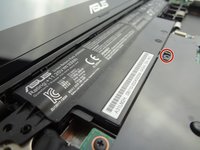
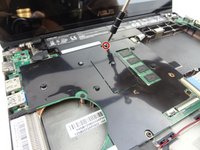
    1. Asus X200CA Battery Replacement, Battery: step 4, image 1 of 2 Asus X200CA Battery Replacement, Battery: step 4, image 2 of 2
      • Use a Phillips #00 screwdriver to remove the black 4.7mm screw holding the battery in place.

      Ask FixBot

      Add Comment

    2. Asus X200CA Battery Replacement: step 5, image 1 of 1
      • Lift the battery by the tab you removed the screw from.

      • Replace with the new battery, if necessary.

      Ask FixBot

      Add Comment

Conclusion

To reassemble your device, follow these instructions in reverse order.

Cancel: I did not complete this guide.

11 other people completed this guide.

Jacqueline Collier

Member since: 10/09/17

1,119 Reputation

5 Guides authored

Team

USF Tampa, Team S1-G2, Leahy Fall 2017 Member of USF Tampa, Team S1-G2, Leahy Fall 2017

USFT-LEAHY-F17S1G2

4 Members

60 Guides authored

0 Guide Comments

Add Comment

View Statistics:

Past 24 Hours: 6

Past 7 Days: 22

Past 30 Days: 91

All Time: 7,642