Free Shipping on Domestic Orders $75+

Asus U56E Laptop Screen Replacement

What you need

  1. Asus U56E Laptop Screen Replacement, Screen: step 1, image 1 of 2 Asus U56E Laptop Screen Replacement, Screen: step 1, image 2 of 2
    • Position the laptop on a flat, stable surface, with the underside facing upward.

    Ask FixBot

    Add Comment

  2. Asus U56E Laptop Screen Replacement: step 2, image 1 of 3 Asus U56E Laptop Screen Replacement: step 2, image 2 of 3 Asus U56E Laptop Screen Replacement: step 2, image 3 of 3
    • Make sure the laptop is unplugged before removing the battery to avoid risk of electric shock.

    • Slide the two battery lock switches toward each other.

    • Lift the battery to remove it from the laptop.

    Ask FixBot

    Add Comment

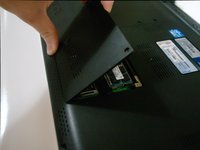
  3. Asus U56E Laptop Screen Replacement: step 3, image 1 of 3 Asus U56E Laptop Screen Replacement: step 3, image 2 of 3 Asus U56E Laptop Screen Replacement: step 3, image 3 of 3
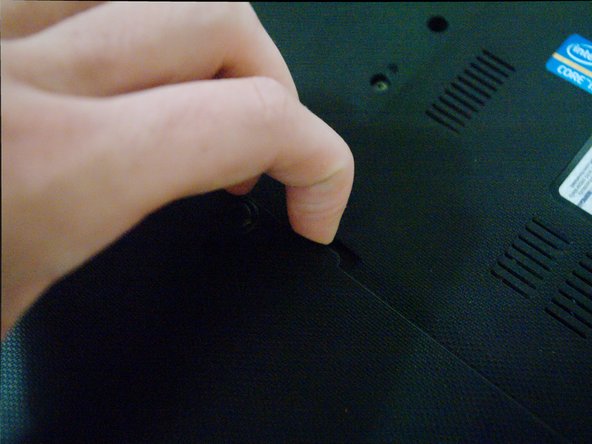
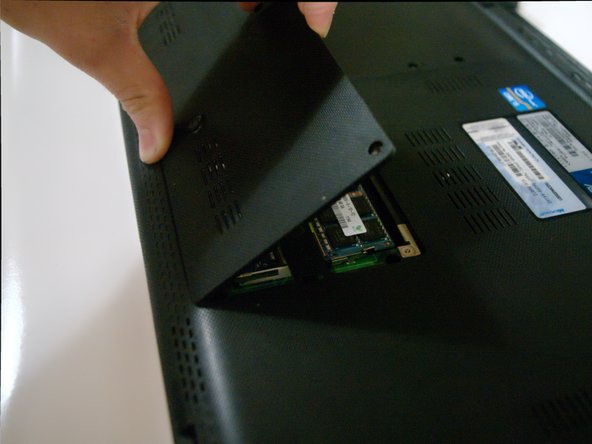
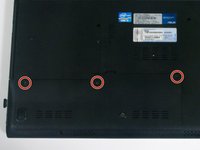
    • Remove the 3 Phillips #00 screws holding on the back cover of the laptop.

    • Lift the cover, exposing the laptop hard drive and RAM.

    Ask FixBot

    Add Comment

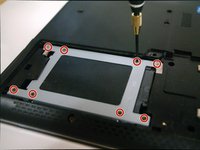
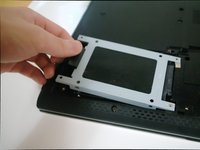
  4. Asus U56E Laptop Screen Replacement: step 4, image 1 of 2 Asus U56E Laptop Screen Replacement: step 4, image 2 of 2
    • Remove the eight small screws holding the hard drive in.

    • The hard drive cover can now be removed by lifting the tab on the left.

    Ask FixBot

    Add Comment

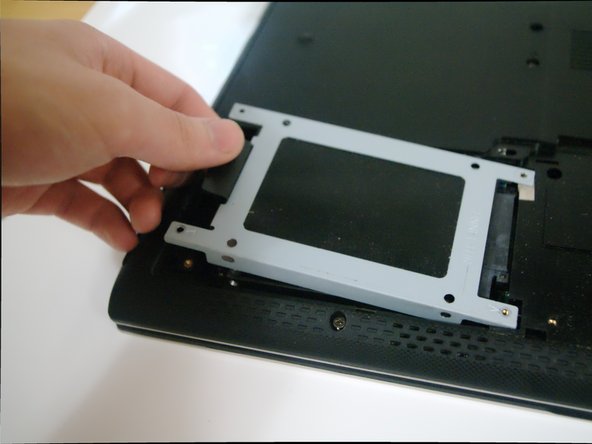
  5. Asus U56E Laptop Screen Replacement: step 5, image 1 of 1
    • Gently slide the hard drive left toward the edge of the laptop, then lift up to remove it.

    Ask FixBot

    Add Comment

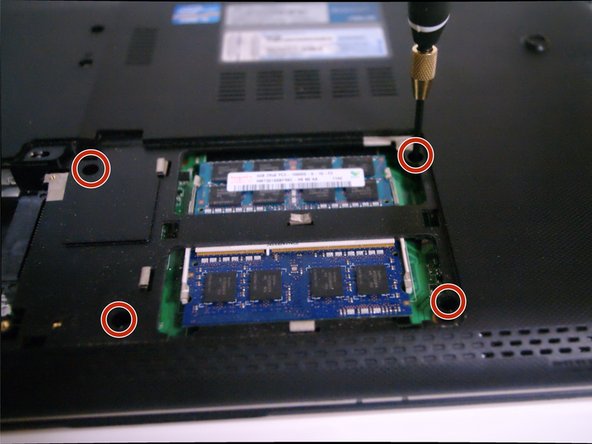
  6. Asus U56E Laptop Screen Replacement: step 6, image 1 of 2 Asus U56E Laptop Screen Replacement: step 6, image 2 of 2
    • Remove the 4 Phillips #00 screws around the RAM.

    Ask FixBot

    Add Comment

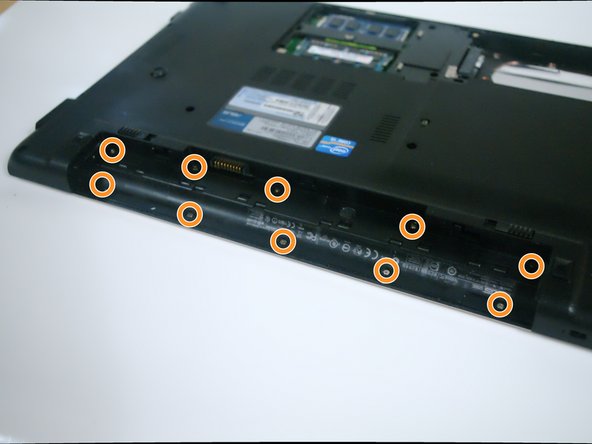
  7. Asus U56E Laptop Screen Replacement: step 7, image 1 of 2 Asus U56E Laptop Screen Replacement: step 7, image 2 of 2
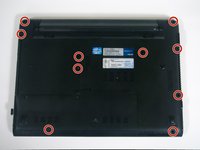
    • Remove the 10 Phillips #00 screws from the bottom of the laptop.

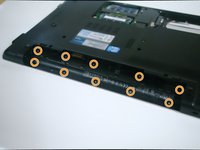
    • Remove 10 Phillips #000 screws from under the battery.

    Ask FixBot

    Add Comment

  8. Asus U56E Laptop Screen Replacement: step 8, image 1 of 2 Asus U56E Laptop Screen Replacement: step 8, image 2 of 2
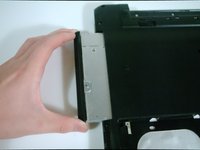
    • Slide the optical drive out of the laptop.

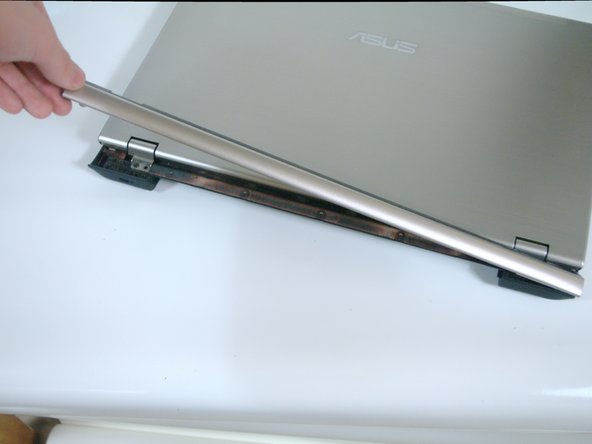
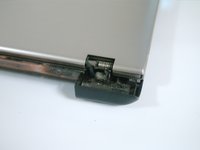
    • Gently lift the rear plastic hinge cover to separate it from the laptop.

    Ask FixBot

    Add Comment

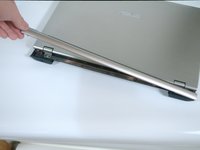
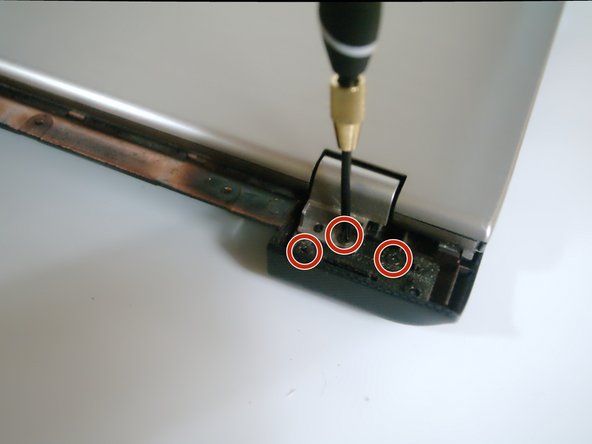
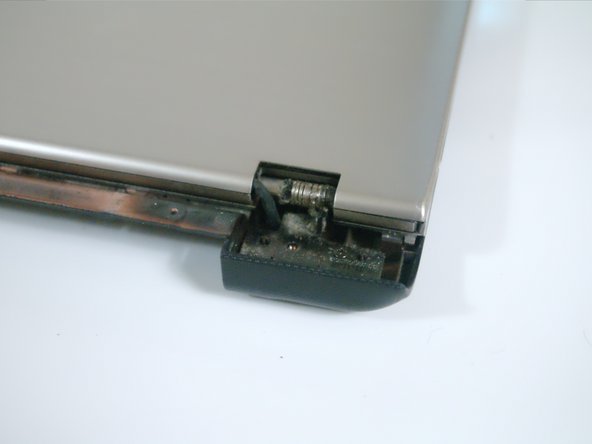
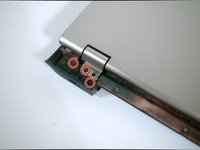
  9. Asus U56E Laptop Screen Replacement: step 9, image 1 of 3 Asus U56E Laptop Screen Replacement: step 9, image 2 of 3 Asus U56E Laptop Screen Replacement: step 9, image 3 of 3
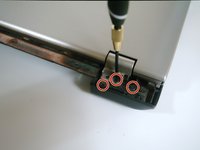
    • Remove the 3 Phillips #000 screws from each side of the hinge (six screws in total).

    • Gently lift the thin plastic cover from each side, exposing the laptop hinge.

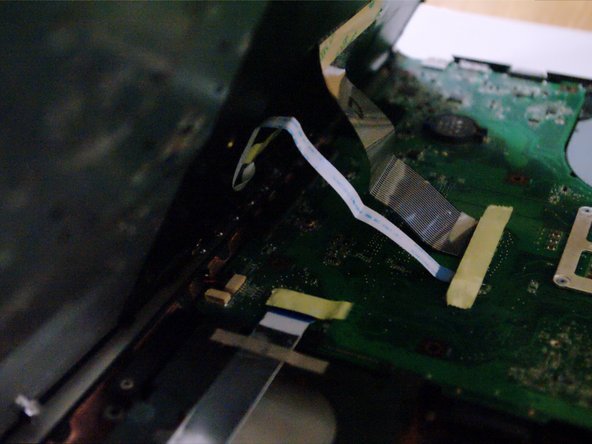
    • Be aware of the thin cables still connected to the screen.

    Ask FixBot

    Add Comment

  10. Asus U56E Laptop Screen Replacement: step 10, image 1 of 2 Asus U56E Laptop Screen Replacement: step 10, image 2 of 2
    • Gently lift around the perimeter of keyboard to separate it from the laptop body.

    • It may help to use a Plastic Opening Tool.

    • Be careful not to pull too hard on the keyboard - It's connected to the motherboard with a thin ribbon cable!
    Ask FixBot

    Add Comment

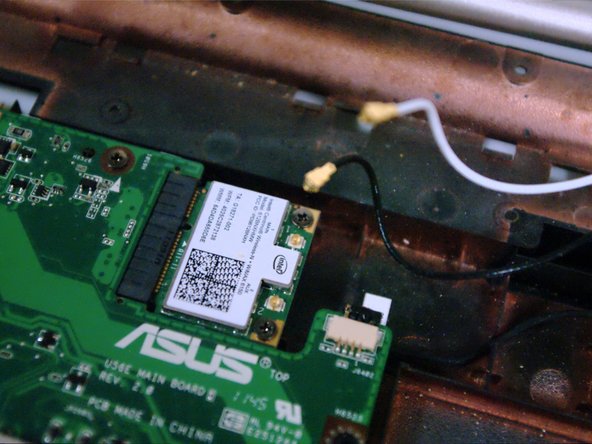
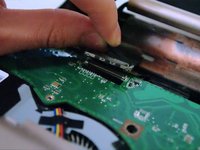
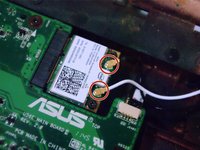
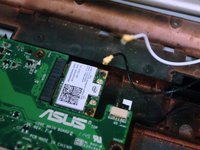
  11. Asus U56E Laptop Screen Replacement: step 11, image 1 of 3 Asus U56E Laptop Screen Replacement: step 11, image 2 of 3 Asus U56E Laptop Screen Replacement: step 11, image 3 of 3
    • Pull the display connector straight up to remove it from the motherboard.

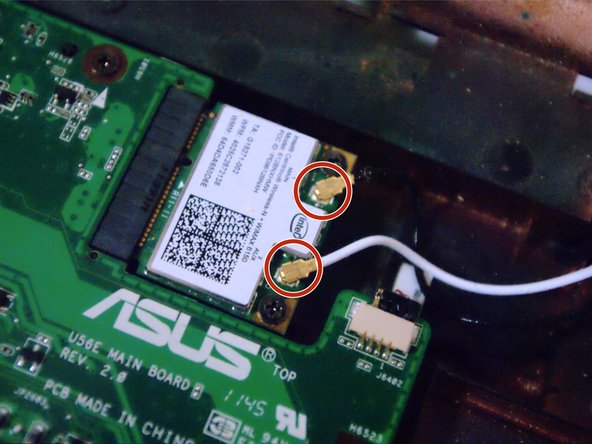
    • Carefully detach the white and black WiFi antennas from the wireless adapter.

    Ask FixBot

    Add Comment

  12. Asus U56E Laptop Screen Replacement: step 12, image 1 of 1
    • The screen can now be safely removed from the laptop.

    Ask FixBot

    Add Comment

Conclusion

To reassemble your device, follow these instructions in reverse order.

Cancel: I did not complete this guide.

One other person completed this guide.

David Zilar

Member since: 09/29/15

167 Reputation

1 Guide authored

Team

Cal Poly, Team 14-5, Green Fall 2015 Member of Cal Poly, Team 14-5, Green Fall 2015

CPSU-GREEN-F15S14G5

4 Members

6 Guides authored

0 Guide Comments

Add Comment

View Statistics:

Past 24 Hours: 1

Past 7 Days: 10

Past 30 Days: 43

All Time: 1,764