Introduction
This guide will show you how to replace the RAM in your Asus U50F-RBBAG05 laptop.
Data is stored and retrieved via your computer's RAM. Your laptop may make strange noises, crash frequently, and display errors if the RAM is degrading. If your computer encounters RAM failure, it could occasionally fail to boot at all.
Consider increasing your RAM if your storage is getting low. Check your remaining storage space by following the instructions here. For this device, 8GB of RAM (DDR3 800/1066) is the maximum amount that may be installed.
Check that your laptop is completely off and removed from all external power sources before continuing.
What you need
-
-
-
Turn the laptop over so the bottom is facing up.
-
Slide the two tabs on the bottom of the laptop toward the edges of laptop.
-
Slide the left tab to the left to lock it into the unlocked position. The red showing next to the tab signifies that it's unlocked.
 Ask FixBot
-
-
-
Hold down the tab on the right side, then begin sliding the battery out.
-
Remove the old battery.
-
-
-
-
-
-
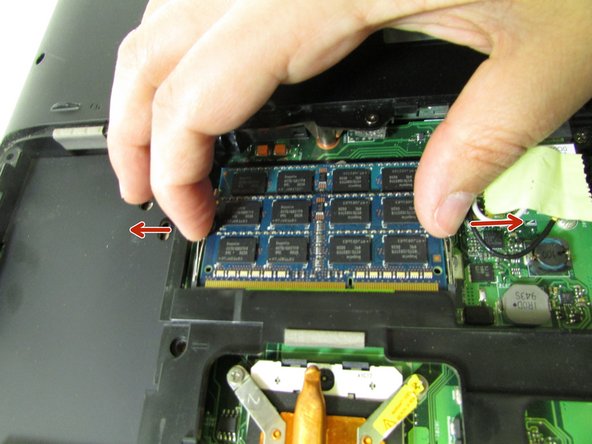
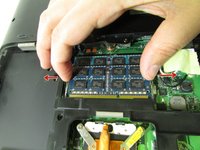
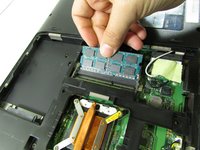
Push back on the silver clips shown in the picture until you hear/feel a pop.
-
-


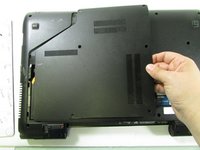
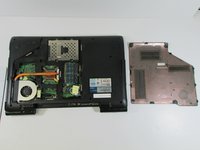

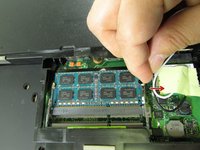


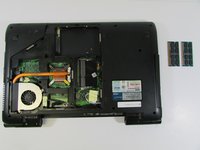
To reassemble your device, follow these instructions in reverse order.

Team

University of Illinois Urbana-Champaign, Team 1-1, Scrogum Spring 2017 Member of University of Illinois Urbana-Champaign, Team 1-1, Scrogum Spring 2017
UICU-SCROGUM-S17S1G1
3 Members
180 Guides authored
