Free Shipping on Domestic Orders $75+

Asus Transformer T100 Button Module Replacement

What you need

    1. Asus Transformer T100 Button Module Replacement, Rear Cover: step 1, image 1 of 2 Asus Transformer T100 Button Module Replacement, Rear Cover: step 1, image 2 of 2
      • Separate the tablet from the base by pressing the large silver button below the tablet. The silver button is located at the base of the tablet.

      • Remove the tablet by lifting up.

      Ask FixBot

      Add Comment

    2. Asus Transformer T100 Button Module Replacement: step 2, image 1 of 2 Asus Transformer T100 Button Module Replacement: step 2, image 2 of 2
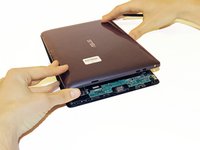
      • Insert the opening tool into the seam of the tablet casing and gently pry upwards.

      • With a little force, you will feel the clips release.

      Ask FixBot

      Add Comment

    3. Asus Transformer T100 Button Module Replacement: step 3, image 1 of 1
      • Slide the tool along all four edges of the tablet, making sure that all the clips are released.

      • Do not break these clips; otherwise, the screen will become less secure.

      Ask FixBot

      Add Comment

    4. Asus Transformer T100 Button Module Replacement: step 4, image 1 of 2 Asus Transformer T100 Button Module Replacement: step 4, image 2 of 2
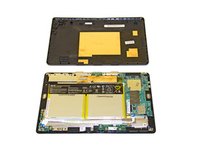
      • Remove the rear casing.

      Ask FixBot

      Add Comment

    1. Asus Transformer T100 Button Module Replacement, Button Module: step 5, image 1 of 1
      Tool used on this step:
      Tweezers
      $4.99
      Buy
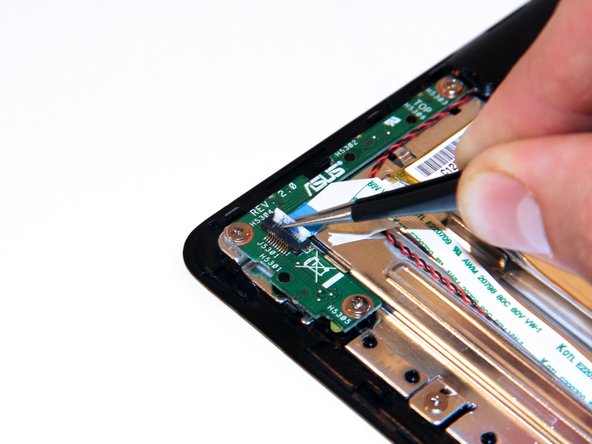
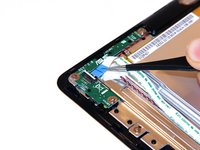
      • Unclip the white connection clip using a pair of tweezers.

      Ask FixBot

      Add Comment

    2. Asus Transformer T100 Button Module Replacement: step 6, image 1 of 2 Asus Transformer T100 Button Module Replacement: step 6, image 2 of 2
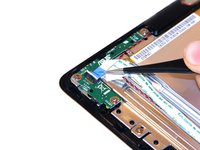
      • Pull the connection apparatus from the connection clip on the board using a pair of tweezers.

      Ask FixBot

      Add Comment

    3. Asus Transformer T100 Button Module Replacement: step 7, image 1 of 1
      • Gently fold the connection apparatus back away from your work area.

      Ask FixBot

      Add Comment

    4. Asus Transformer T100 Button Module Replacement: step 8, image 1 of 3 Asus Transformer T100 Button Module Replacement: step 8, image 2 of 3 Asus Transformer T100 Button Module Replacement: step 8, image 3 of 3
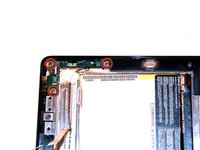
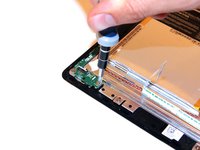
      • Remove the screws using a Phillips Head #1 screwdriver.

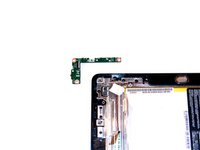
      • Remove the power button module.

      Ask FixBot

      Add Comment

Conclusion

To reassemble your device, follow these instructions in reverse order.

Cancel: I did not complete this guide.

4 other people completed this guide.

Taylor Pantiga

Member since: 04/14/14

1,629 Reputation

6 Guides authored

Team

Cal Poly, Team 13-31, Maness Spring 2014 Member of Cal Poly, Team 13-31, Maness Spring 2014

CPSU-MANESS-S14S13G31

3 Members

72 Guides authored

1 Guide Comment

My problem is that when reinstalltng the back cover the button does not fit the button module to press the on/off switch. The switch works allright.

What can i do? At this moment I can only switch the tablet on after removing the back cover.

Rudolf Guys - Reply Share

Add Comment

View Statistics:

Past 24 Hours: 5

Past 7 Days: 17

Past 30 Days: 46

All Time: 6,604