Free Shipping on Domestic Orders $75+

Asus Transformer T100 Battery Replacement

What you need

  1. Asus Transformer T100 Battery Replacement, Rear Cover: step 1, image 1 of 2 Asus Transformer T100 Battery Replacement, Rear Cover: step 1, image 2 of 2
    • Separate the tablet from the base by pressing the large silver button below the tablet. The silver button is located at the base of the tablet.

    • Remove the tablet by lifting up.

    Ask FixBot

    Add Comment

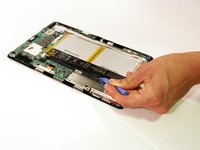
  2. Asus Transformer T100 Battery Replacement: step 2, image 1 of 2 Asus Transformer T100 Battery Replacement: step 2, image 2 of 2
    • Insert the opening tool into the seam of the tablet casing and gently pry upwards.

    • With a little force, you will feel the clips release.

    Ask FixBot

    Add Comment

  3. Asus Transformer T100 Battery Replacement: step 3, image 1 of 1
    • Slide the tool along all four edges of the tablet, making sure that all the clips are released.

    • Do not break these clips; otherwise, the screen will become less secure.

    Ask FixBot

    Add Comment

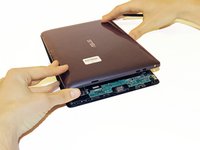
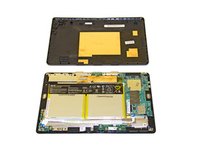
  4. Asus Transformer T100 Battery Replacement: step 4, image 1 of 2 Asus Transformer T100 Battery Replacement: step 4, image 2 of 2
    • Remove the rear casing.

    Ask FixBot

    Add Comment

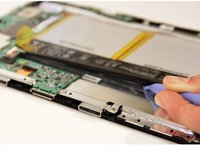
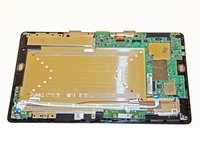
  5. Asus Transformer T100 Battery Replacement, Battery: step 5, image 1 of 1
    • Remove the copper tape carefully.

    Ask FixBot

    Add Comment

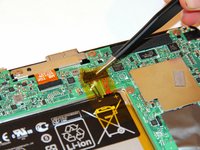
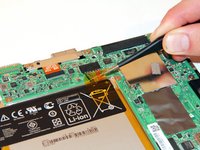
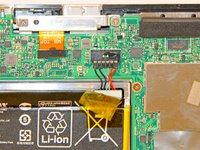
  6. Asus Transformer T100 Battery Replacement: step 6, image 1 of 2 Asus Transformer T100 Battery Replacement: step 6, image 2 of 2
    • Gently pull back the yellow transparent plastic covering on top of the battery connection port.

    Ask FixBot

    Add Comment

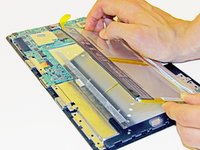
  7. Asus Transformer T100 Battery Replacement: step 7, image 1 of 3 Asus Transformer T100 Battery Replacement: step 7, image 2 of 3 Asus Transformer T100 Battery Replacement: step 7, image 3 of 3
    • Rotate the device so the top of the screen is facing you. Place the plastic opening tool underneath the battery and gently pry upwards to lift the battery out.

    • The battery wire harness will slide out as the battery is pried up.

    Ask FixBot

    Add Comment

  8. Asus Transformer T100 Battery Replacement: step 8, image 1 of 2 Asus Transformer T100 Battery Replacement: step 8, image 2 of 2
    • Remove the battery by slowly peeling the battery away from the connected side.

    • The adhesive on the back will pull away from the battery.

    Ask FixBot

    Add Comment

Conclusion

To reassemble your device, follow these instructions in reverse order.

Cancel: I did not complete this guide.

70 other people completed this guide.

Taylor Pantiga

Member since: 04/14/14

1,629 Reputation

6 Guides authored

Team

Cal Poly, Team 13-31, Maness Spring 2014 Member of Cal Poly, Team 13-31, Maness Spring 2014

CPSU-MANESS-S14S13G31

3 Members

8 Guides authored

22 Guide Comments

So I switched out my screen for it and its not turning on and I checked it everything was correctly place, but my Asus transformer was dead before hand so I tried charging it, and it wasn't charging, so I checked it and it seems the battery wire harness is loose enough to come off, is it possible to fix that?

christian cantu - Reply Share

Hi christian! How did you solve this problem? That happened to me too...

Matheus Moraes - Reply Share

what is the battery part # for t100 and can you purchase it?

thank you

RJ - Reply Share

Part number is C12N1320. They are available from a variety of sources.

Jack Riggins - Reply Share

Thanks for detailed guide.

I could not get the transformer tablet to power up no matter which buttons I held for how long or in what sequence. Unplugging the battery internally and replugging fixed a hung device.

JPWhite - Reply Share

Add Comment

View Statistics:

Past 24 Hours: 4

Past 7 Days: 45

Past 30 Days: 166

All Time: 133,232